


You are here: Home / Additional modules / onOffice sync / onOffice Sync with Microsoft Outlook
€

onOffice sync
onOffice Sync with Microsoft Outlook
With onOffice Sync with Microsoft 365 , you can synchronize appointments and contacts bidirectionally between onOffice enterprise and your Microsoft 365 account.
Inhaltsverzeichnis
- 1. Important Requirements & Notes
- 2. Setting Up Synchronization
- 3. Synchronize Contacts / Addresses
- 4. Synchronize appointments
- 5. Special Sync Rules & Conflict Resolution
- 6. Administrative Settings: Basic Settings → Microsoft Outlook Synchronization
- 7. Email Synchronization
- Video Tutorial: Microsoft 365 Sync with onOffice
1. Important Requirements & Notes
-
Microsoft 365 account required: An active Microsoft 365 account is required to use this service. Simply integrating the onOffice mailbox into a local Outlook installation on your PC is not enough.
-
No alias mailboxes: Alias email addresses from Outlook cannot be integrated.
-
1:1 mapping (one account per user): A Microsoft 365 account can be linked to only one onOffice enterprise user. Multiple enterprise users cannot use the same Microsoft 365 account.
-
Disable existing sync methods: Before performing your first sync, disable any other calendar/contact syncs (e.g., z-Push).
-
Clean up the data beforehand (to avoid duplicates): Before setting up the system for the first time, check for existing contacts and appointments in both systems. If records exist identically in onOffice enterprise and Microsoft 365, duplicates are created during the initial sync. Clean up the data in advance in one system, or use separate calendars.
2. Setting Up Synchronization
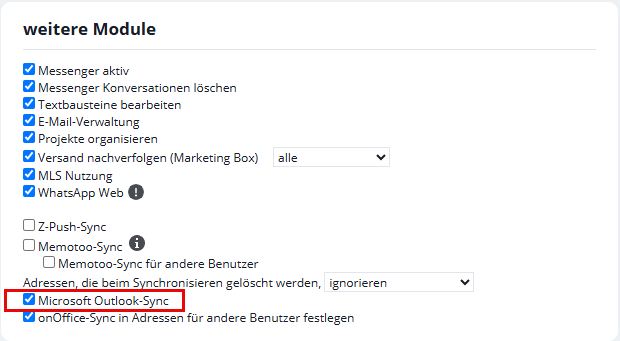
Setup is done directly in the user settings. This requires that your user has been assigned the Microsoft Outlook Sync permission.
Extras → Settings → Users → [select the desired user] → Permissions → Additional Modules → Microsoft Outlook Sync
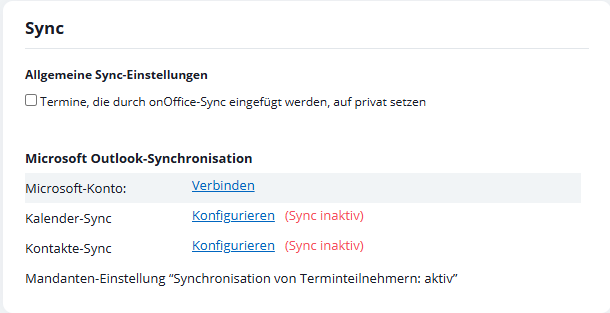
To configure this, go to Extras → Settings → Users → [select the desired user] → Settings → Sync
Steps for Authentication & Configuration
- Connect a Microsoft 365 account:
In the Microsoft Outlook Sync section, click the Microsoft account:button Connect and sign in with your Microsoft account credentials. - Select Calendar & Address Book:
After successfully logging in, select the desired Outlook calendar and/or address book. - Synchronize existing appointments (optional):
- Synchronize existing appointments: Specifies whether appointments that already exist in onOffice are transferred to Microsoft.
-
-
Include dates before: If the “Synchronize existing appointments” option is enabled, you can specify a past time period between 7 and 60 days . After the initial synchronization, only future appointments will be taken into account.
-
Additional Settings for Microsoft Outlook Synchronization (for Administrators)
Extras → Settings → Basic Settings → Microsoft Outlook Synchronization
3. Synchronize Contacts / Addresses
What is synchronized?
Master data such as addresses, phone numbers, email addresses, and basic information (e.g., date of birth) are synchronized.
Synchronization Direction & Mapping
- From Microsoft 365 to onOffice: All contacts from the linked Microsoft address book are transferred to onOffice enterprise and continuously synchronized.
- Prioritizing Addresses: Outlook supports up to 3 addresses (business, personal, other). onOffice Enterprise primarily stores one primary address. Processing is done in order of priority: Business → Personal → Other.
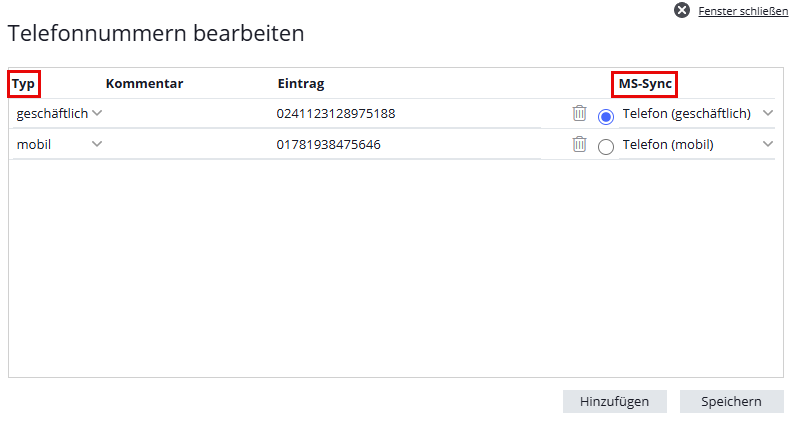
- Field mapping for phone and email: In onOffice enterprise, you can make mappings in the basic contact data under the “MS-Sync” column:
- Phone numbers: A maximum of 2 personal, 2 business, and 1 cell phone number will be transferred. By default, prioritization takes effect: Telephone (private) → Telephone 2 (private) → Telephone (business) → Telephone 2 (business) → Mobile telephone.
- Email addresses: The primary email address is always synchronized first. In addition, emails 1 and 2 in Outlook are populated from the first personal and work email addresses.
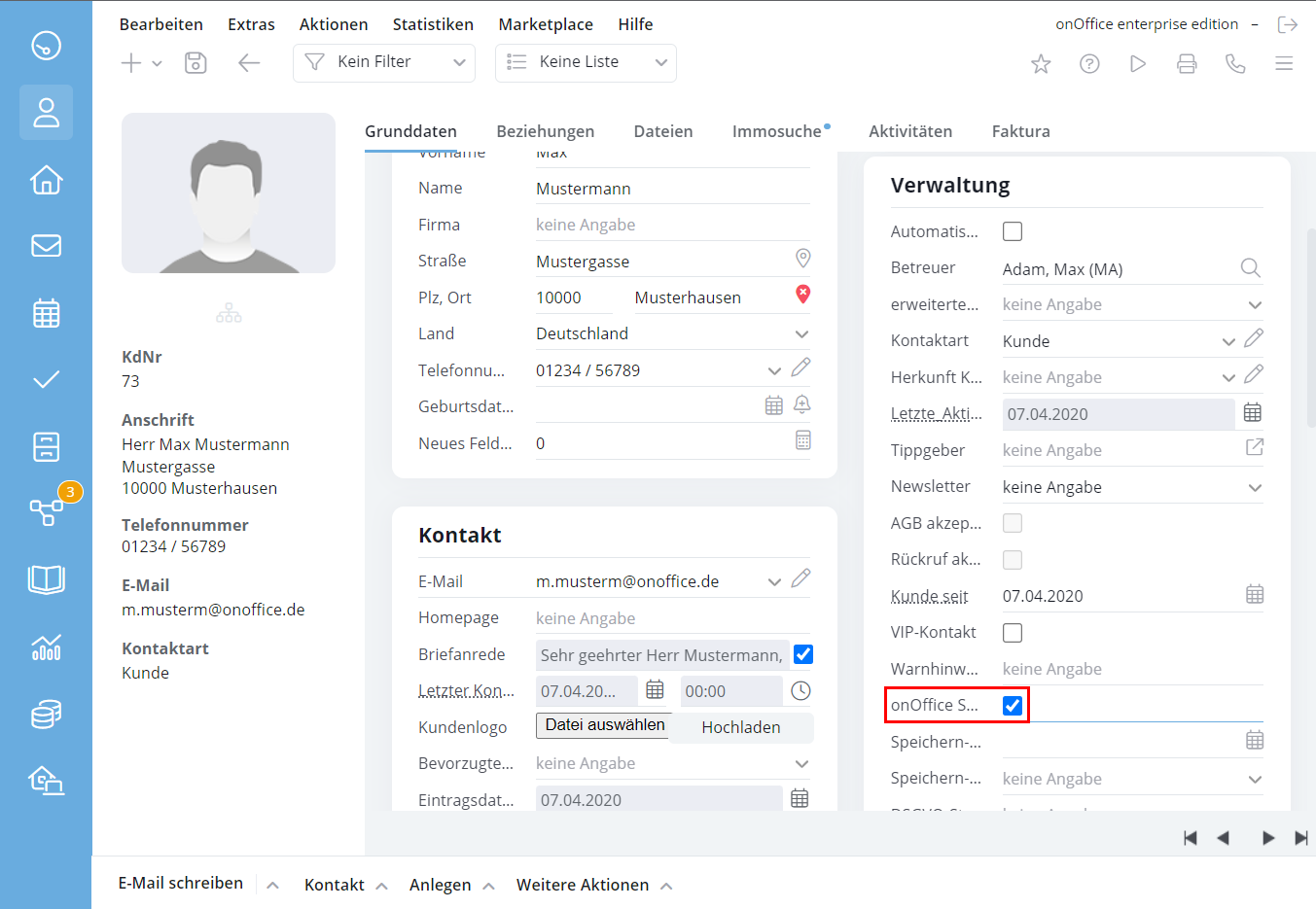
- Controlling the transfer to Microsoft (the “onOffice Sync” checkbox):
To synchronize contacts from onOffice to Microsoft 365, the “onOffice Sync” checkbox must be selected for each contact.- Mass update: With the user right “Set onOffice Sync in Contacts for Other Users,” you can enable sharing for multiple contacts at once via: Actions → Mass Update → Contacts → onOffice Sync.
Delete contacts
For security reasons, deletion operations do not result in immediate data loss in the other system:
- Contact deleted in Microsoft 365: In onOffice enterprise, the record is not deleted; instead, its status is set to Archived and the sync checkbox for your user is unchecked.
- Contact deleted in onOffice Enterprise: The contact remains in Microsoft 365. If it is edited again in Microsoft 365, it will be recreated in onOffice enterprise.
Duplicate check
If the comparison results in duplicate contacts, use the duplicate check at:
Actions → Contact Actions → Duplicate Check.
4. Synchronize appointments
Synchronized Appointment Data
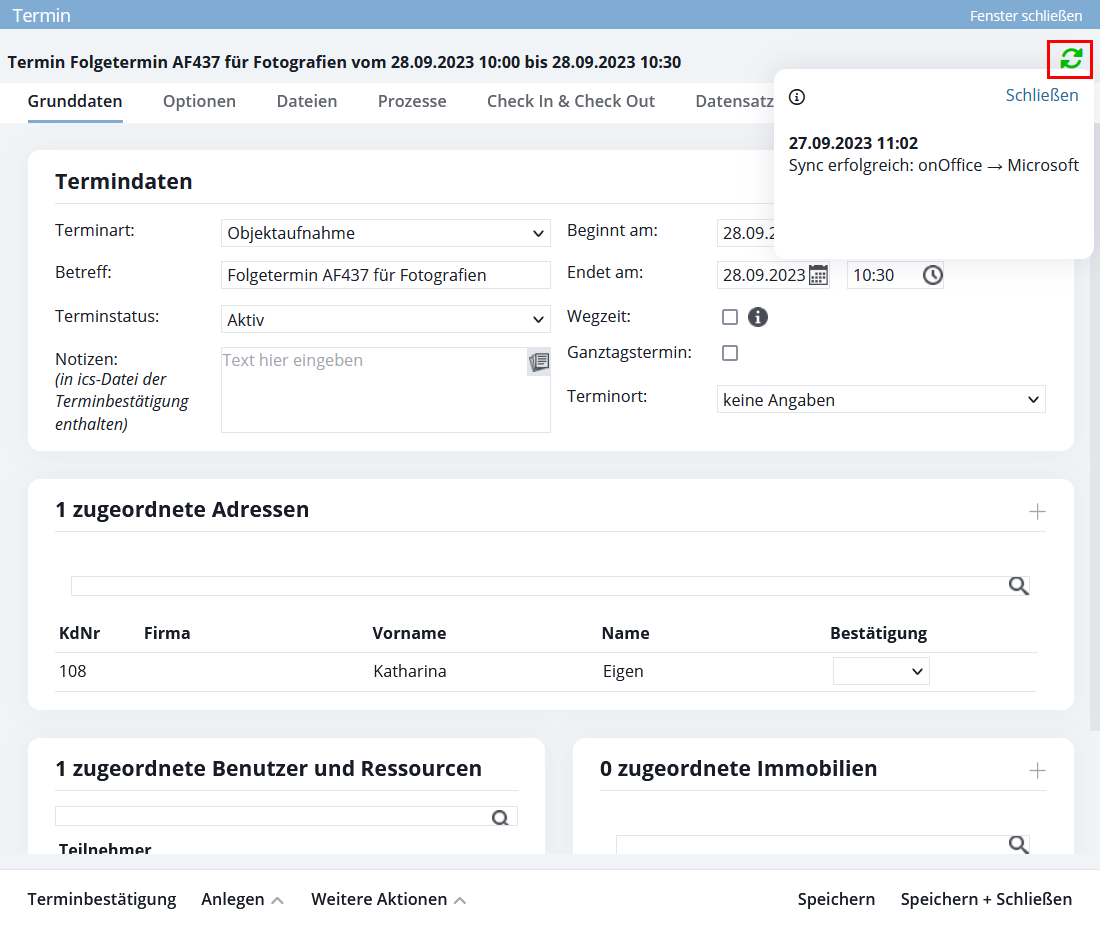
The following are synchronized: times, meeting locations, linked contacts and users, reminders, and private status.
Managing Meeting Participants & Invitation Emails
When Microsoft updates appointments or attendees, it sends automatic email invitations by default. To prevent unintended emails from being sent to customers, onOffice offers the following features:
- “Synchronize Appointment Attendees” option:
If this option is enabled, onOffice creates a separate appointment in Microsoft for each attendee. By doing so, Microsoft prevents the automatic sending of notification emails to all parties involved. - Past events:
If you reschedule an appointment in onOffice to a date in the past, this rescheduling is not synchronized with Microsoft to prevent Outlook from sending reminder emails after the fact.
Status Mapping (Availability & Appointment Confirmations)
To ensure that the availability status is synchronized correctly, the sync uses the Microsoft field showAs:
|
onOffice status |
Microsoft Outlook Status ( |
Events in the Calendar |
|---|---|---|
|
Active |
|
Time-Blocking Appointment |
|
Canceled |
|
Appointment is hidden |
|
Participants available |
|
The time frame remains open for planning |
- Status Fallbacks:
- onOffice → Microsoft: The status Completed is transmitted as
busy. - Microsoft → onOffice: The Outlook statuses
workingElsewhere(Working Elsewhere),tentative(Subject to Change), andoof(Absent) are imported into onOffice as Active .
- onOffice → Microsoft: The status Completed is transmitted as
Reconciliation of Appointment Confirmations
|
Microsoft status |
onOffice status |
|---|---|
|
Accepted (Accepted) |
Confirmed |
|
Tentative (Preliminary) |
Sent |
|
Declined (Rejected) |
Canceled |
|
None / No Response |
Sent (from MS to OO) / Unconfirmed (from OO to MS) |
5. Special Sync Rules & Conflict Resolution
Smart Resolution for Duplicate Email Addresses (MS → onOffice)
If there are multiple users in onOffice enterprise with identical email addresses in their master data, the system uses the following multi-step logic to automatically assign incoming Outlook appointments:
- Active sync channel: The system first checks which active sync channel the appointment is coming through and assigns it to the appropriate user.
- Name Match: If the account is ambiguous, the system compares the email address in combination with the user’s first and last name (including correction of umlauts and accents).
- Fallback (Highest User ID) & Visual Warning: If the user cannot be uniquely identified even by name, the system automatically selects the active user with the highest user IDto prevent the synchronization from being interrupted.
- Visual identification: The sync status of the appointment is set to orange in the overview, with the note “Due to identical email addresses in the basic data, a unique assignment was not possible.”
Write Protection & Sync Locks for Appointments
In onOffice enterprise, appointments can be set to read-only under certain security conditions:
1. Invalid or missing email addresses
If an appointment contains contacts with empty or invalid email addresses, synchronization for that appointment will be blocked. Once the email address has been corrected in the address field, the synchronization will automatically be re-enabled.
2. Write Protection When the Organizer Is Missing (Orange Sync Icon)
If the organizer of an appointment imported from Microsoft is not in onOffice or does not have calendar sync enabled, the appointment is created in onOffice as read-only .
- Reason: Prevents synchronization conflicts and duplicate email messages sent by Microsoft.
- Labeling: The sync status is displayed in orange . Changes from Microsoft will continue to be applied.
3. Write Protection When the Contact System Is Locked (Red Sync Icon)
If automatic contact creation is disabled in the default settings, or if the blacklist is in effect and the appointment includes unknown participants, a security lock is triggered:
- Behavior in onOffice: The appointment pop-up becomes read-only (Read-Only). Outbound sync (onOffice → Microsoft) is paused; incoming changes from Microsoft are being processed.
- Labeling: The sync icon turns red with the message:
“Sync suspended due to the blocked contact system for this appointment.” - Repeal: The block is automatically lifted as soon as the missing contact records are created in onOffice or the unknown contact is removed from Outlook.
6. Administrative Settings: Basic Settings → Microsoft Outlook Synchronization
As an administrator, you can specify whether new contact records should be automatically created in CRM for incoming meeting invitations from Microsoft 365 and how meeting attendees should be synchronized.
Settings → Basic Settings → General → Microsoft Outlook Synchronization
Synchronization of appointment participants
When you change or create a new appointment in onOffice or Outlook, Microsoft automatically sends notification emails to the participants. If you do not want to receive automatic notification emails from Microsoft when you change or create an appointment in onOffice, you should not enable this setting.
If this setting is disabled, please note the following:
- The appointment will be created in Outlook only for participants who have enabled Microsoft Outlook synchronization in their settings at the time of synchronization.
- In Outlook, each user has only themselves listed in the appointment, meaning a separate appointment is created for each user.
- Automatic notification emails that would be generated by Microsoft Sync are prevented only for appointments created in onOffice.
- When an appointment is created in onOffice, the contacts in the appointment are not transferred to Outlook.
- Only newly scheduled appointments will be taken into account. Existing appointments will not be affected by the new policy.
Attaching Contact Data to Appointment Invitations
- Deactivated: In general, no new contact records are created from appointments in the CRM.
- Activated: Unknown meeting participants are automatically added as new contacts in onOffice.
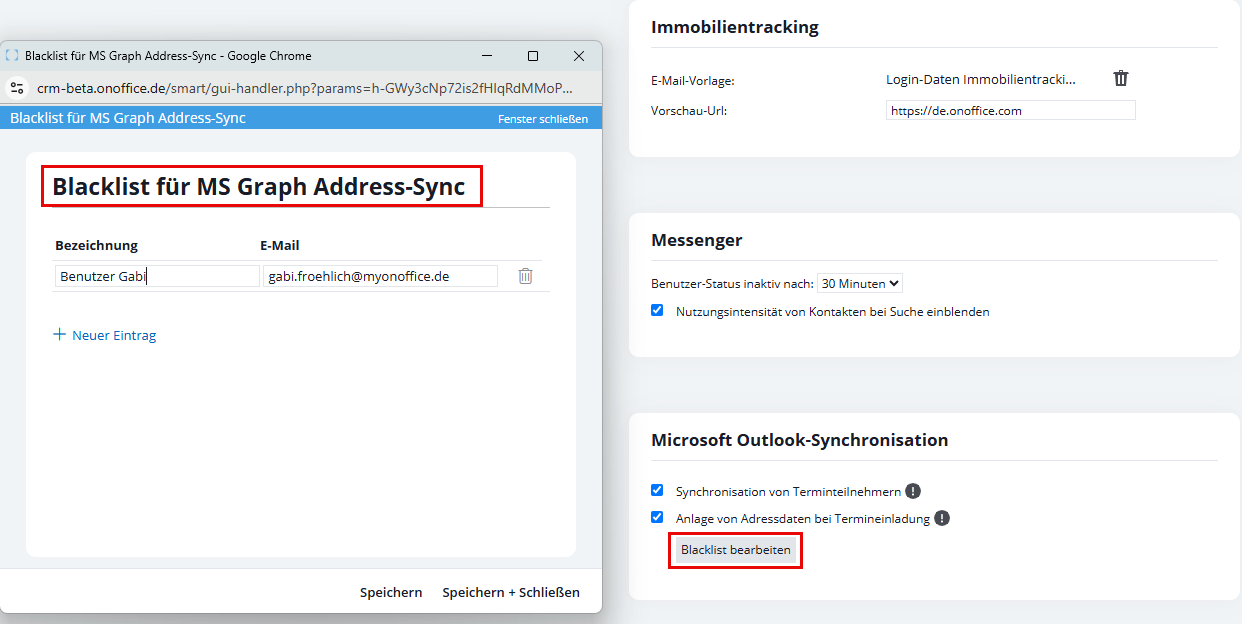
- Manage the email blacklist (“Edit Blacklist”):
If automatic contact creation is enabled, the Edit Blacklist button becomes visible. Here, you can specifically exclude email addresses from Outlook organizers.
-
- Click Edit Blacklist.
- In the pop-up window “Blacklist for MS Graph Calendar Sync” , click + New Entry.
- Enter the organizer’s name and email address .
- Click Save or Save & Close.
Effect of the blacklist: If Microsoft 365 synchronizes a meeting whose organizer is on the blacklist, the automatic creation of new contact records for all unknown participants in that specific meeting is suppressed.
7. Email Synchronization
Emails are not transferred via the standard calendar/contacts sync, but rather through onOffice enterprise’s built-in email account integration.
For information on setting up your Microsoft 365 mailbox, see the separate guide on Mailbox Authentication (OAuth / Microsoft 365).
Video Tutorial: Microsoft 365 Sync with onOffice
0:16
0:16
0:16

Entry
Dashboard
Contacts

Properties

Email

Calendar

Tasks

Acquisition Cockpit

Audit-proof mail archiving

Automatic brochure dispatch

Billing

Groups

Intranet

Marketing Box

Multi Property module
Multilingual Module

onOffice sync

Presentation PDFs

Process manager

Project Management

Property value analyses
Enquiry Manager

Showcase TV

Smart site 2.0

Statistic Tab

Statistics toolbox

Success Cockpit

Time Tracking

Address from clipboard

Text block

Customer communication

External Tools

Favorite links

Calculating with formulas

Mass update

onOffice-MLS

Portals

Property import

Quick Access

Settings

Templates

Step by step