

You are here: Home / Entry / Structure of the surface / Content sidebar / Tasks
Tasks
Entry
Acquisition Cockpit
API Module
Audit-proof mail archiving

Automatic brochure dispatch
Automatic CSV export
Billing
Groups
Intranet

Marketing Box

Multi Property module
Multilingual Module
Online feedback
onOffice sync
Presentation PDFs
Process manager
Project Management

Property value analyses
Enquiry Manager

Showcase TV

Smart site 2.0

Statistic Tab

Statistics toolbox
Success Cockpit
Telephone module
Time Tracking
Whatsapp WebYou are here: Home / Entry / Structure of the surface / Content sidebar / Tasks

Entry
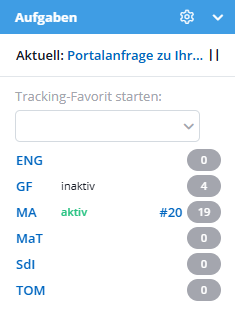
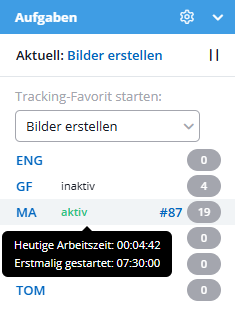
The Tasks sidebar provides a quick overview of your current task, your favorites, and your team’s status.
Current: Displays the task you are currently working on.
Detailed view: Click the task name to view its details.
Pause: Click the pause icon (||) to stop tracking the time spent on this task.
Start your favorite tracking: Use the dropdown menu to select one of your predefined default tasks to start tracking it right away.
Note: Assignments appear here as soon as the “Favorite” checkbox is selected in the respective assignment details.
In the list, you can see the current status of your employees:
Employee Abbreviations: Clicking the icon on the left opens the respective employee’s personal to-do list.
Status & Ticket Number:
Indicates whether the employee’s work time tracking is active (green) or inactive .
When you hover the mouse pointer over the status, a tooltip appears with details about today’s work hours and when they began.
For active tasks, the ticket number is displayed (e.g., #20). Clicking on it takes you directly to the assignment.
Attention (Red Number): If a ticket is in progress but time tracking for it is not enabled, the task number is displayed in red.
Hovering over the ticket number displays the subject of the task.
Number of tasks: The number on the far right indicates how many tasks the employee currently has in progress (excluding deferred tasks).
Prerequisites / Rights:
Extended color markings and status displays are visible if the “Color markings in task box” option is activated under “Administrative rights” in the user rights .
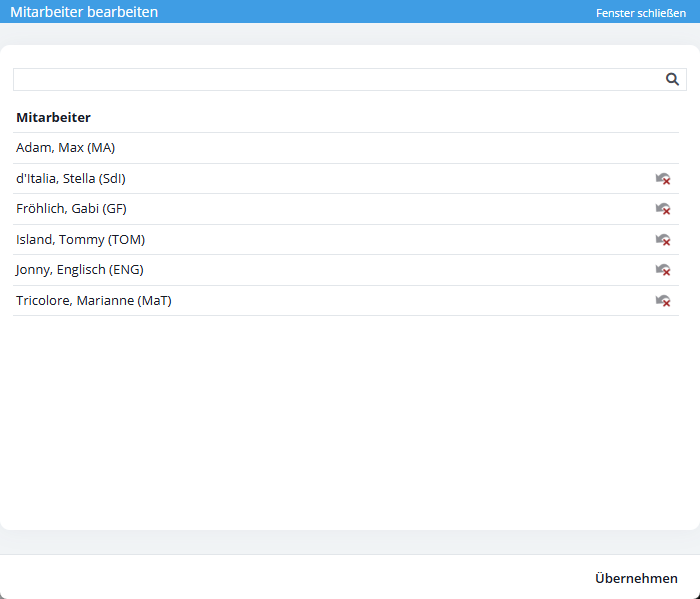
Gear icon: Use the Settings icon in the upper-right corner to select which employees should be displayed in the list.