 Entry
Entry Dashboard
 Contacts
 Properties
 Email
Email Calendar
 Tasks
Tasks Acquisition Cockpit
 Audit-proof mail archiving
 Automatic brochure dispatch
 Billing
 Groups
 Intranet
 Marketing Box
 Marketplace
 Multi Property module
 Multilingual Module
 onOffice sync
 Presentation PDFs
 Process manager
 Project Management
 Property tracking
 Property value analyses
 Enquiry Manager
 Showcase TV
 Smart site 2.0
 Statistic Tab
 Statistics toolbox
 Success Cockpit
 Time Tracking
 Address from clipboard
 Text block
 Customer communication
 External Tools
 Favorite links
 Calculating with formulas
 Mass update
 onOffice-MLS
 Portals
 Property import
 Quick Access
 Settings
 Templates
 Step by step


You are here: Home / Extras / Settings / Basic settings / Withdrawal / Brokerage contract (agreementLink)

Settings
Brokerage contract (agreementLink)
onOffice does not provide legal advice. We cannot guarantee legal certainty for the use of the template / sample texts. We ask for your understanding that we as a company cannot give binding legal advice. No legally binding claims can be derived from these instructions. For all legal questions regarding the design of your revocation texts and the implementation of legal obligations, the user must consult a specialist lawyer.
Inhaltsverzeichnis
Configuration
This feature can be managed at two different levels: Centrally via the basic settings or individually for groups. Please note the different menu structure in the settings:
- Basic settings Navigate to Extras → Settings → Basic settings. Click here to open the Revocationtab. This is divided into two sub-tabs: Brokerage Agreement (AgreementLink) and Electronic Notice of Withdrawal. Click here to go to the Brokerage Agreement (Agreementlink)sub-tab.
- Group Settings: Go to Extras → Settings → Groups and select the desired group. Unlike the default settings, there are no sub-tabs here. Instead, the topics are divided into two separate main tabs: Brokerage Agreement (AgreementLink) and Cancellation. Click here to open the Brokerage Agreement (Agreementlink)tab directly.
Language dependent settings
In the left-hand pane, you can specify how the online form is structured—both visually and in terms of content—for the customer. The “Language-Dependent Settings” category is always displayed. However, selecting a specific language from the drop-down menu requires the multilingual module (otherwise, language selection is disabled). If no translation is available for a language, the system automatically defaults to the German text.
Form Design
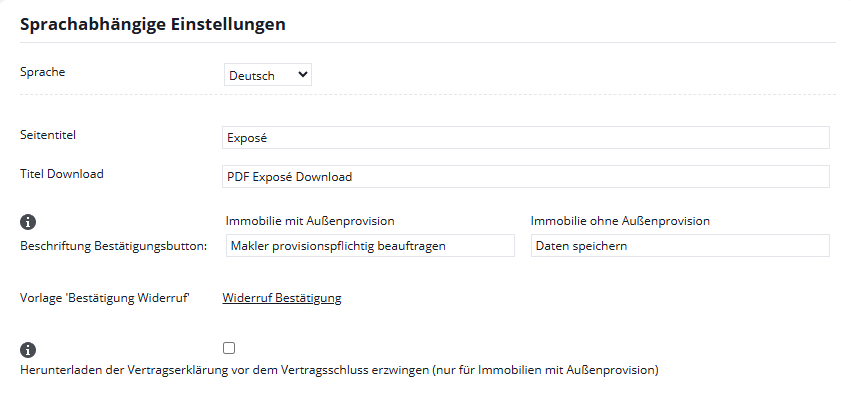
- Page Title: The title that appears in the customer’s browser tab when they open the form.
- Download Title: The heading for the section where the files are made available after successful confirmation.
- Confirmation button label: The system dynamically determines the text for the confirmation button at the bottom of the page based on the stored property data. To do this, enter the desired button text for each commission type.
- Ads in emails: The exact text on the button that the prospective customer clicked will also be displayed in the confirmation emails sent to the customer and the user for future reference.
- onOffice Enterprise checks the property fields in the following order:
“Subject to Commission” field
“No Commission” field
“Outside Commission” field
Displayed button text
Set
It doesn’t matter
It doesn’t matter
Text for “With external commission”
Not set
Set
It doesn’t matter
Text for “No external commission”
Not set
Not set
Filled
Text for “With external commission”
Not set
Not set
Empty
Text for “No external commission”
All other cases
–
–
Text for “With external commission”
-
- Use outside Germany: Simply enter the same text in both fields.
- Manual control: You can override the button texts in the _agreementLink macro using the parameters buttontextIMA (with external commission) and buttontextIOA (without external commission).
- Not related to real estate: If the link is clicked without being directly associated with a property (e.g., when simply confirming the Terms and Conditions), the button is labeled by default—and cannot be changed—as “Confirm” .
- Revocation Confirmation Template: Link the desired email template that you want to be sent automatically to the customer after they confirm the terms of the brokerage agreement. The email template “Confirmation revocation declaration” from the folder “oO – Templates with company color” is stored as the default. Only email templates in the “Revocation” category can be used here
Forced Download of the Contractual Declaration
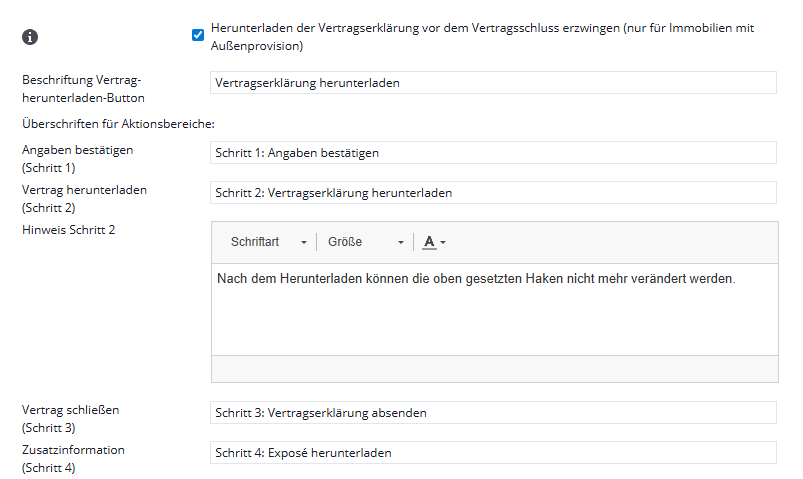
- Checkbox “Require the contract declaration to be downloaded before the contract is concluded”: This option requires downloading all content (including contract declarations) in the form of a PDF file before receiving the property brochure. After downloading, the confirmed provided details (checkboxes) become read-only, ensuring that the prospect saves the declaration in its final form permanently on their device.
- This option applies only to properties with an external commission.
The individual steps for the customer, as well as the text on the button on the website, can be customized using “Text for the ‘Download Contract’ Button” and “Headings for Promotional Sections.”
Configuring Text Blocks
The individual queries are organized as expandable and collapsible boxes. The header row displays the position, name, status (active/inactive), and required selection. The text itself is edited using the built-in CK Editor (including formatting, links, and images).
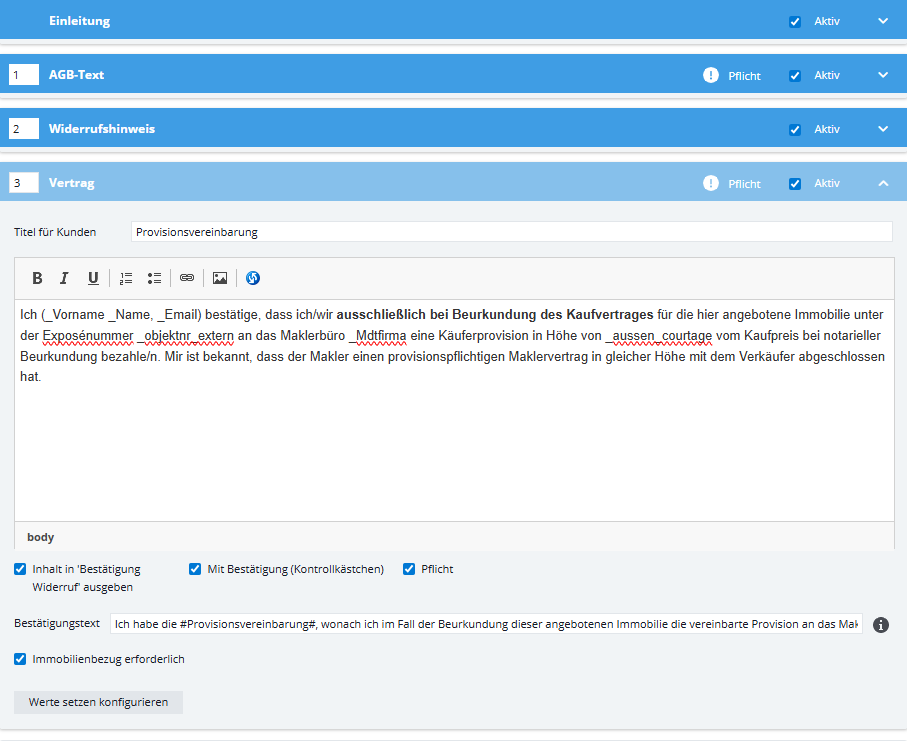
Options within the boxes (not all options are always available, depending on the configuration and/or type of boxes):
- Show expanded text: When enabled, the entire text is immediately visible on the website. When inactive, the customer sees only the title and a plus icon to expand it manually.

- Display the content in “Confirmation of Revocation” (1): Controls whether this specific module text is included in the confirmation email sent to the customer.
- Display content in the property form with (2) or without (3) an external commission: Specifies, on a per-commission-type basis, which commission type the module should appear for in the form.

- With confirmation (checkbox) (1): Shows the checkbox for the customer.
- Requirement (2): The customer must confirm this module to unlock the download. The confirmation is documented in the Activities section and in the agent’s Log.
- Confirmation text (3): The text right next to the checkbox.
- Real estate reference required (4): Prevents the email from being sent if no property is associated with the message. This is absolutely necessary if you want to make changes to the property record using “Set Values.”
- Show text with a click (5)
You can hide the main text of a module completely and have it appear only after clicking on a word in the confirmation text that serves as a link.- To do this, use the hash symbol #: Enclose the desired word in the “Confirmation Text” field. Example: Yes, I have read the #Terms and Conditions#. ➔ On the website, the word becomes a link that expands the text.
- Set values: Clicking the “Configure Set Values” button opens a separate settings window where you can set and save automatic values. The values entered are mentioned in the informational email sent to the real estate agent and are recorded in the agent’s log and the activity log.
- Actions when the block is CONFIRMED: Specify in which module (Address or Property) and in which specific field a particular value should be entered automatically (e.g., check the “Terms and Conditions Confirmed” box in the address record).
- Actions to take if the module is NOT approved: Similarly, define actions or status changes that occur when a customer declines.

Add or remove your own text blocks
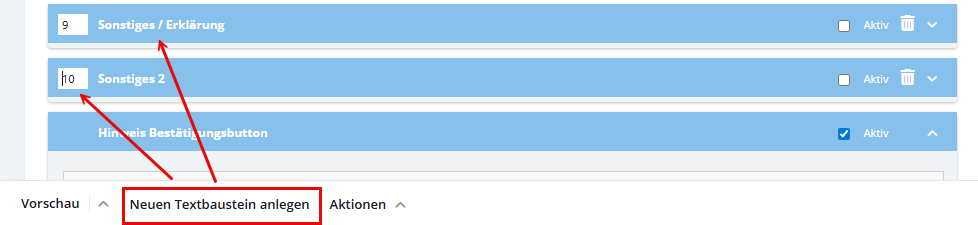
- Add: Via the action bar, select “Create New Text Block.” You can change the internal name directly in the box’s title bar. In the _agreementLink macro, these text modules can be retrieved as parameters using their names
- Remove: Via the trash can icon for individual building blocks.
- Attention: If a box is deleted that is still being used in active email templates via a macro, the macro remains technically active, but the text block is no longer displayed on the query page.
Navigation in Long Lists
At the end of the module list, use the dropdown menu “Actions”to speed up the editing process:
- Expand all: Opens all text block boxes at the same time for editing.
- Close all: Close all boxes for a clearer view of the order.
Language independent options
In this section, you can configure the basic behavior of the online form, as well as the administrative processes and background notifications that occur after submission.
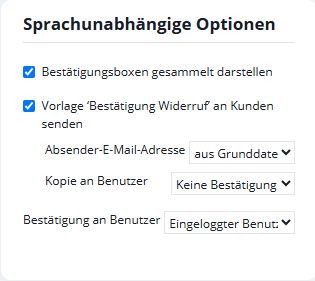
- “Display confirmation boxes together” checkbox: If this option is enabled, all checkboxes are grouped together at the end of the form instead of appearing individually after each text block.
- Checkbox “Send “Confirmation withdrawal” template to customer”: Enables the automatic sending of a confirmation email to the prospect’s email address as soon as they have successfully completed the form. This email clearly documents which text modules the customer has accepted. The content and confirmation texts are displayed in detail, and all files available for download are listed. For real estate listings with an external commission, the contract agreement is also attached as a PDF.
- Sender email address: Sets the sender address for the confirmation email sent to the customer. Available for selection:
- Sender: Cancellation Policy – Use the same sender address as when the link was originally sent.
- aBasic Data – Uses the company email address stored in the general settings.
- Copy to user: Specifies who should receive an exact copy of the customer confirmation email for documentation purposes.
- Confirmation to user: Specifies the internal mailbox to which the detailed notification regarding the text modules accepted by the customer and the approved downloads will be sent. This email also provides a detailed summary of the text modules accepted by the customer (including content and confirmation texts) and lists the downloads that have been made available.
For both options (“Copy to User” and “Confirmation to User”), the system offers identical choices in the drop-down menu, depending on how your internal responsibilities are organized:
- Contact Supervisor – Sends the email to the contact supervisor responsible for the contact record.
- Logged-in user – Sends the notification to the user who generated or sent the link.
- Property Supervisor – Notifies the property manager on file for the property.
- Different mailbox – Allows you to enter a different, permanent email address.
- No Confirmation / No Copye – Completely disables the respective notification.
Sample Letters for Cancellation (Germany)
Specific text modules have already been predefined for using AgreementLink in Germany; some of these are functionally linked to one another:
- Introduction: Contains sample text for the introductory statement in the web form. Please check this before using it.
- “Contract” text module: Controls the adjustments to commission splitting and is marked as a required download by default.
- If this text contains the macros _Vorname, _Name, _objektnr_extern and (_aussen_courtage or _provision_aussen_wert), the “Contract Acceptance” activity is automatically recorded in the system—even if the confirmation checkbox is not enabled for the customer. Without these macros, the activity is saved only if the customer actively confirms it.
- Text modules: Cancellation Policy & Sample Cancellation Form (above) / (below): Includes sample text for the cancellation policy and the corresponding form. The configuration of the cancellation policy also automatically determines the placement of the sample cancellation form (at the top or bottom). By default, these are designated as required downloads.
- Text Blocks: Immediate Start, Warning Notice – Immediate Start, Notice in Case of Non-Consent: Provides for obtaining consent to begin brokerage activities immediately, before the statutory deadline expires. The configuration for “Immediate Start” also applies implicitly to the “Warning” and the “Notice in Case of Non-Consent.” These modules are permanently linked to one another and cannot be further configured independently of one another.
- Text block for confirmation button label: Includes sample text that explains to the customer the function and consequences of clicking the confirmation button.
Technical Background on Confirmation:
After your prospect has confirmed the _agreementLink, they will receive the configured cancellation confirmation. The standard template (via the _agreementLinkConfirmations macro) provides a detailed list of the modules to be confirmed in the form. In addition, the sample cancellation form is automatically filled in with the relevant property and contact information and attached.
The Preview Feature & Test Runs
Use the “Preview” function in the bottom action bar to check the visual appearance and position of the queries directly on a sample webpage.
- Filter: You can choose in advance whether the form for a property with or without an external commission should be simulated.
- Restrictions: The preview does not generate any activity or send any confirmation emails.
Important test step: The preview is no substitute for checking with an actual test email! Before going live, always send a test email using a real contact record and a test property to verify the entire process (including entries in the agent log and activity log). This is especially true when using groups and multiple languages.
Control via the _agreementLinkmacro
You can specifically override the processes defined in the basic settings during the actual email sending process using parameters in the macro. For details on the individual parameters, see the Macro List. A strict distinction applies here:
- Parameters (refer to text modules): As soon as you explicitly specify text modules as parameters in the macro, only those will be queried. The active/inactive status specified in the basic settings is then completely ignored.
- Important: In the macro, always pass the exact name of the text module as a parameter, not the “Title for Customers.”
- Example: If only _agreementLink(contract) is passed to the macro, the form will request ONLY the contract, even if other modules are active in the default settings.
- Options (refer to settings): Options in the macro only change the system settings for that specific transmission (e.g., pileupconfirm), but they are still based on the active modules in the default settings.
System Note on Using Templates
If you use an email template in which the macro _agreementLink without additional parameters is defined, onOffice enterprise displays a notification window when the email is created:
“In this template, the _agreementLink macro is used without any additional parameters.” “The country-specific version is therefore determined solely by the settings in the ‘Revocation’ tab.”
This serves as a reminder that, in this case, the system will use the text modules that are active by default in your basic settings. If only specific building blocks are to be queried, they must be passed directly to the macro as parameters.