
You are here: Home / Modules / Email / Search Email

Email

Search Email

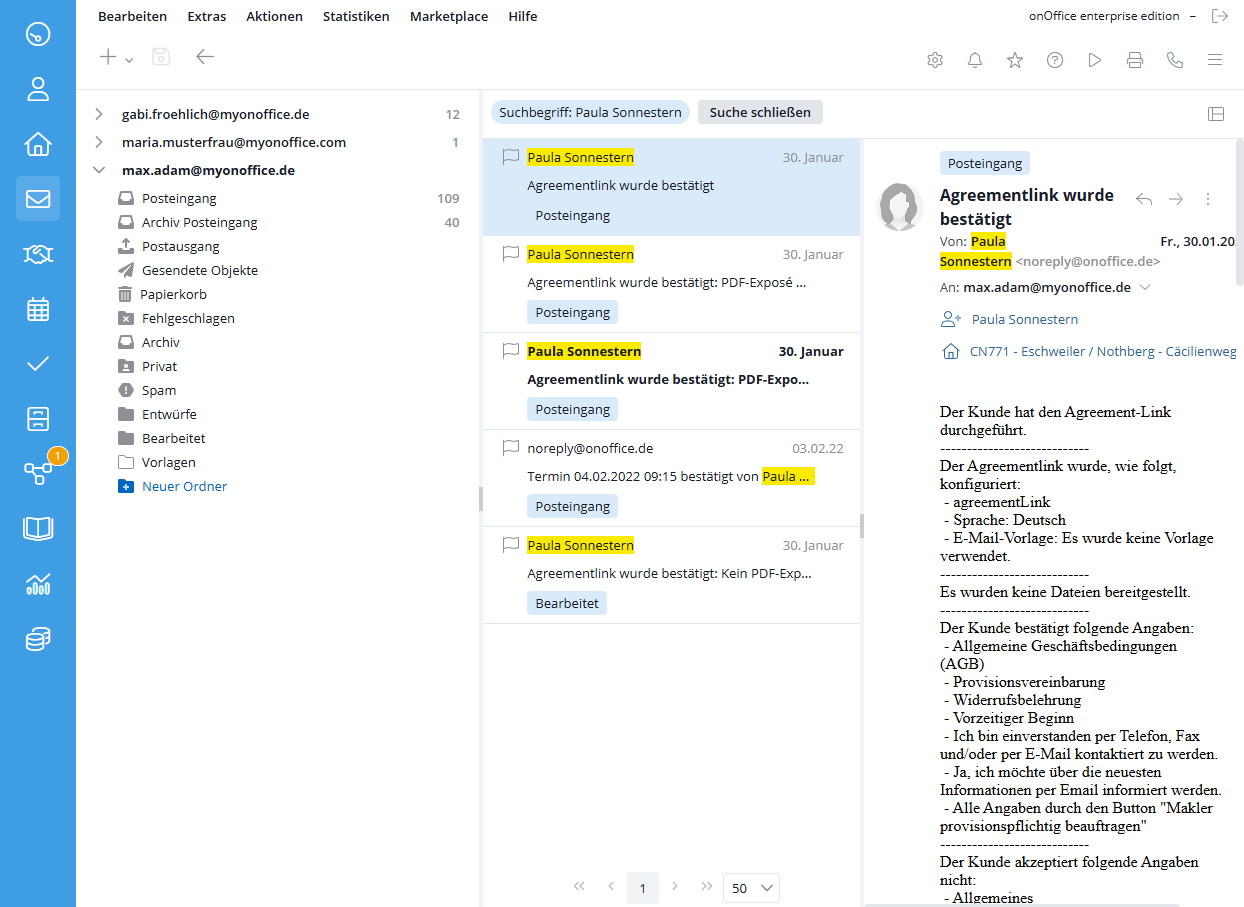
The search functions in onOffice enterprise allow you to find messages quickly and efficiently. When performing a cross-folder search, colored markers (chips) directly in the search results let you know which folder each email is stored in. This way, even when there are many results, you can always keep track of the exact location.

Search using Quicksearch

Use Quicksearch to search the currently selected mailbox for specific terms.

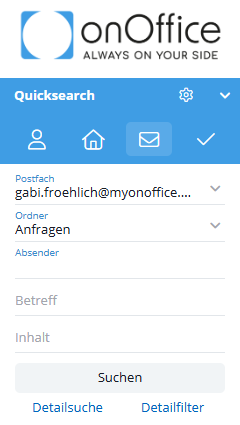
  • Open the Quicksearch section on the right side of the screen and select the Email tab.
    • Tip: If you enable “Use View” for Quick Search in the  settings, the appropriate Quick Search tab will open from the Properties, Contacts, Tasks, and Email modules, respectively.
  • Select the desired mailbox from the first drop-down menu.

Search in a folder

  • After selecting the mailbox, choose the folder you want to search.
  • Search by sender, subject, or content.

Cross-Folder Search

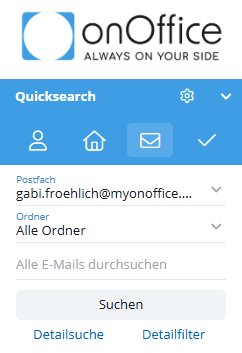
  • To search across all folders, select All Foldersfrom the second menu.
  • Enter your search term in the text field Search all emails .
  • Click the Search button.
  • The emails found are loaded into the email list.

Cross-folder search is available for

  • onOffice Mailboxes
  • MS Graph mailboxes

Display of Search Results (Cross-Folder Search)

When you perform a cross-folder search, the way search results are displayed changes to provide you with more context:

  • On the email list: Below the email subject line, the folder containing the email is displayed with a colored background (as a chip).
  • In the email body: If you click on an email in the results list, the folder icon appears in the details pane above the subject line. The subject line moves down one line.
  • Not displayed in regular search results: If you search only within a specific folder (and not “across folders”), no chips will be displayed for the folders.

Notes & Restrictions

  • No cross-mailbox search: Searching across multiple mailboxes is not technically possible. The search parameters always apply only to the currently selected mailbox.
  • Displaying long folder names: If a folder name cannot be displayed in full on the chip, it is abbreviated as “…” . Hover your mouse pointer over the chip (tooltip) to see the full name.

Search using the detailed search

The detailed search offers additional filters to search for emails in a very specific way.

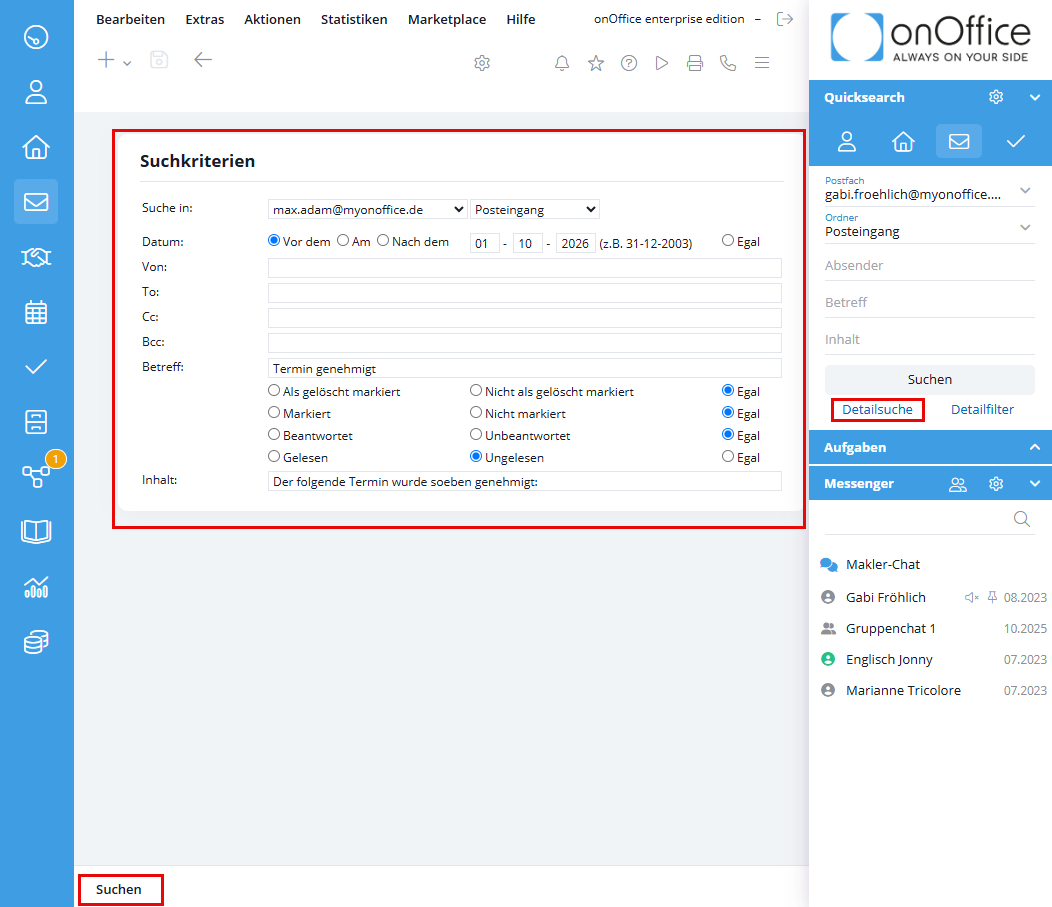
  • In the right-hand sidebar, below the Quick Search, click the Detailed Searchbutton.
  • The Search Criteria window opens. Define your filters here:
    • Search in: Mailbox and folder.
    • Date: Narrow down the time period using the checkboxes or by entering a date manually.
    • From / To / Cc / Bcc / Subject: Enter your search terms for subject lines, sender names, or email addresses.
    • Checkboxes: Use additional filters such as “Unread” or “Flagged” to refine the results.
    • Contents: Search the contents of the email.
  • Click Searchin the lower-left corner to view the filtered results in the list.