
 Entry
Entry Dashboard
 Contacts
 Properties
 Email
Email Calendar
 Tasks
Tasks Acquisition Cockpit
 Audit-proof mail archiving
 Automatic brochure dispatch
 Billing
 Groups
 Intranet
 Marketing Box
 Marketplace
 Multi Property module
 Multilingual Module
 onOffice sync
 Presentation PDFs
 Process manager
 Project Management
 Property tracking
 Property value analyses
 Enquiry Manager
 Showcase TV
 Smart site 2.0
 Statistic Tab
 Statistics toolbox
 Success Cockpit
 Time Tracking
 Address from clipboard
 Text block
 Customer communication
 External Tools
 Favorite links
 Calculating with formulas
 Mass update
 onOffice-MLS
 Portals
 Property import
 Quick Access
 Settings
 Templates
 Step by step


You are here: Home / Extras / Settings / Basic settings / Withdrawal / Electronic Revocation

Settings
Electronic Revocation
onOffice does not provide legal advice. We cannot guarantee legal certainty for the use of the templates, sample texts and software functions. We ask for your understanding that we as a company cannot give binding legal advice. No legally binding claims can be derived from these instructions. For all legal questions regarding the design of your revocation texts and the implementation of legal obligations, the user must consult a specialist lawyer.
PLEASE TEST the settings and all areas by going through the cancellation process yourself!
Inhaltsverzeichnis
Electronic revocation function (revocation button) & online form
Terms of Use
External commission: The electronic declaration of withdrawal is available only for real estate properties for which an external commission has been recorded. This feature behaves in the same way as the checkbox “Require the contract declaration to be downloaded before the contract is concluded”.
Configuration
This feature can be managed at two different levels: Centrally via the basic settings or individually for groups. Please note the different menu structure in the settings:
- Basic settings: Navigate to Extras → Settings → Basic settings. Click here to open the Revocationtab. This is divided into two sub-tabs: Brokerage Agreement (AgreementLink) and Electronic Notice of Withdrawal. Click here to go to the sub-tab Electronic declaration of Withdrawal.
- Group Settings: Go to Extras → Settings → Groups and select the desired group. Unlike the default settings, there are no sub-tabs here. Instead, the topics are divided into two separate main tabs: Brokerage Agreement (AgreementLink) and Withdrawal. Click here to open the Withdrawaltab directly.
To set up the feature (after opening the corresponding tab as described above), follow these steps:
Activation
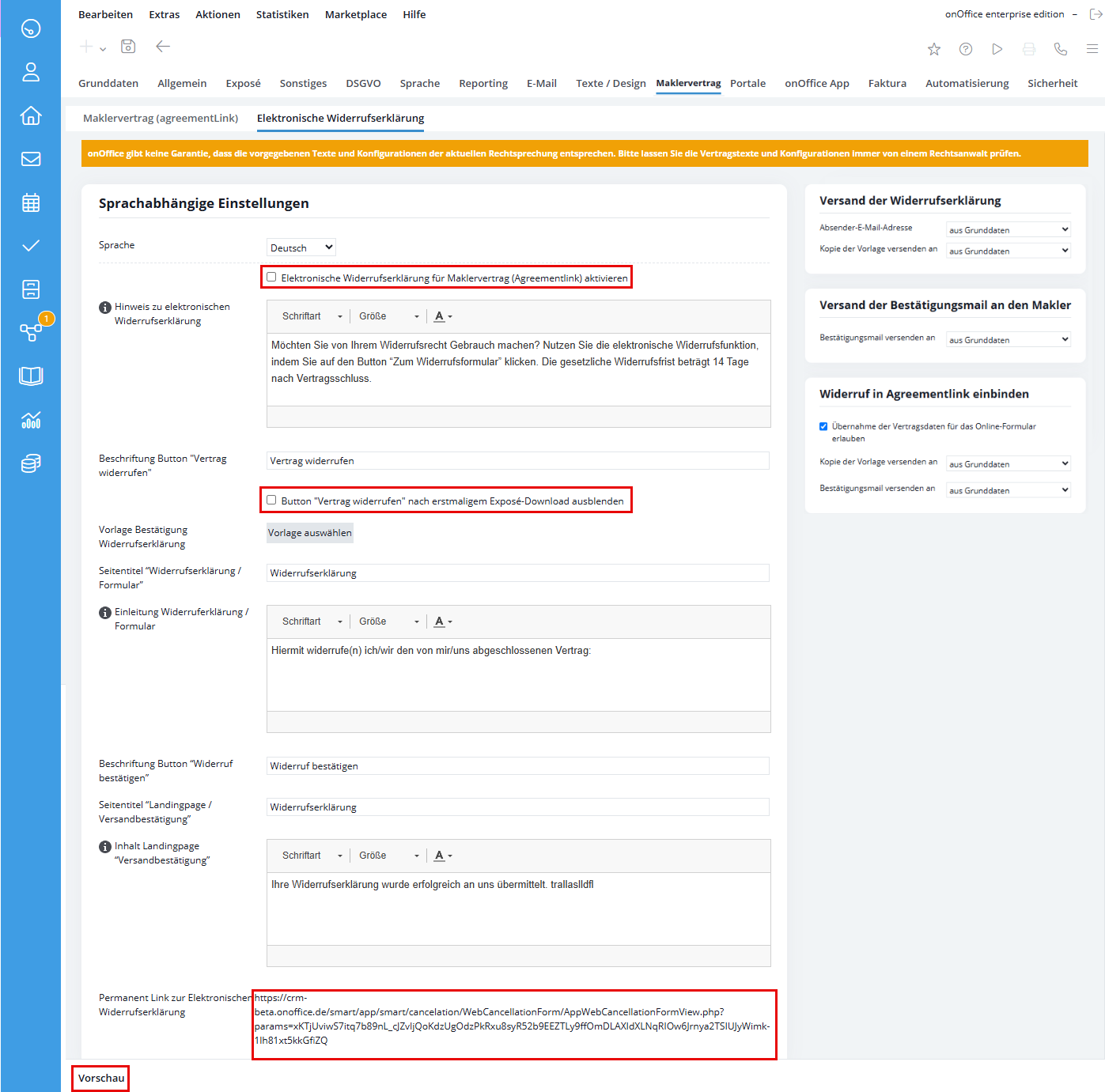
Activate the Checkbox “Activate electronic withdrawal function for borkerage agreement (agreement link)”.
Language-Dependent Settings (Multilingualism)
Configure the text here to suit different languages (e.g., German, English, Spanish). The system automatically displays the language version that corresponds to the Agreementlink being used to the end user.
- Note text & button label: Define the text pattern for the information text that is displayed to consumers in the download area and the labeling of the button (default: “withdraw from contract”).
- Page Title & Introductory Text: Specify the name and opening text of the actual online cancellation form.
- Hide the “Cancel Contract” checkbox after the first download of the brochure: If this checkbox is selected, the “Cancel Contract” button will be hidden after the prospective buyer downloads the property brochure for the first time. When downloading other documents that are not marked with the attribute “First-time brochure download,” the button remains active.
- Confirmation template: Link the desired email template that should be automatically sent to the customer as confirmation after a revocation has taken place.
- Recommendation: Use the system template Confirmation – Declaration of Revocation from the folder “oO – Templates in Company Colors”.
- Important: Only email templates from the Withdrawal category can be selected for this field.
Language independent options
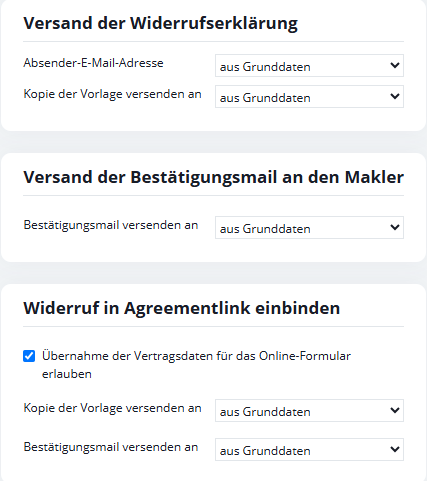
To the right of the language-specific text, you can configure the general sending and recipient settings. These are divided into three functional sections:
1. Sending the Notice of Withdrawal (Permalink / General Form Requests)
Controls the mailing and copies when accessed via the permanent link (blank form with no property or contact reference):
- Sender email address: Select which sender address to use for the confirmation email sent to the customer:
- From basic data: Uses the primary email address specified in the general settings.
- Sender of the Declaration of Revocation: Uses the original sender’s email address.
- Send a copy of the template to: Specify who will receive a copy of the customer confirmation email:
- From basic data: Sends the copy to the email address listed in the basic information. (This also serves as a fallback for settings such as Supervisor of the Contact/Property, since the permalink does not reference a property).
- Different mailbox: Display an additional email input field where you can enter a specific destination address.
- Do not send a copy: No CC copy will be sent.
2. Sending the confirmation email to the real estate agent
Controls where the notification of a received revocation is sent internally:
- Send confirmation email to:
- From basic data: Sends the notification to the email address listed in the basic information.
- Different mailbox: Displays a separate input field for entering a custom email address.
IMPORTANT: A valid recipient must be specified here so that your team is reliably notified of any incoming revocations.
3. Include the right of withdrawal in Agreementlink
These options apply specifically when the opt-out is accessed in the context of a specific AgreementLink:
- Checkbox “Allow contract data to be transferred to the online form”:
- If this option is enabled, the cancellation form will be automatically pre-filled with the prospective customer’s contract and contact information.
- Send a copy of the template to:
- Options: From Basic Data, Other Mailbox (with address field), Logged-in user, Supervisor of the contact or Supervisor of the property.
- Send confirmation email to:
- Options: From Basic Data, Other Mailbox (with address field), Logged-in user, Supervisor of the contact or Supervisor of the property.
Notice: The fields in the Include Cancellation in Agreementlink section are active and editable only if the option Enable electronic revocation function for brokerage agreement (Agreementlink) is enabled.
Permanent Link
At the very bottom of the settings page, you’ll find the “Permanent Link to the Electronic Notice of Withdrawal.”
- Function: This link opens the online form as a blank form, with no reference to a specific agreement link.
- Applications: You can use this link to permanently embed the “revocation” button in a clearly visible location—for example, in the footer of your company’s website.

Preview
Just as with the brokerage agreement settings (Agreement link), you can use the button in the lower-left corner to preview your settings. This opens the form—already filled out with sample data. After entering the date in the “Contract concluded on” field, you can review your custom settings for the landing page.
Procedure for the consumer
A consumer can access the cancellation form in two different ways:
- Option 1: As soon as a customer has concluded an online brokerage contract via the AgreementLink
, they will see the button and information text in the subsequent download area. Clicking on it will take him directly to the cancellation form. - Option 2: Via the permanent link (e.g., on your website)
If the consumer clicks on the link that you have placed on your website, the cancellation form will open.
Fill out the form and submit it
- The standardized online form is titled “Declaration of Revocation” (unless otherwise configured in the language settings) and requests all relevant information. These include required fields such as name, address, and email address. The real estate agent data is automatically displayed in the footer of the form.
- The consumer completes the process by clicking the “Confirm withdrawal” button. During processing, the status is displayed transparently, followed by a redirection to a confirmation page (or, in the event of an error, to a corresponding information page for direct contact).
Automated processing in enterprise
After submitting the form, onOffice enterprise carries out the following steps fully automatically in the background:
- Create PDF: The system generates a PDF document of the cancellation declaration containing all customer entries and an electronic time stamp (cancellation.pdf)
- Notification to the real estate agent: The real estate agent receives the declaration of revocation by e-mail with all the form data in the text and the PDF file attached.
- Hint: In the Language-independent settings in the Electronic revocation declaration sub-tab, you can set who receives the confirmation. By default, the confirmation is sent to the real estate agent at the e-mail address stored in the Basic settings → Basic data .
- Confirmation to the customer: The consumer will receive confirmation of receipt of his declaration of revocation by e-mail as proof for his records, including the PDF file (cancellation.pdf)
- Activities: The email containing the cancellation that you received does not include any reliable information about a property or a contact record.
NO assignments or activity entries are created.
The macro _cancellationLink
The macro _cancellationLink is available for integrating the electronic cancellation function outside the standardized AgreementLink process. This means that the function can be flexibly integrated into your own email templates or used in combination with the onOffice API from external systems.
Properties and parameters
- How it works: The macro generates a link that calls up an empty online withdrawal form.
- Parameter Title: Allows the link created to be stored behind a freely definable text.
- Syntax-Beispiel: _cancellationLink(Titel: Please click here)
- Note: No commas may be used within the “Title” parameter.
- Parameter callbackurl: Allows you to define your own landing page to which the consumer is automatically redirected after successfully submitting the withdrawal form (e.g. back to the homepage of your website).
- Syntax-Beispiel: _cancellationLink(callbackurl: https://www.ihre-homepage.de)
- External web query (API): The macro can also be queried via the API command get macro resolve in order to integrate the generated URL directly into external website structures
The confirmation macro _cancellationLinkConfirmation
After the customer has filled out the online form and clicked the confirmation button, the system sends an automatic confirmation email. This email uses the macro _cancellationLinkConfirmation, which displays the customer’s cancellation in the same way as the _agreementLinkConfirmations macro.
-
Location: The “Confirmation – Notice of Withdrawal” email template already contains the macro.
-
The macro can be used in your own email templates to confirm the revocation. These email templates must be assigned to the “Withdrawal” category.
PLEASE TEST the settings and all areas by going through the cancellation process yourself!