 Entry
Entry Dashboard
 Contacts
 Properties
 Email
Email Calendar
 Tasks
Tasks Acquisition Cockpit
 Audit-proof mail archiving
 Automatic brochure dispatch
 Billing
 Groups
 Intranet
 Marketing Box
 Marketplace
 Multi Property module
 Multilingual Module
 onOffice sync
 Presentation PDFs
 Process manager
 Project Management
 Property tracking
 Property value analyses
 Enquiry Manager
 Showcase TV
 Smart site 2.0
 Statistic Tab
 Statistics toolbox
 Success Cockpit
 Time Tracking
 Address from clipboard
 Text block
 Customer communication
 External Tools
 Favorite links
 Calculating with formulas
 Mass update
 onOffice-MLS
 Portals
 Property import
 Quick Access
 Settings
 Templates
 Step by step


You are here: Home / Modules / Contacts / Duplicates

Contacts
Duplicates
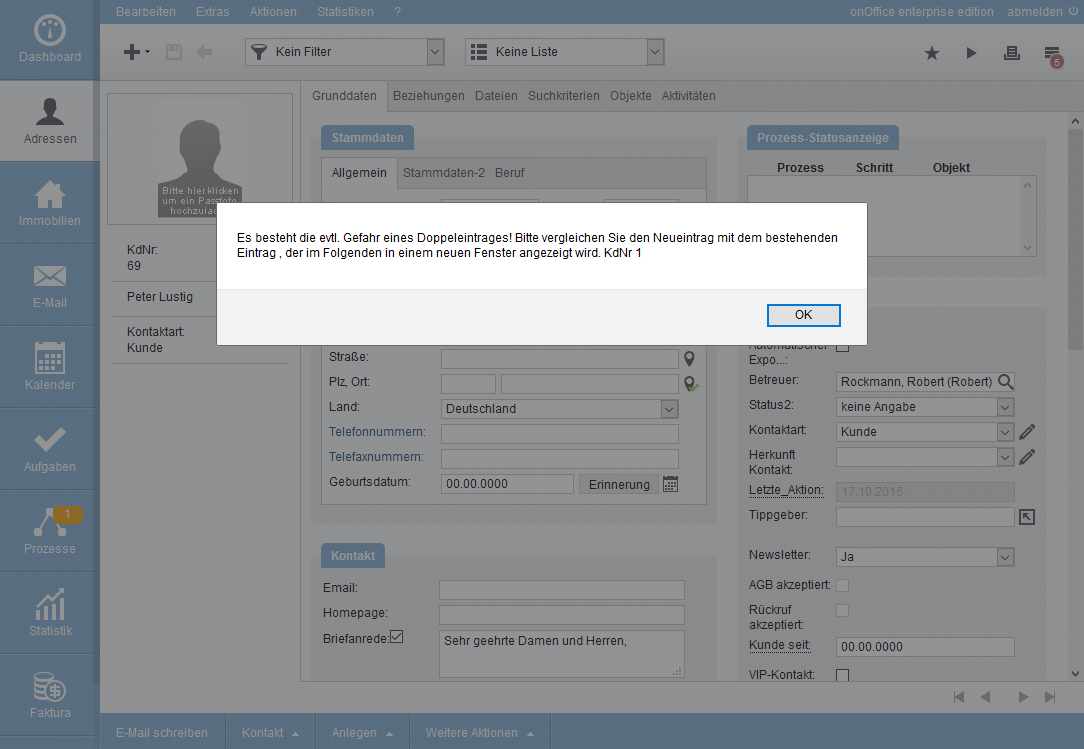
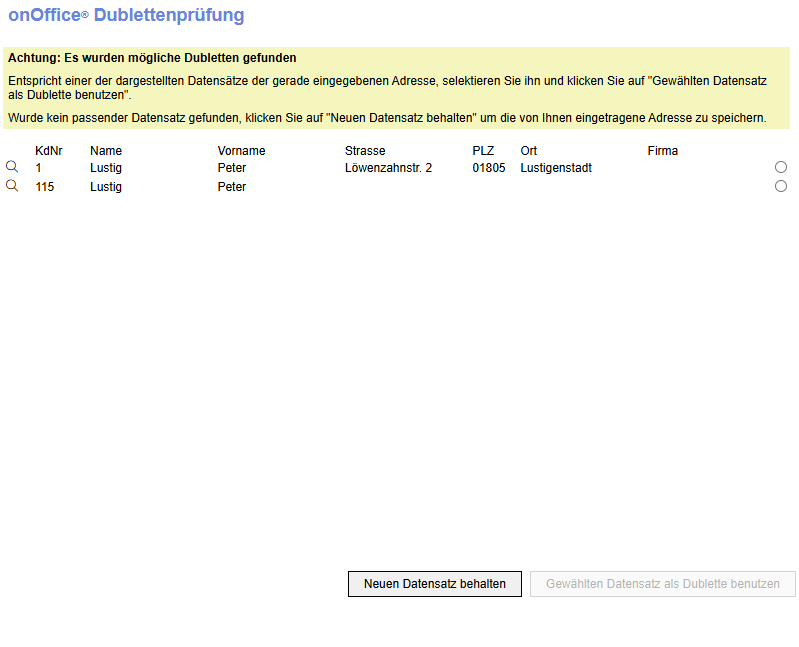
The data records that could lead to a duplicate appear in the following pop-up. You can view further details of the data record using the magnifying glass.
You can select an existing data record and then continue working with this contact record. The data entered is then “discarded”.
If you are sure that there is no duplicate – or that such a duplicate is intended – and the newly entered data should be created as a new contact record, then please click on “Keep new data record”.
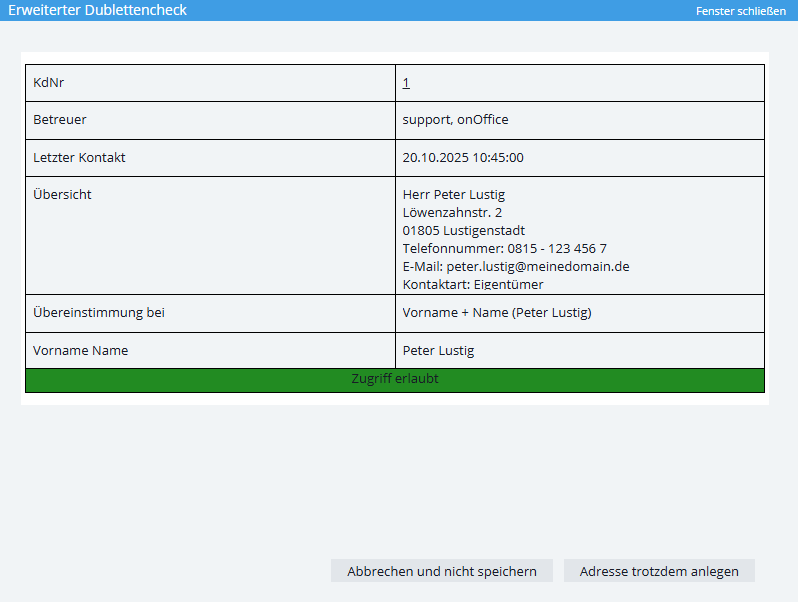
The extended duplicate check also checks contacts to which you do not have read access. Only the displayed data of the contact is listed, a magnifying glass preview is not available. You can open the contact record by clicking on the customer number.
Data records for which you have read permission are marked in green, contact records for which you do not have read permission are marked in gray.
For the latter, you can request read permission from the contact manager via “Request access” in the gray field. The contact manager receives an e-mail with your request plus the contact details and can then allow access.
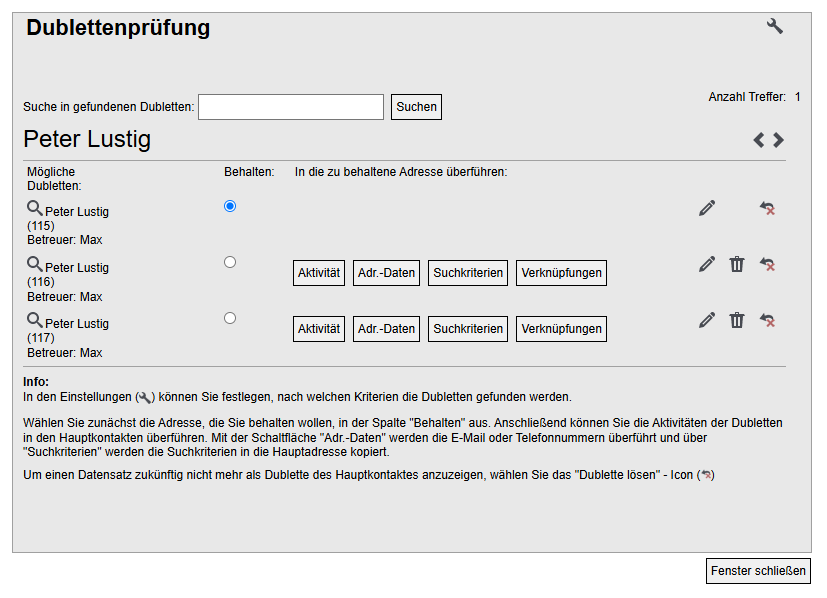
The view begins with the first duplicate found. The forward and back arrows take you to the next or previous duplicate found.
For each duplicate found, all matching contact records are listed. The magnifying glass function  offers a preview, the edit icon
  can be used to open the desired data record in a new window.
Exclude from the duplicate check
Individual contact records can be excluded from the search using the “Unlink symbol”  . You can reactivate these data records for the duplicate check at any time via the Duplicate check settings .
The various transfer buttons can be used to transfer activities, search criteria, contact data and links such as “property” or “properties on offer” to the selected contact.
ATTENTION: No relationships are transferred; these must be maintained manually before the old data record is deleted.
After the transfer, the button is inactive as the data in the data record has been removed.
Data records that are no longer required can then be deleted directly via the trash can symbol – if the corresponding authorization is available.
An activity entry is written in the target contact record for all executed actions.
Configuration
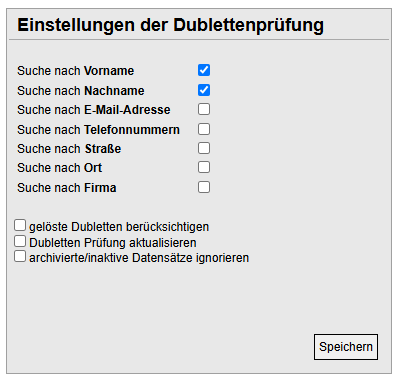
The criteria for when a contact is considered a possible duplicate can be configured. Open the configuration via the wrench symbol  .
.