

You are here: Home / Additional modules / Marketplace / Provider overview / Immoautomation GmbH - Automated social media posts for real estate agents

Marketplace

Immoautomation GmbH – Automated social media posts for real estate agents

Create social media posts directly from onOffice

From the property to the finished social media post in just a few steps – directly from your onOffice CRM.

Step 1: Create account

After you have activated immoautomation in the onOffice Marketplace, you will be asked to set up your user account. Simply enter your e-mail address and click on “Create account”. You will then receive an e-mail with your password. You will be automatically logged in for future calls via onOffice.

Step 2: Select plan

Select your desired plan. Start for free with 5 posts per month or test MaklerPlus with all premium functions for 14 days free of charge. MaklerPlus offers you unlimited posts, AI text creation, all templates and basic analytics for just €49/month.

Step 3: Connecting social media channels

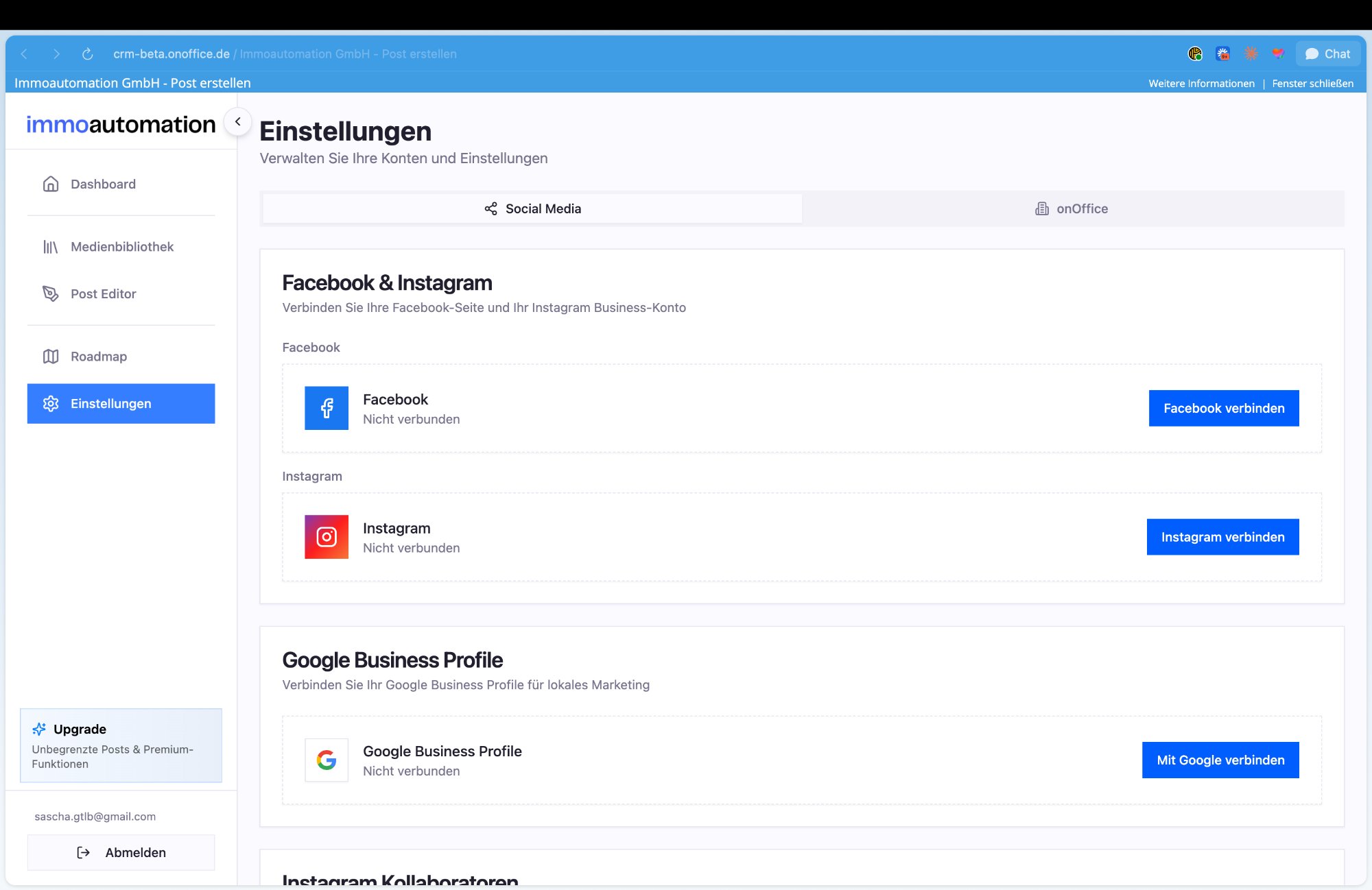
Navigate to the settings and connect your social media accounts. Link your Facebook page, your Instagram Business account and/or your Google Business Profile to publish posts directly from immoautomation.

Step 4: Create mail – directly from onOffice

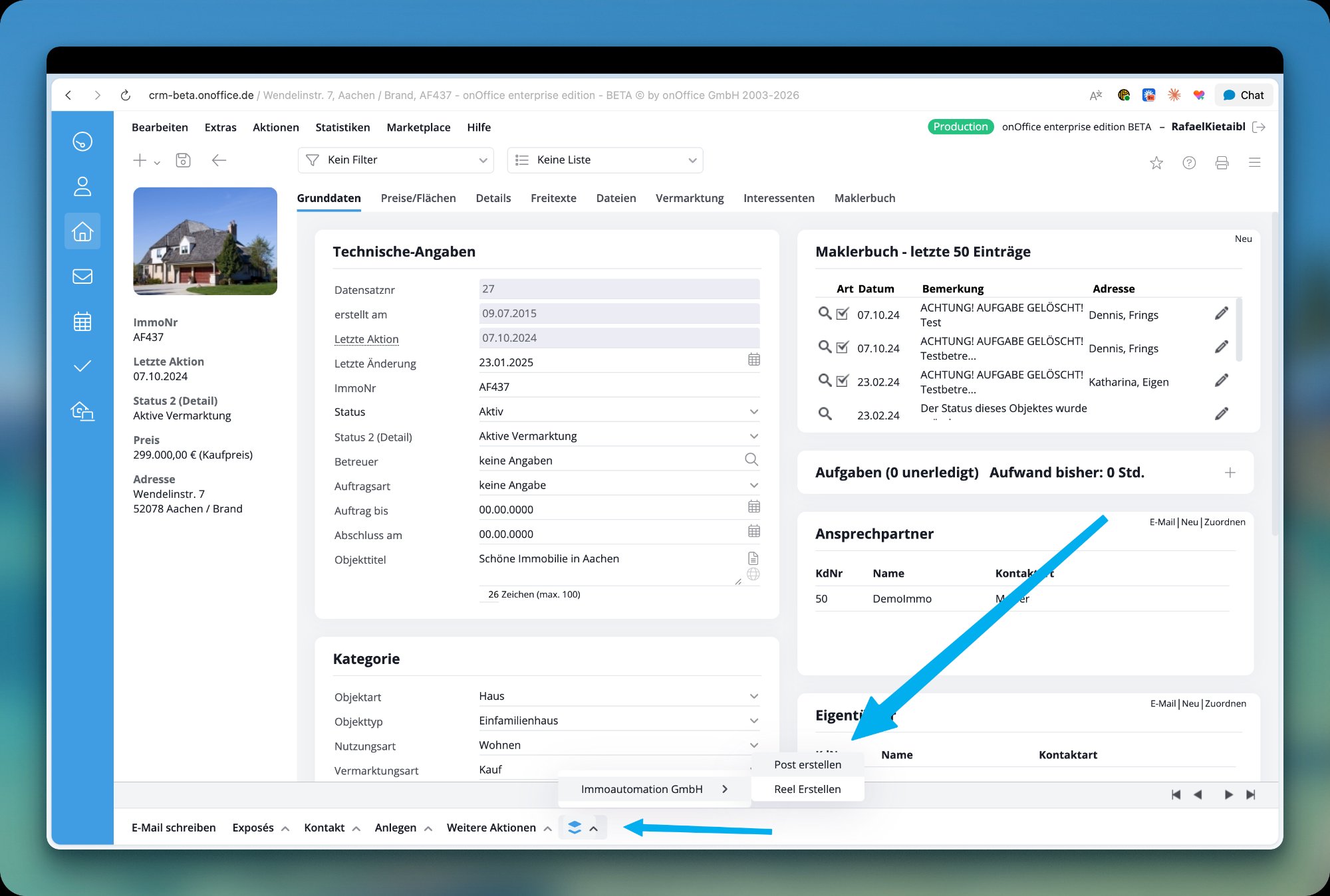
Start the post creation process directly from the property detail view in onOffice. To do this, click on the immoautomation menu in the action bar at the bottom of the screen and select “Create post” or “Create reel”.

Step 5: Load property data automatically

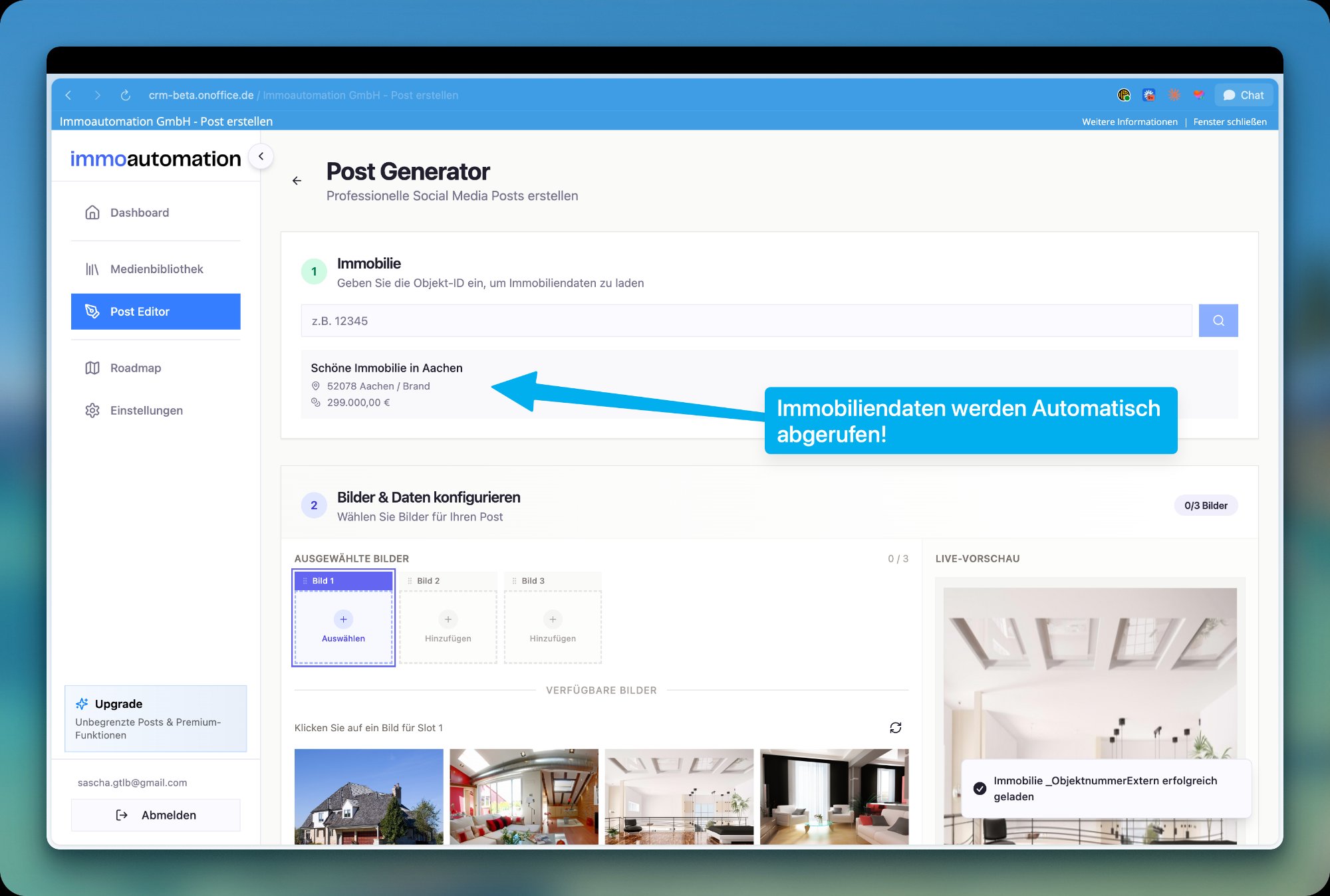
In the Post Generator, the property data is automatically retrieved from onOffice. Enter the property ID and all relevant information such as title, address and price will be loaded automatically – no more manual typing!

Step 6: Select images

Select up to 3 images for your post. First click on a slide slot (image 1, image 2 or image 3) and then select the desired photo from the available property images. The live preview shows you immediately what the finished post will look like.

Immoautomation - Bild 6 -  Bilder auswählen

Step 7: Generate images

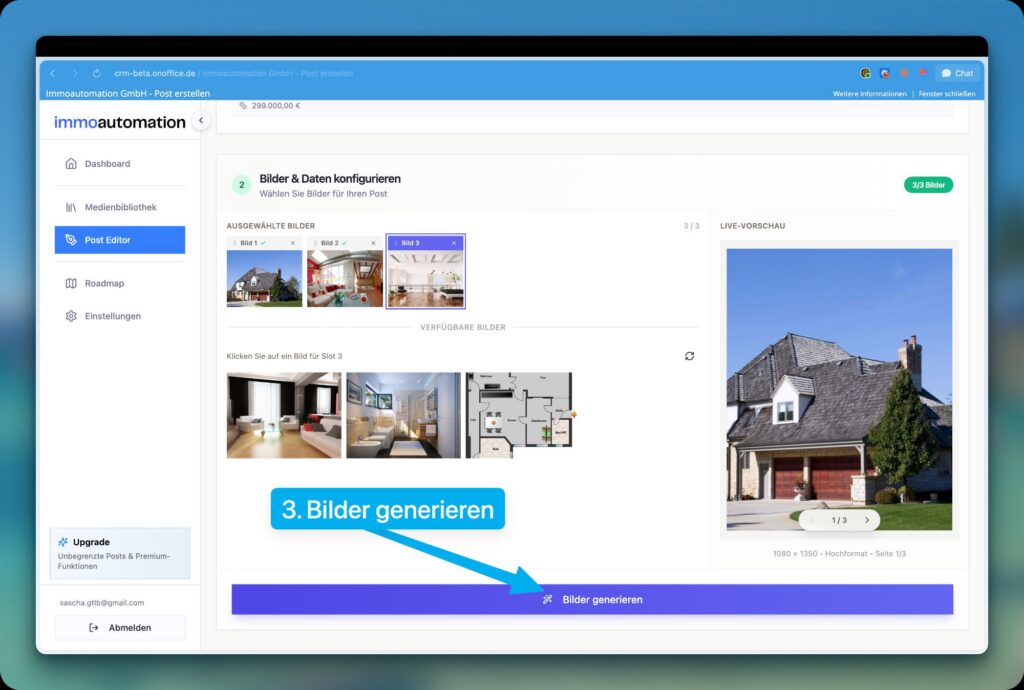
Once all the images have been selected, click on “Generate images”. immoautomation automatically creates professional social media graphics from your selected photos using the appropriate templates.

Immoautomation - Bild 7 - Bilder generieren

Step 8: Check & edit caption

In the final review step, you will see the automatically generated captions for Instagram, Facebook and Google My Business. The AI creates appealing texts with all important property data and matching hashtags. You can edit the texts at any time before you publish them.

Immoautomation - Bild 8 - Caption prüfen und veröffentlichen

Step 9: Publish on social media

Click on “Post now” and select the platforms on which your post should be published – Instagram, Facebook and/or Google Business Profile. By clicking on “Publish now”, your post will be posted immediately on all selected channels.

Premium functions (BrokerPlus)

Unlock all premium features: unlimited posts, template marketplace, value customization and much more.
Upgrade to MaklerPlus

Would you like to use unlimited posts, premium templates and AI text creation? Click on “Upgrade” in the sidebar to display the available plans and switch to MaklerPlus.

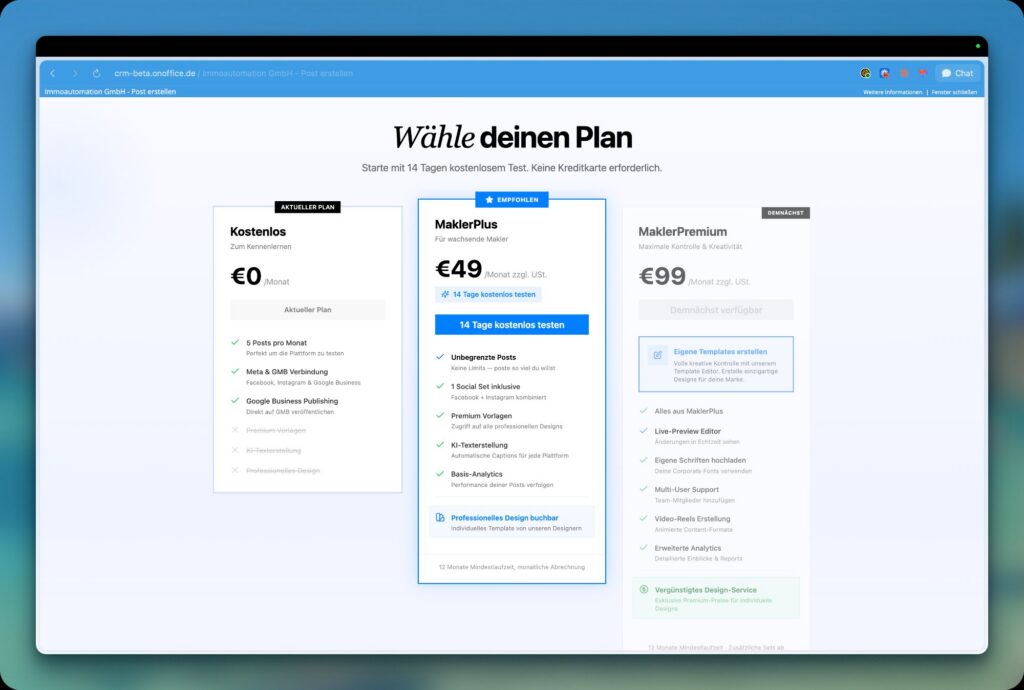
Compare & select plan

Compare the available plans: The free plan offers 5 posts per month and meta and GMB connection. MaklerPlus for €49/month includes unlimited posts, premium templates, AI text creation and basic analytics. MaklerPremium (coming soon) also offers a template editor, custom fonts, multi-user support and video reels.

Immoautomation - Bild 11 - Plan auswählen

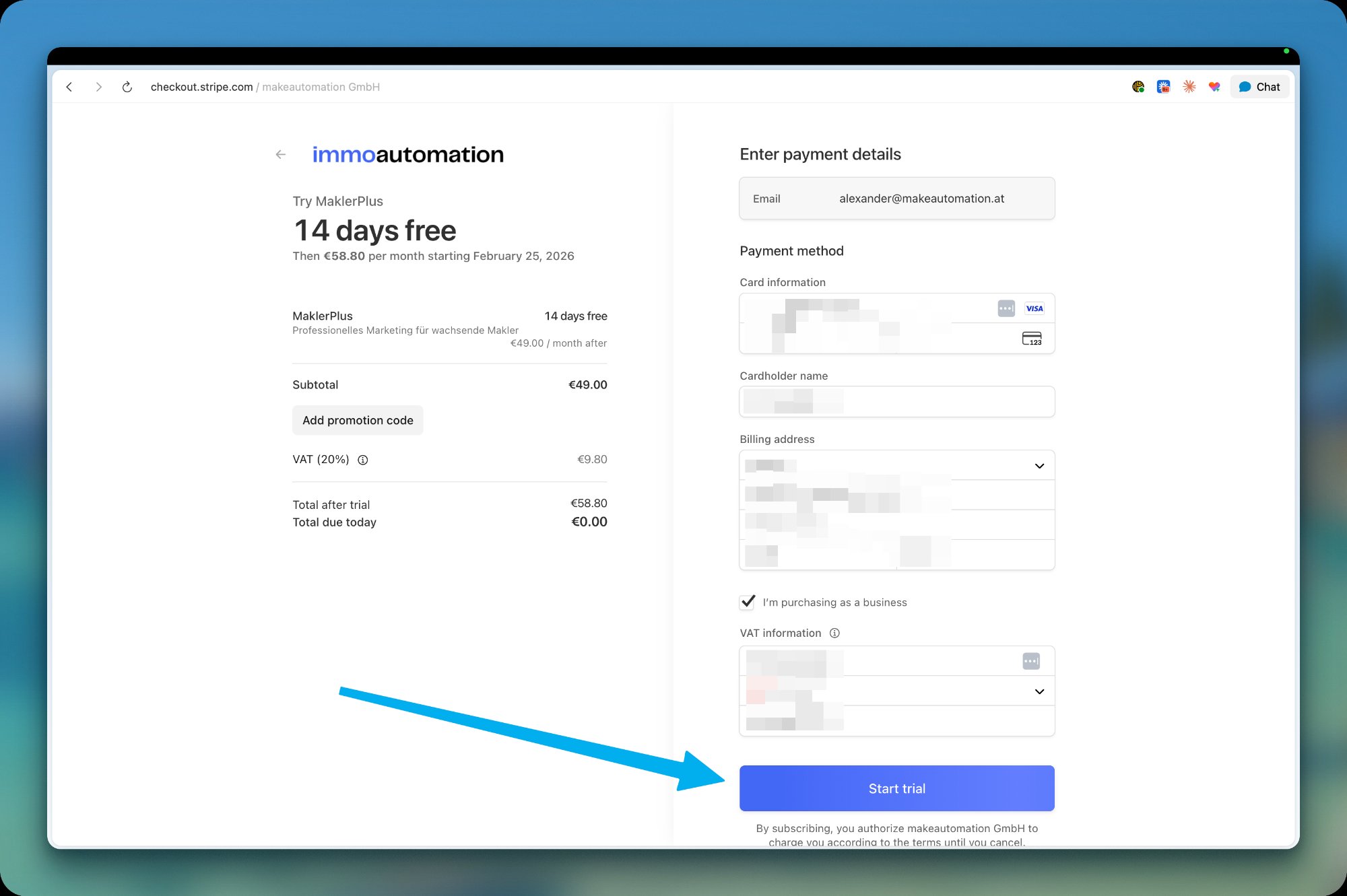
Start test phase

Start your 14-day free trial via our secure Stripe payment page. Enter your payment details – you pay €0.00 today. Monthly billing only begins after the trial period has expired. You can cancel at any time during the trial period.

Template library

You can find all your design templates for posts, stories and Google My Business in the template library. Here you can see your available templates at a glance – with preview images, number of pages and creation date. You can search for templates and add new templates via the Marketplace.

immoautomation - Bild 13 - Vorlagenbibliothek

Template Marketplace

In the template marketplace, you can discover professional design templates that you can add directly to your library. Browse through the available templates, view a preview and click on “Add to templates” to use a template immediately.

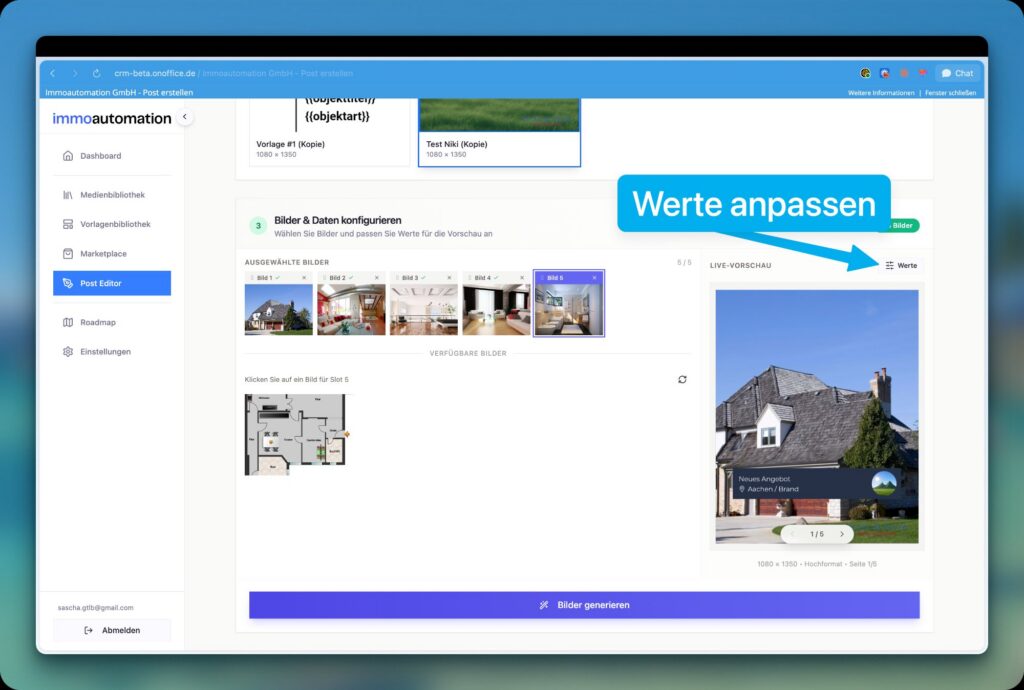
Adjust values

Would you like to customize certain values on your images? Click on “Values” at the top right of the live preview to open the values panel. There you can manually change the property fields automatically loaded from onOffice.

Immoautomation - Bild 15 -

Edit values

Change the displayed values directly in the values panel. For example, you can change the location from the automatically loaded contact to a more general location such as “Hamburg”. The changes are immediately displayed in the live preview so that you can see the result in real time.

Immoautomation - Bild 16 - Werte bearbeiten
Marketplace