 Entry
Entry Dashboard
 Contacts
 Properties
 Email
Email Calendar
 Tasks
Tasks Acquisition Cockpit
 Audit-proof mail archiving
 Automatic brochure dispatch
 Billing
 Groups
 Intranet
 Marketing Box
 Marketplace
 Multi Property module
 Multilingual Module
 onOffice sync
 Presentation PDFs
 Process manager
 Project Management
 Property tracking
 Property value analyses
 Enquiry Manager
 Showcase TV
 Smart site 2.0
 Statistic Tab
 Statistics toolbox
 Success Cockpit
 Time Tracking
 Address from clipboard
 Text block
 Customer communication
 External Tools
 Favorite links
 Calculating with formulas
 Mass update
 onOffice-MLS
 Portals
 Property import
 Quick Access
 Settings
 Templates
 Step by step


You are here: Home / Additional modules / Marketplace / Provider overview / tenably FlexCo - Automated WhatsApp Sales

Marketplace
tenably FlexCo – Automated WhatsApp Sales
Description
tenably seamlessly integrates WhatsApp with onOffice, making communication with prospects faster, more structured, and measurable.
Automated WhatsApp sales: Your smart WhatsApp channel provides property information in real time, schedules viewings that fit your calendar, and captures qualified leads—including their search profiles—directly in onOffice. All interactions are automatically documented in the agent log and can be seamlessly transitioned from automated responses to one-on-one chat.
Maximum Reach & Follow-ups: Take advantage of automated and personalized follow-ups with open rates up to 5 times higher than those of email.
Reach the world’s most valuable advertising space with WhatsApp newsletters and property updates: Notifications delivered directly to your leads’ cell phone screens.
Scalable & GDPR-compliant: As a data-driven automation solution, Tenably is suitable for both individual real estate agents and large organizations.
Activation
You can easily activate Tenably here in the Marketplace.
Utilization:
How to Get Started on WhatsApp:
• Enable tenably in onOffice
• Create a WhatsApp Business Platform account (your number, your branding)
• Connect your WhatsApp account to tenably
• Use tenably’s ready-to-use features to respond to inquiries and capture leads 24/7 right away
Here’s the complete step-by-step guide to getting started:
https://support.tenably.io/onoffice-verbindungs-und-setup-guide
If you have any questions, please feel free to contact us at support@tenably.io or by phone at +43 676 62 60 713.
Step 1
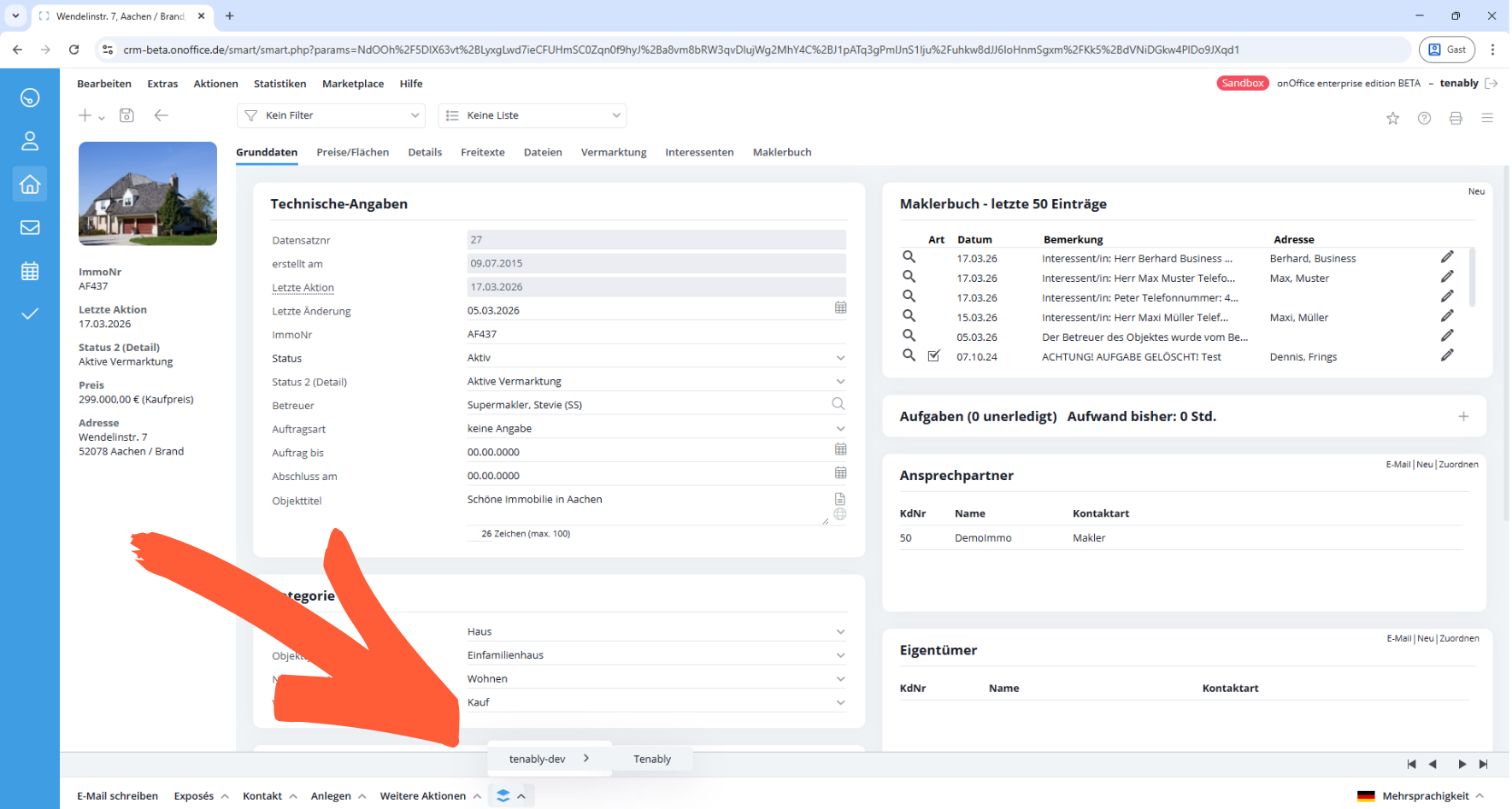
After you’ve activated Tenably in the Marketplace, go to “Properties” and select any property.
You’ll find the link to Tenably in the footer.
Step 2
In the pop-up window, click “Connect” to start the setup process.
.png)
Step 3
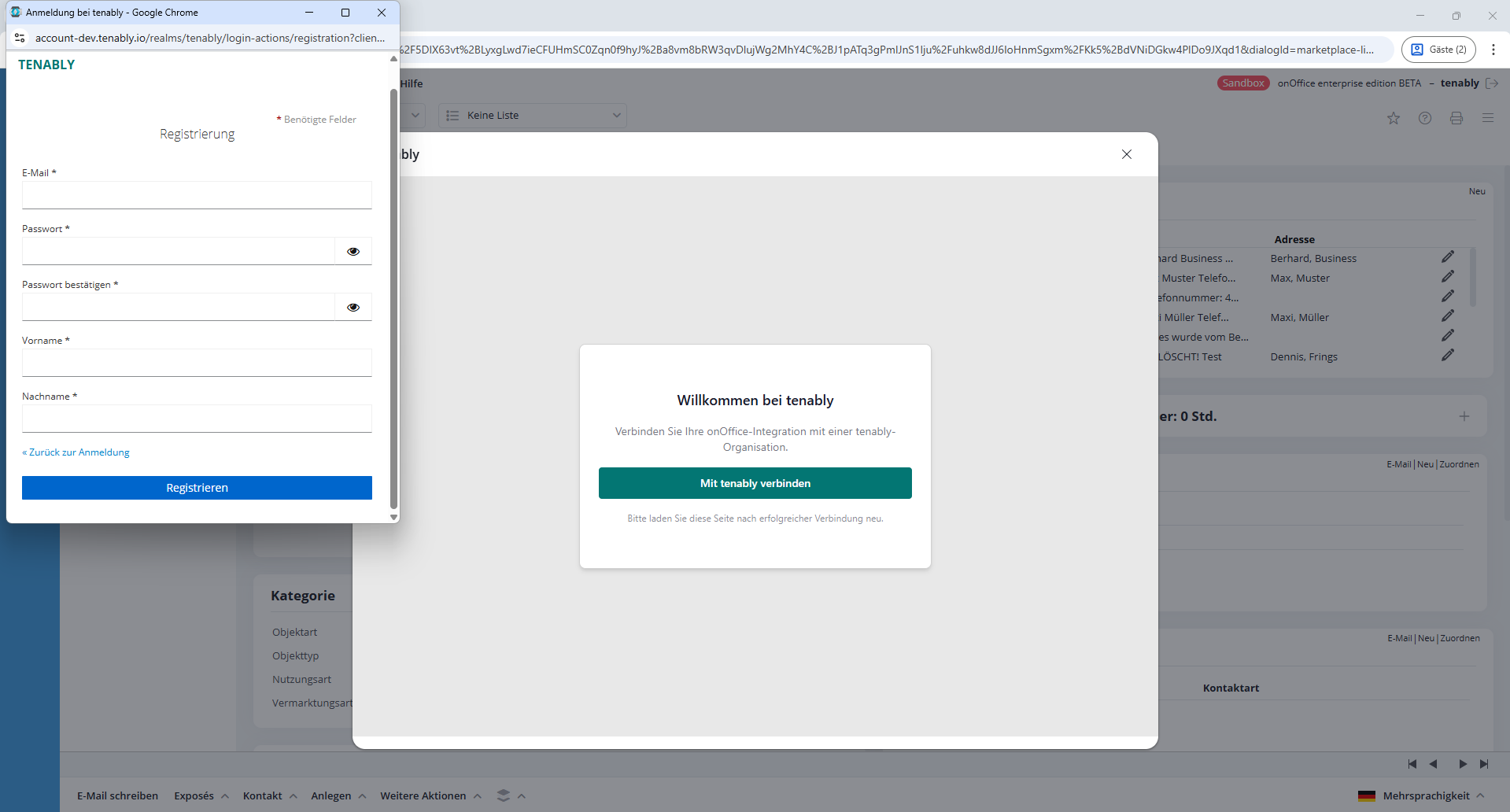
Create a new Tenable user account if you don’t already have one. Complete this step by clicking “Register.”
Step 4
You will receive an activation email. Click on the link inside it, and you’ll be taken to this separate tab. Click “Connect” to create your Tenable organization. Close the tab.
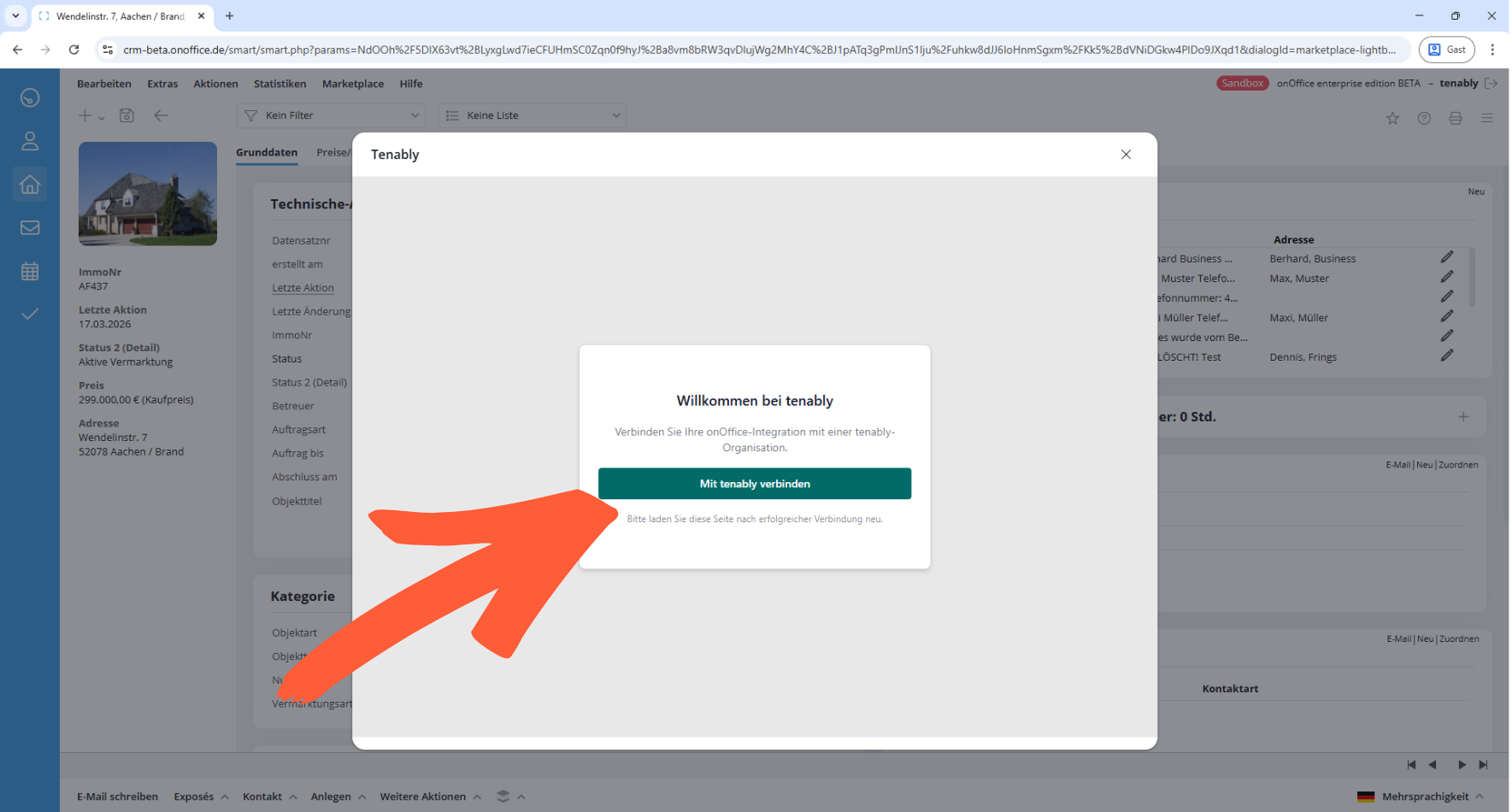
Step 5
Click “Subscribe.”
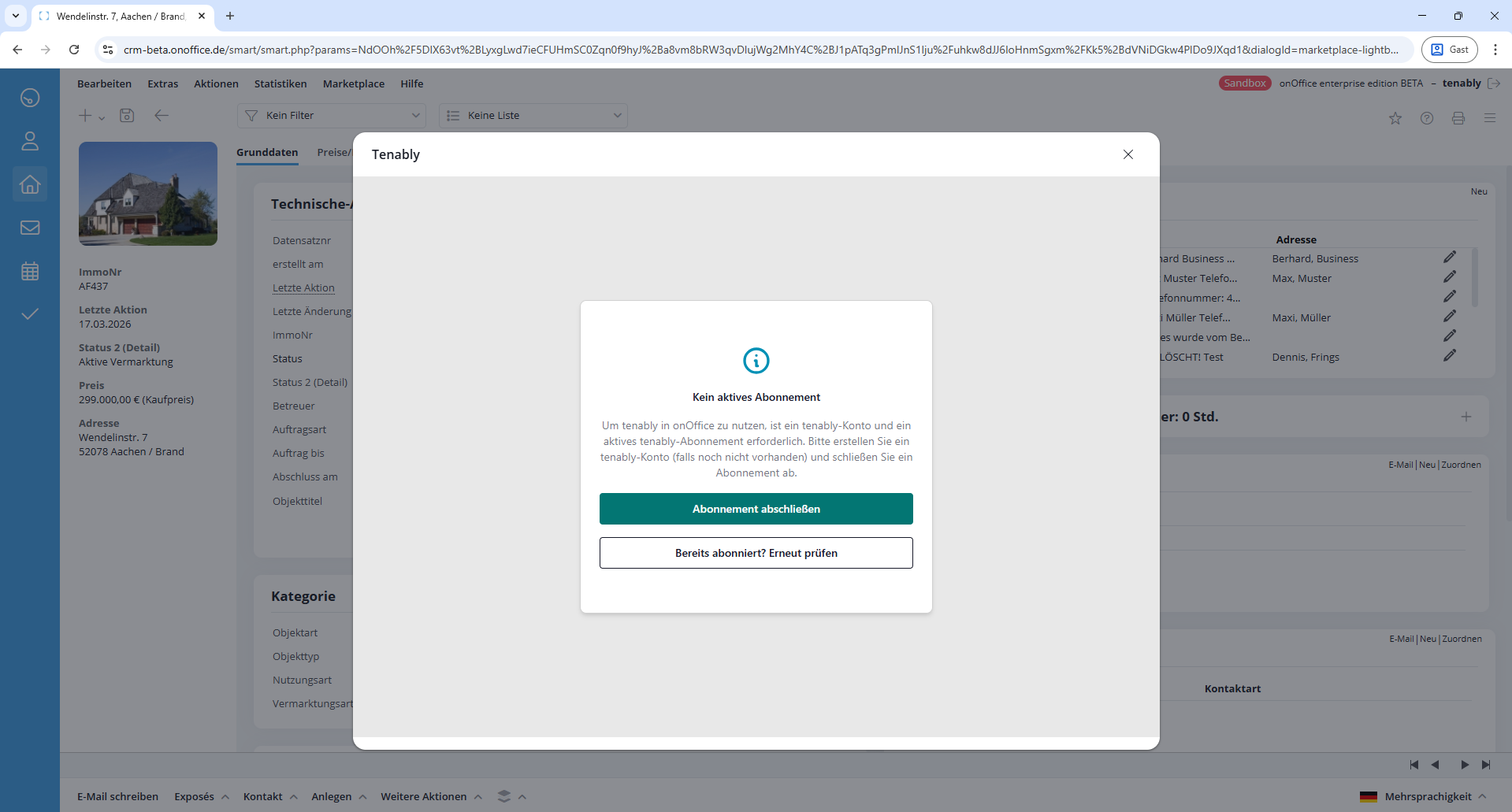
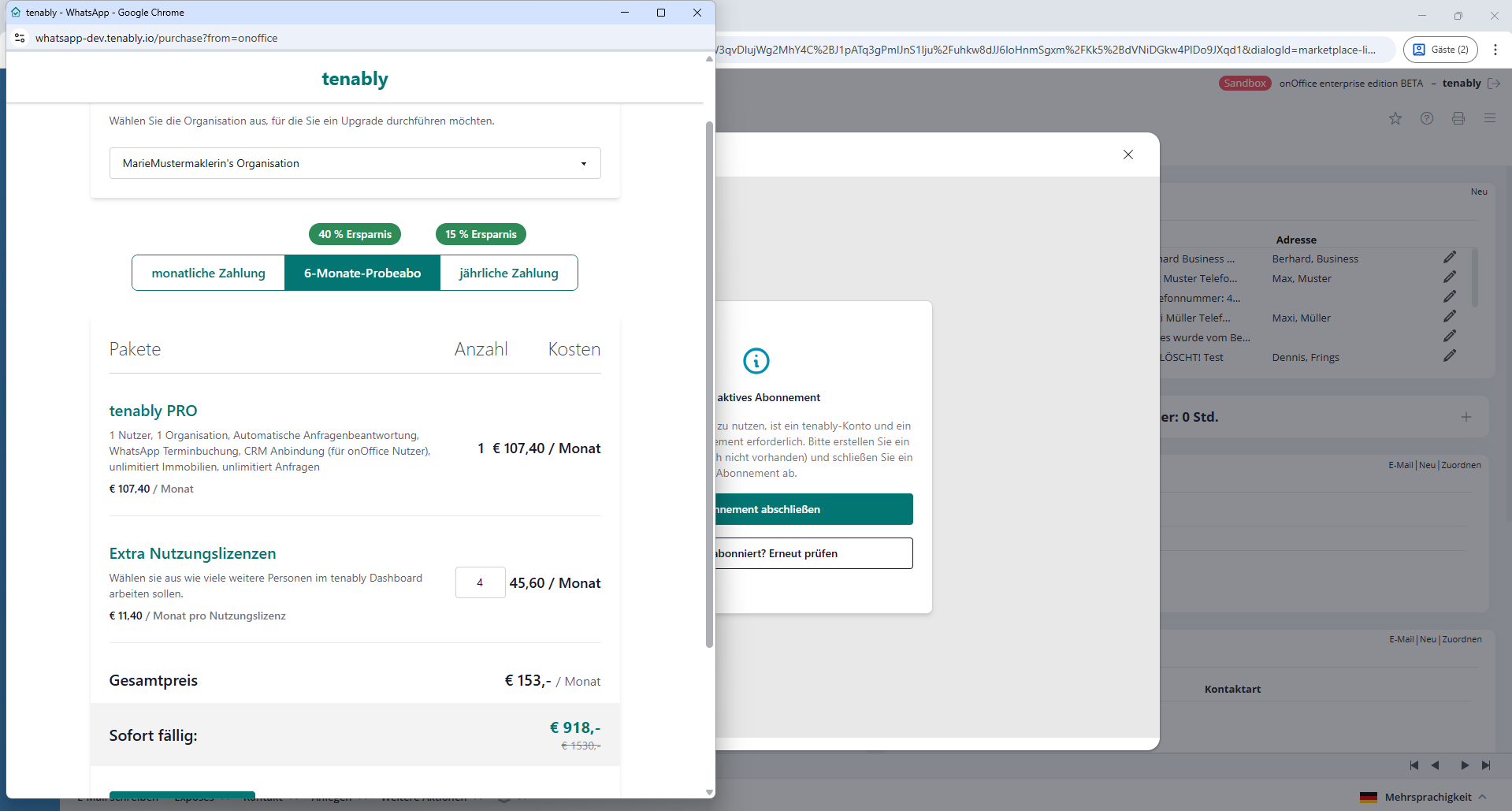
Step 6
Select the number of user licenses and your payment method, and then complete the setup process.
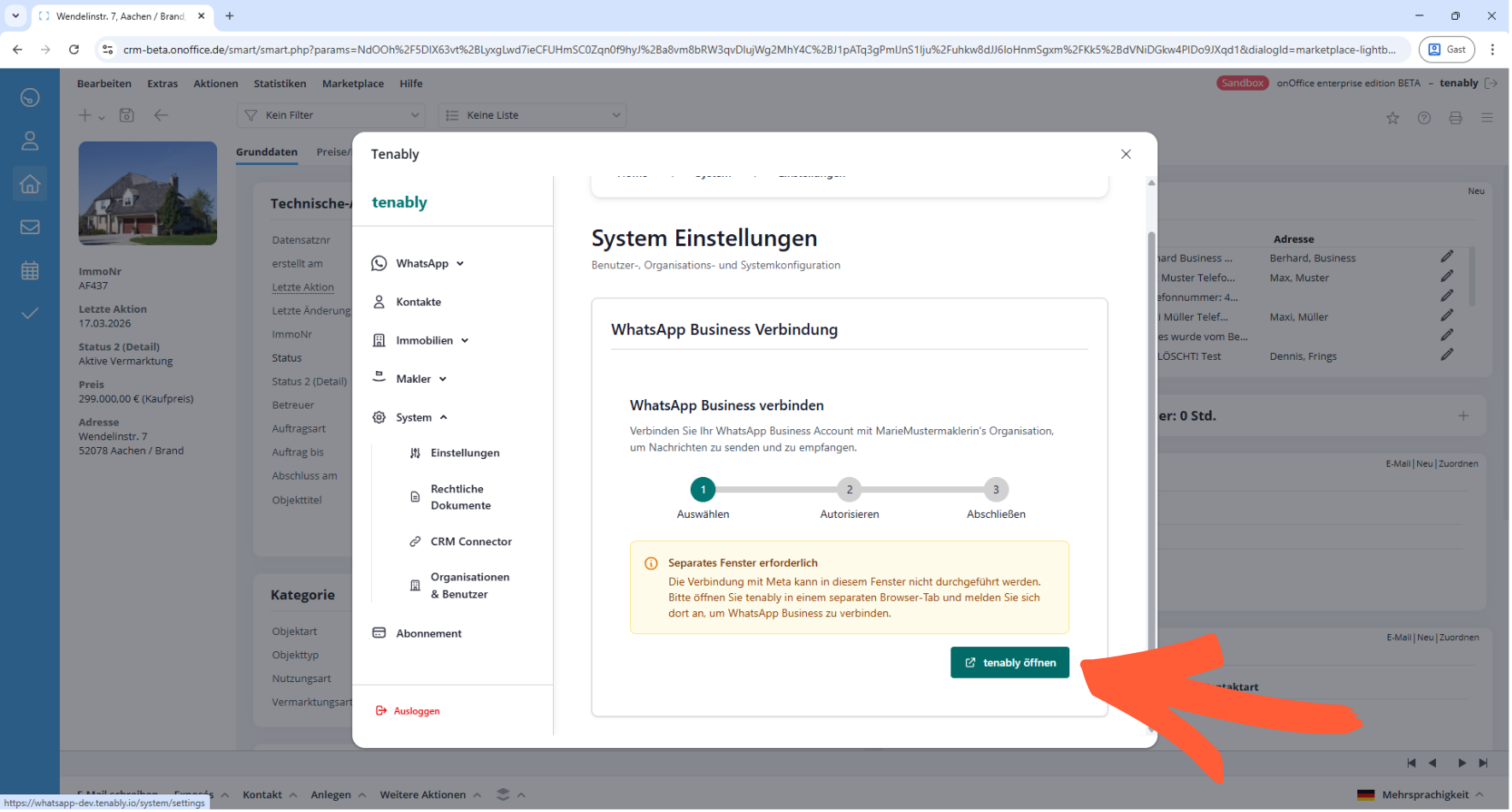
Step 7
Log in to your WhatsApp Business account.
- To do this, go to System/Settings and click “Open Tenably.” The Tenably dashboard opens in a new tab.
- Log in with your Tenable credentials and connect your WhatsApp Business account.
- Close the extra tab again.
You can find instructions on how to create a WhatsApp Business account through the Meta Business Account here:
https://tenably.io/tenably-und-whatsapp-business-api-setup-guide/
Step 8
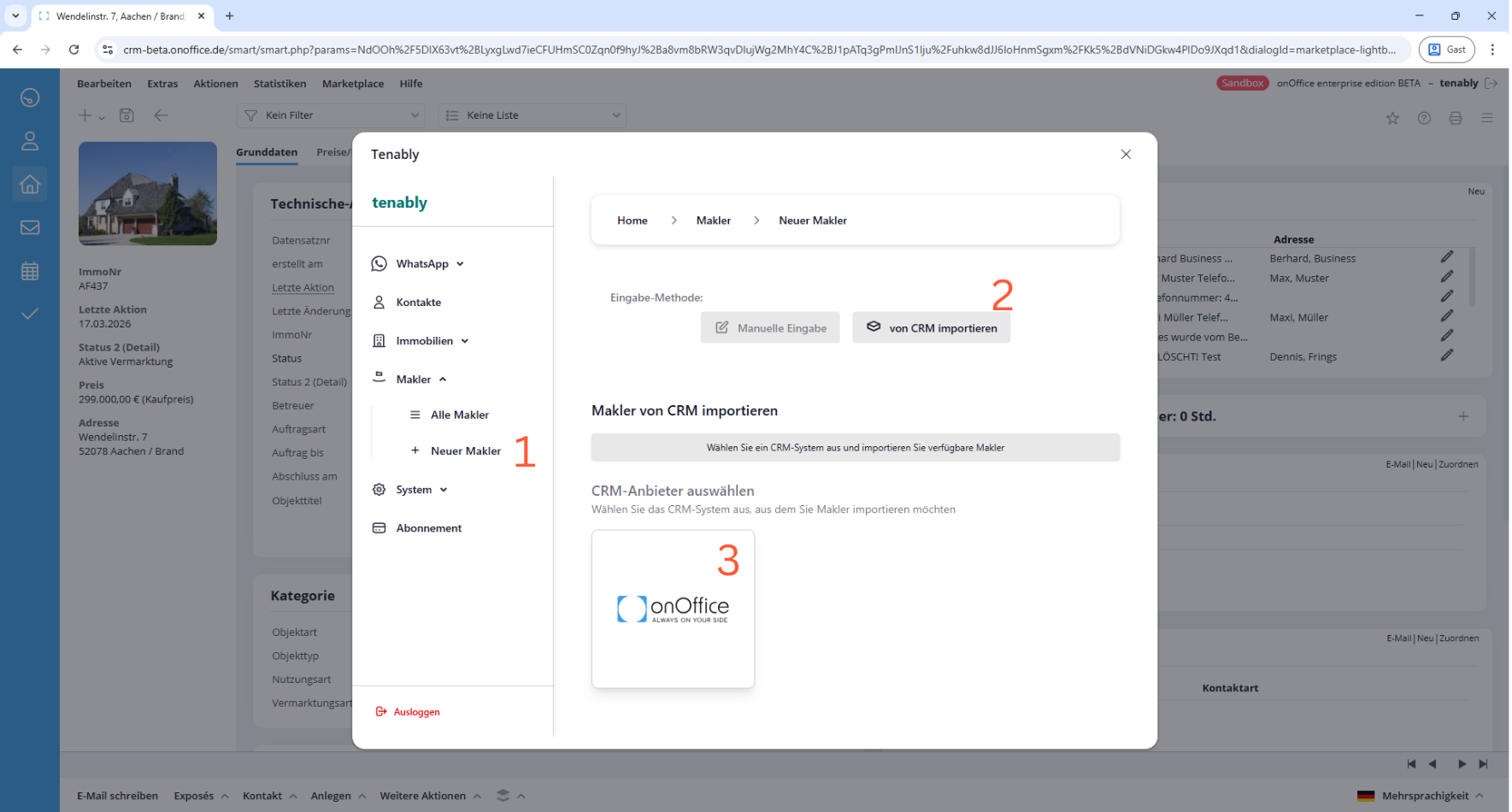
Import all real estate agents who are supposed to use the Tenably WhatsApp Dashboard.
- Click on “Real estate agent” / “New Real estate agent”
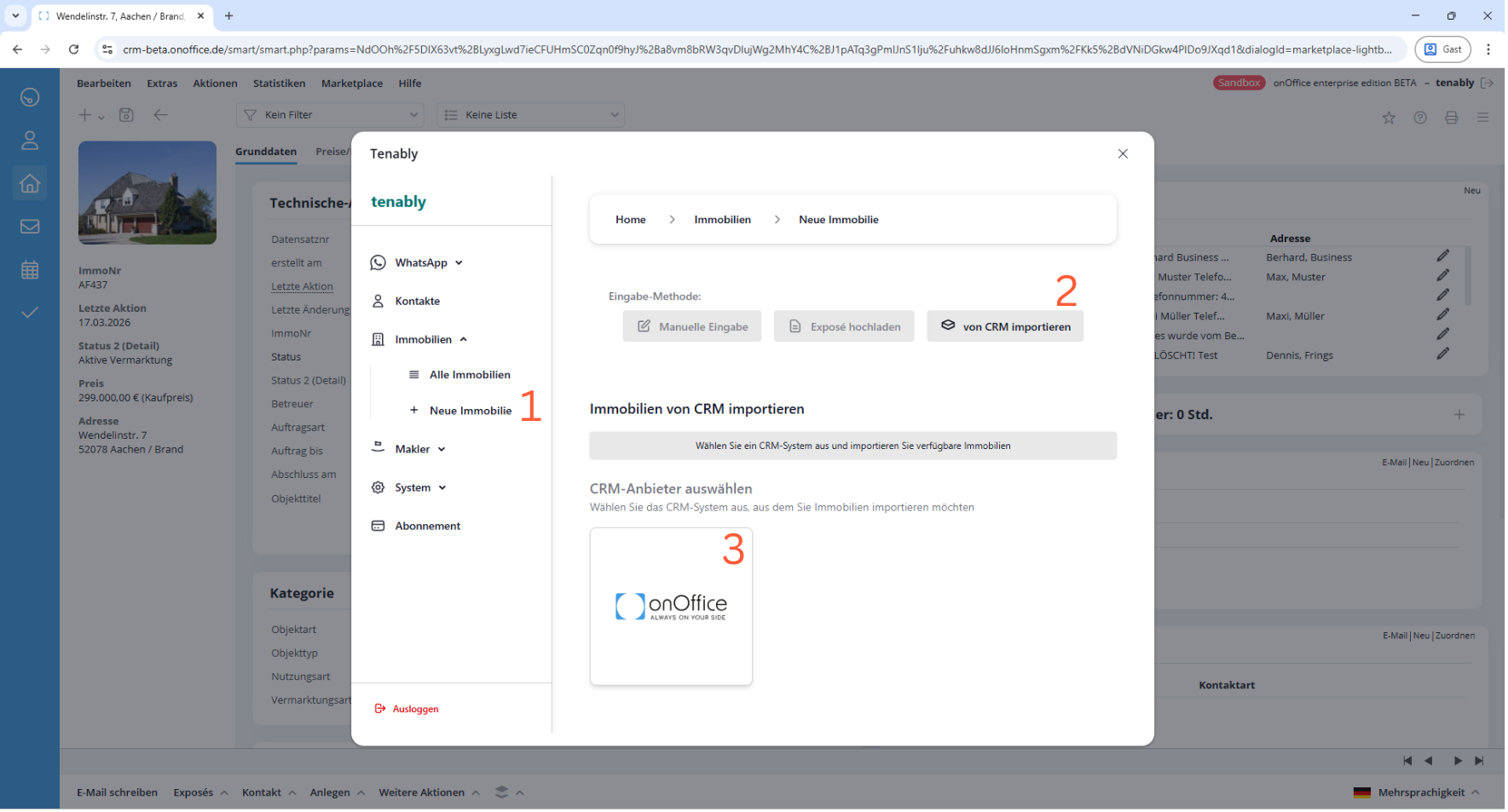
- Select the input method: Select “Import from CRM” and click on onOffice.
- Select all the real estate agents you want to import, and complete the step by clicking “Import.”
You can find a detailed video tutorial for this step and the next one here:
https://support.tenably.io/makler-anlegen-und-kalender-verbinden-0
Step 9
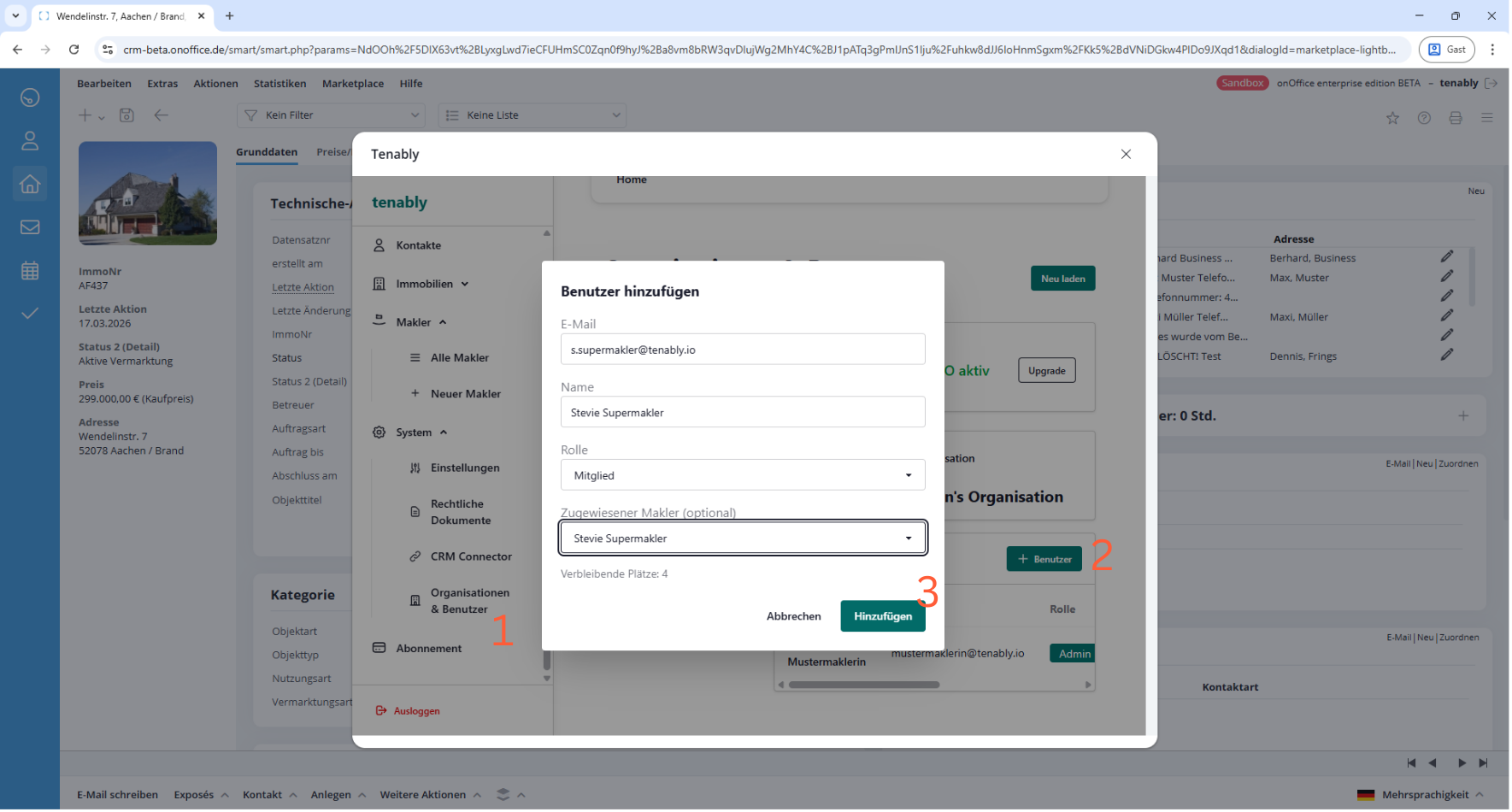
Create Tenably accounts for all real estate agents who will be using the Tenably WhatsApp Dashboard.
Step 10
Import all the properties you want to market on WhatsApp.
- Click on “Property” / “New Property”
- Select the “Import from CRM” entry method and click on onOffice.
- Select all the properties you want to import, and complete the step by clicking “Import.”
You can find a detailed video tutorial for this step here:
https://support.tenably.io/immobilie-aus-onoffice-importieren