 Entry
Entry Dashboard
 Contacts
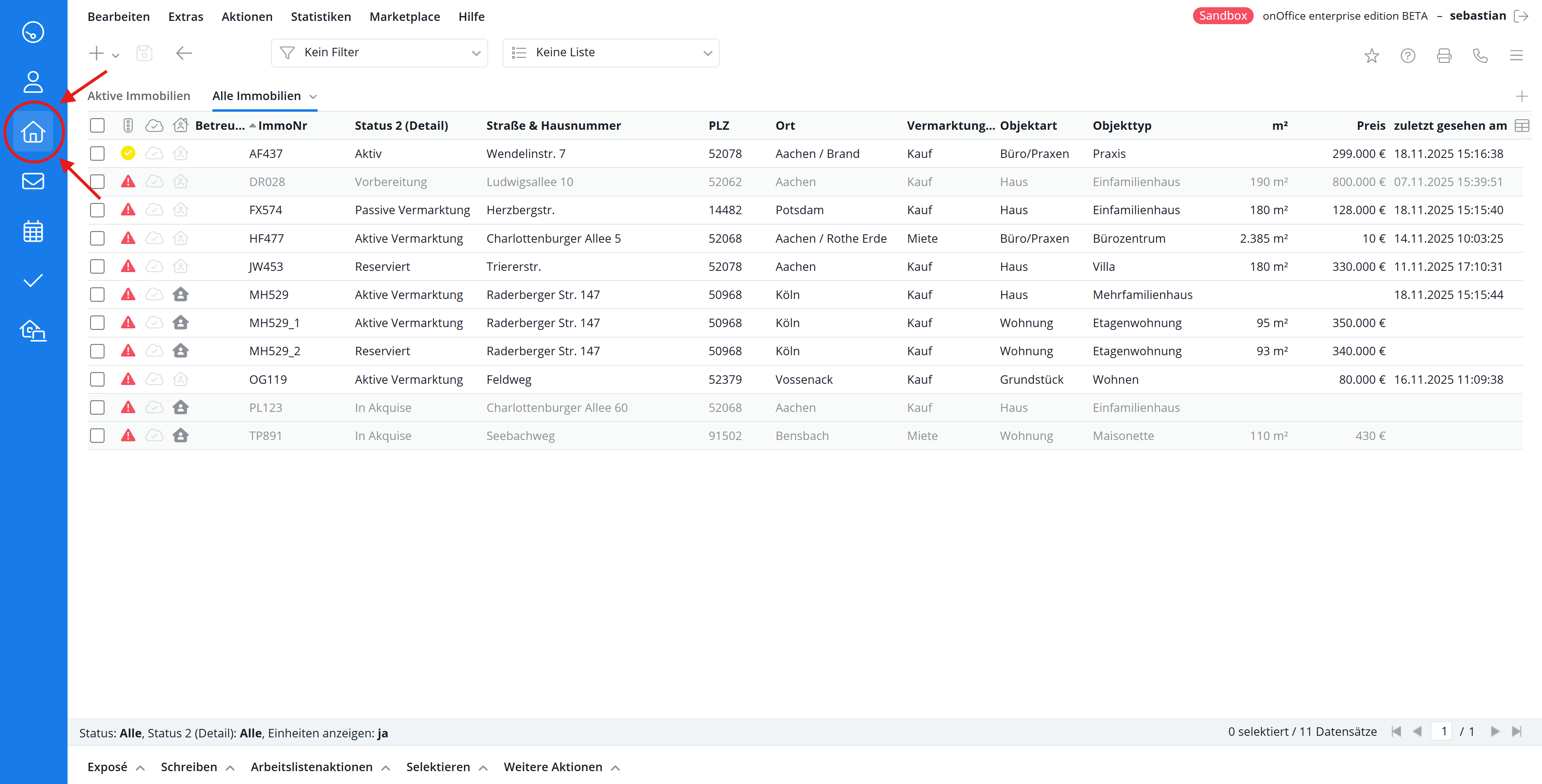
 Properties
 Email
Email Calendar
 Tasks
Tasks Acquisition Cockpit
 Audit-proof mail archiving
 Automatic brochure dispatch
 Billing
 Groups
 Intranet
 Marketing Box
 Marketplace
 Multi Property module
 Multilingual Module
 onOffice sync
 Presentation PDFs
 Process manager
 Project Management
 Property tracking
 Property value analyses
 Enquiry Manager
 Showcase TV
 Smart site 2.0
 Statistic Tab
 Statistics toolbox
 Success Cockpit
 Time Tracking
 Address from clipboard
 Text block
 Customer communication
 External Tools
 Favorite links
 Calculating with formulas
 Mass update
 onOffice-MLS
 Portals
 Property import
 Quick Access
 Settings
 Templates
 Step by step


You are here: Home / Additional modules / Marketplace / Provider overview / Tenant link - Obtain tenant self-disclosure online

Marketplace
Tenant link – Obtain tenant self-disclosure online
This guide describes how you as a real estate agent can request, manage and share tenant self-disclosures directly via onOffice.
Further information can be found here:
Help Center: https://mieterlink.de/hilfe-center
Video tutorials: https://mieterlink.de/video-tutorials?filter=onoffice
This guide describes how you as a real estate agent can request, manage and share tenant self-disclosures directly via onOffice.
Further information can be found in the Help Center:
https://mieterlink.de/hilfe-center
Request self-disclosure in onOffice
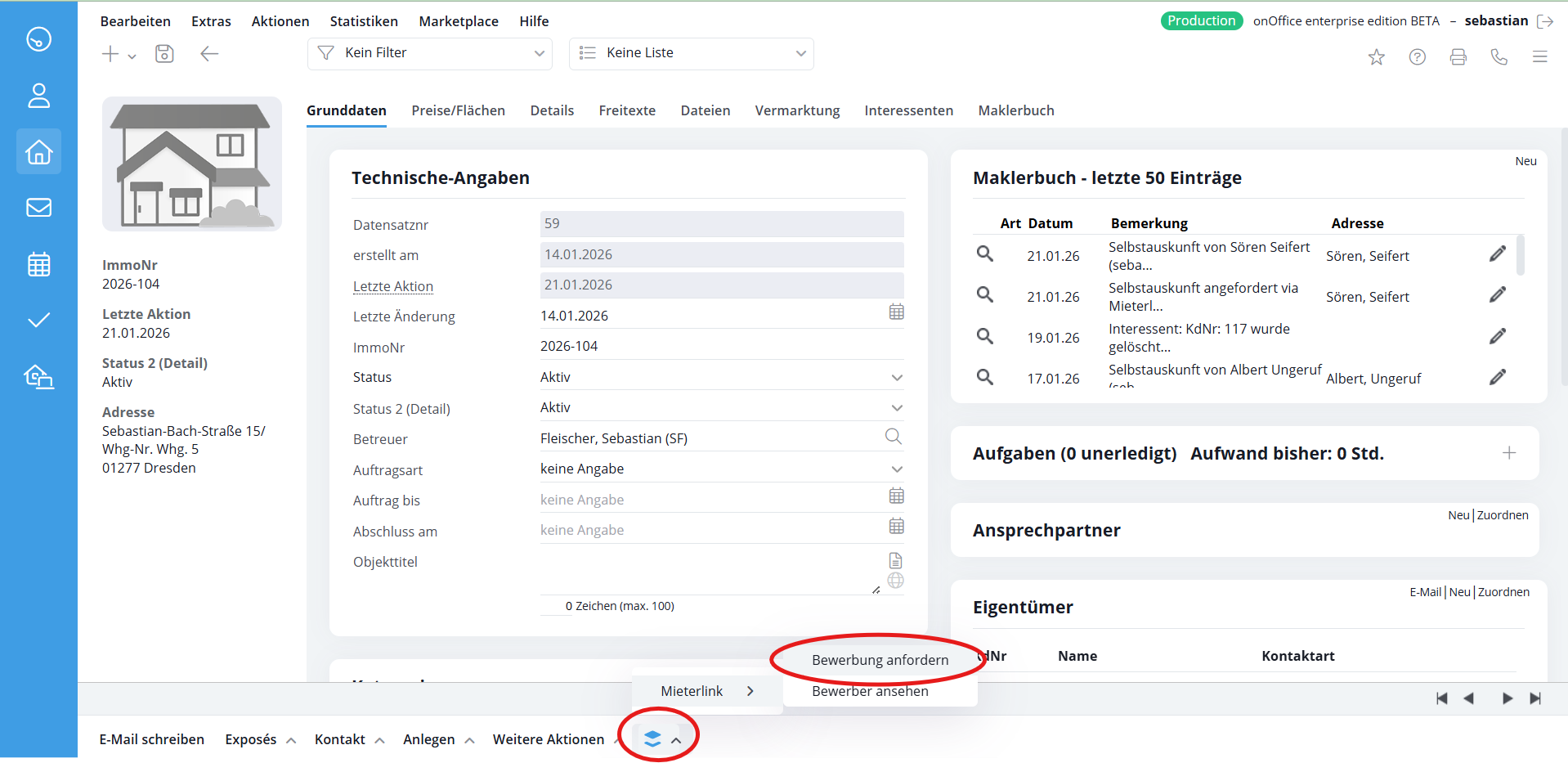
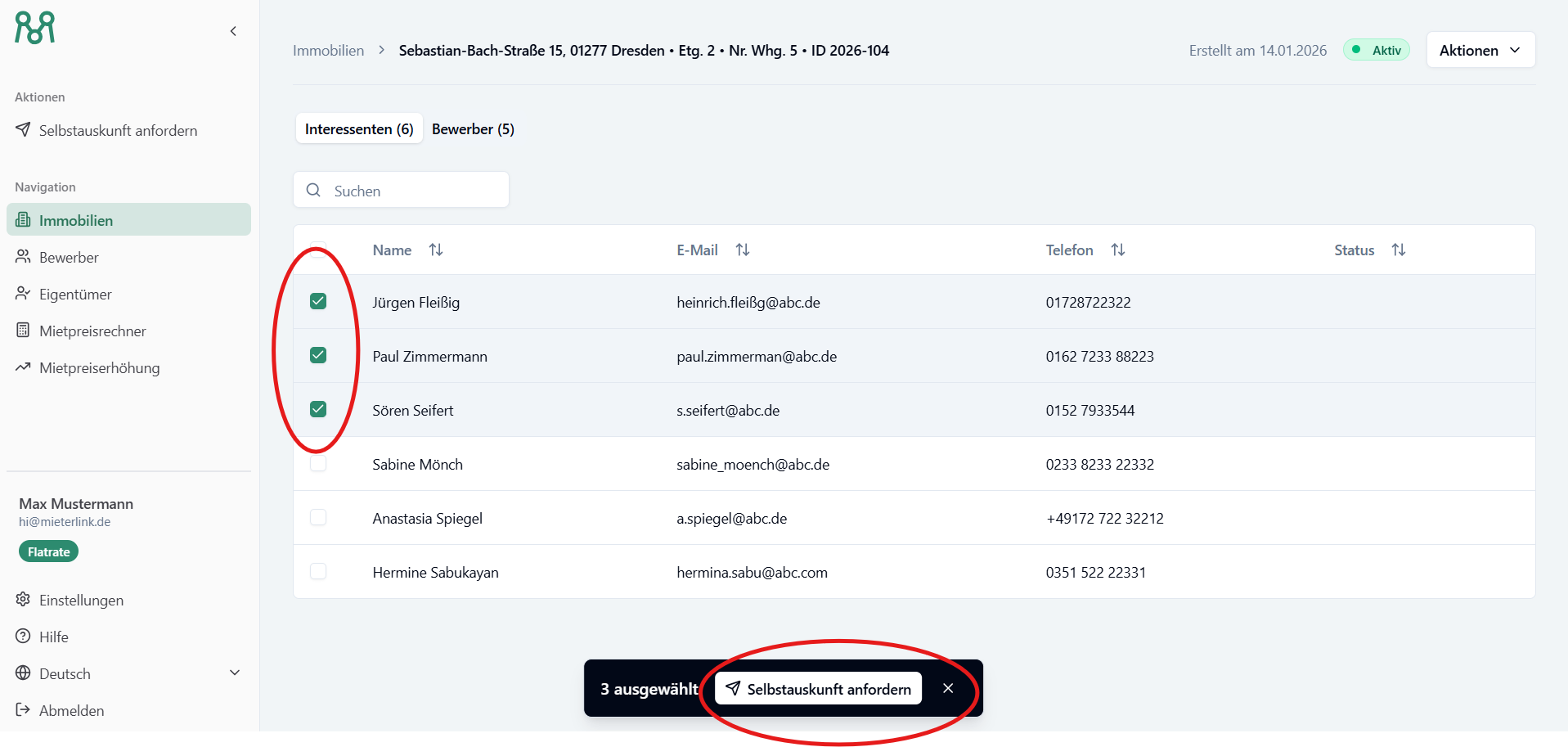
2. Start tenant link: In the ribbon, click on Further actions > Tenant link > Request application.
3. Select prospects: A window opens with all the prospects stored for this property (automatic import from onOffice). Select the desired persons.
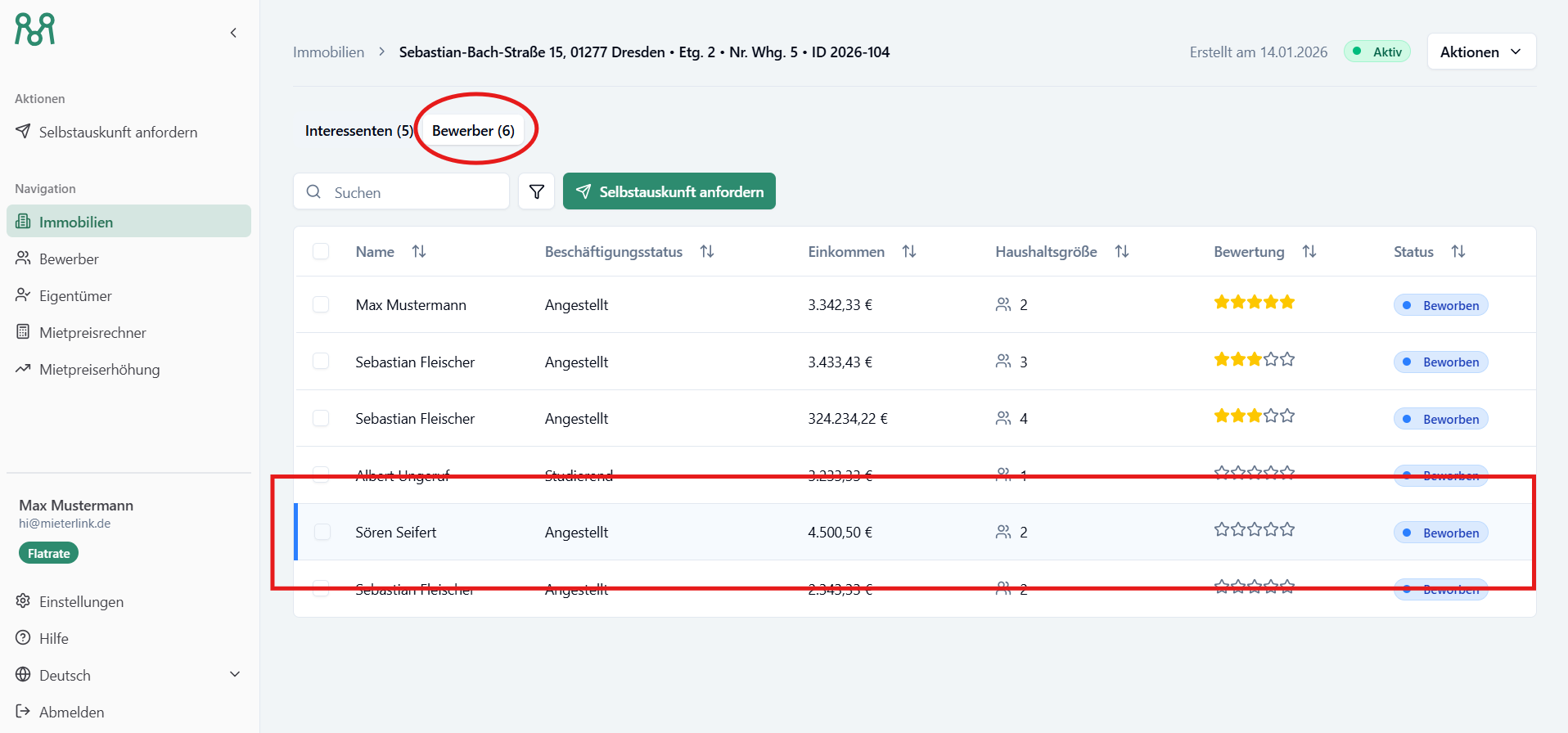
◦ Note: As soon as a prospect has submitted the self-disclosure, they automatically switch from the “Prospects” tab to the “Applicants” tab.
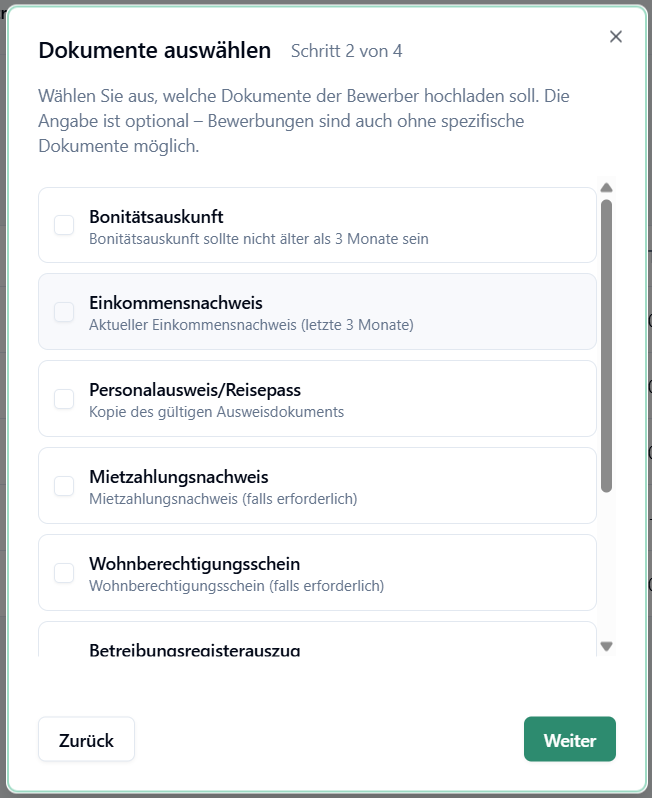
4. Define documents (optional): Specify which proofs (e.g. salary statements) are to be requested. You can customize designations.
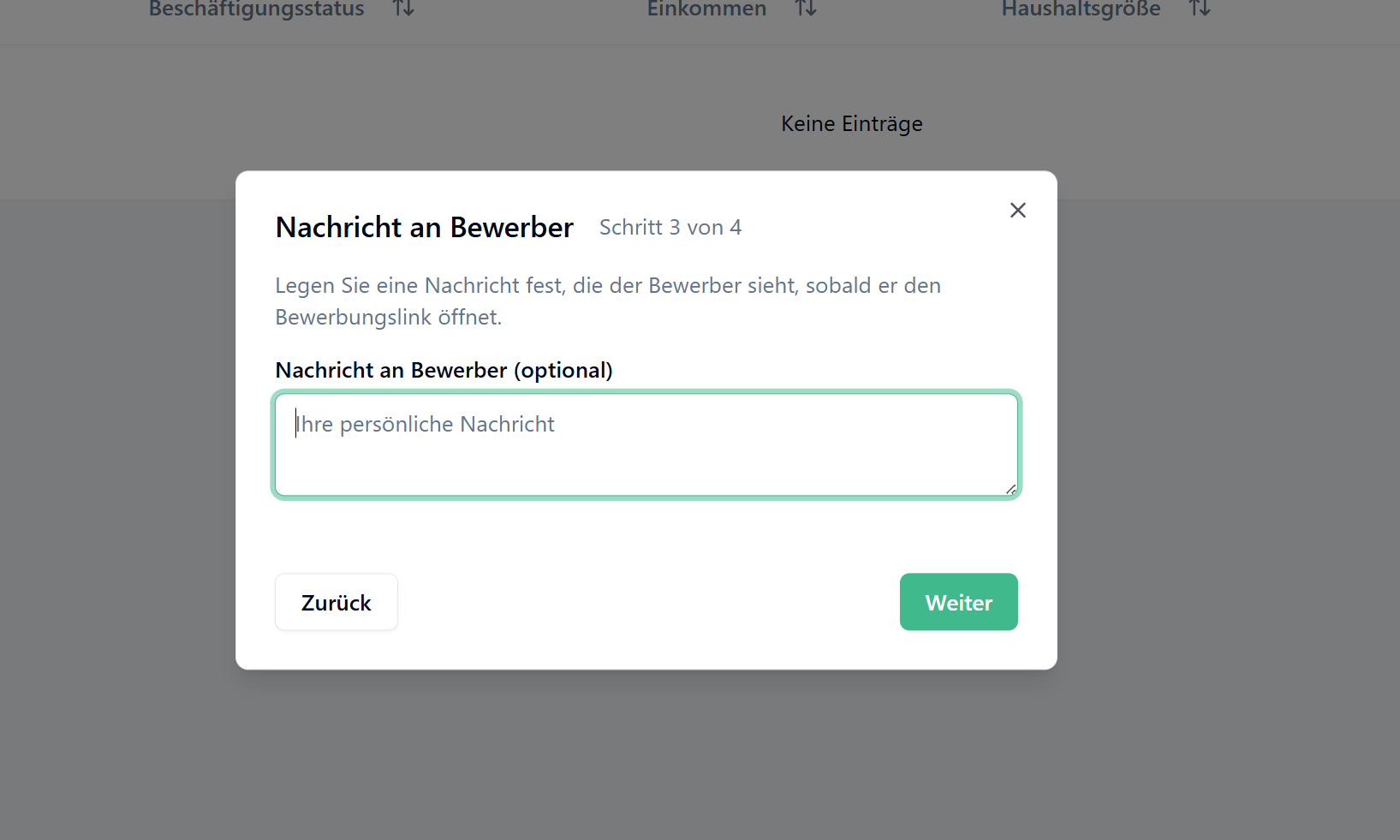
5. Compose message (optional): Write a personal message that will be displayed to the prospect when they open the link.
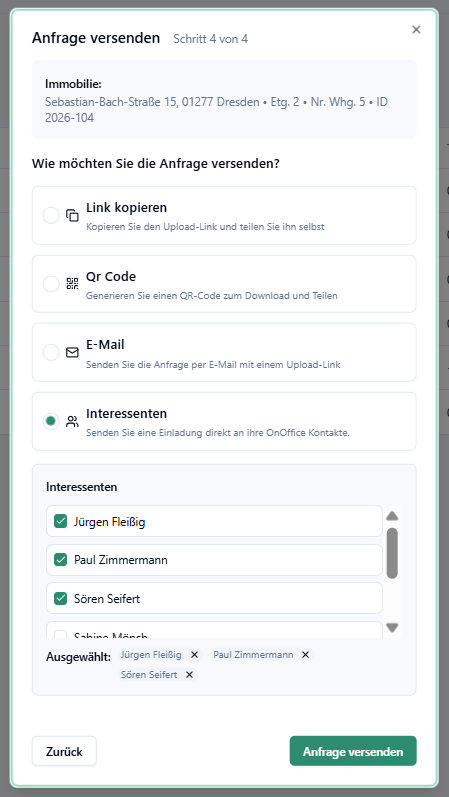
6. Shipping: Click on “Send requests”.
◦ Alternative methods: If no prospect has been selected in onOffice, you can copy a link, generate a QR code (for the brochure) or invite people directly by e-mail.
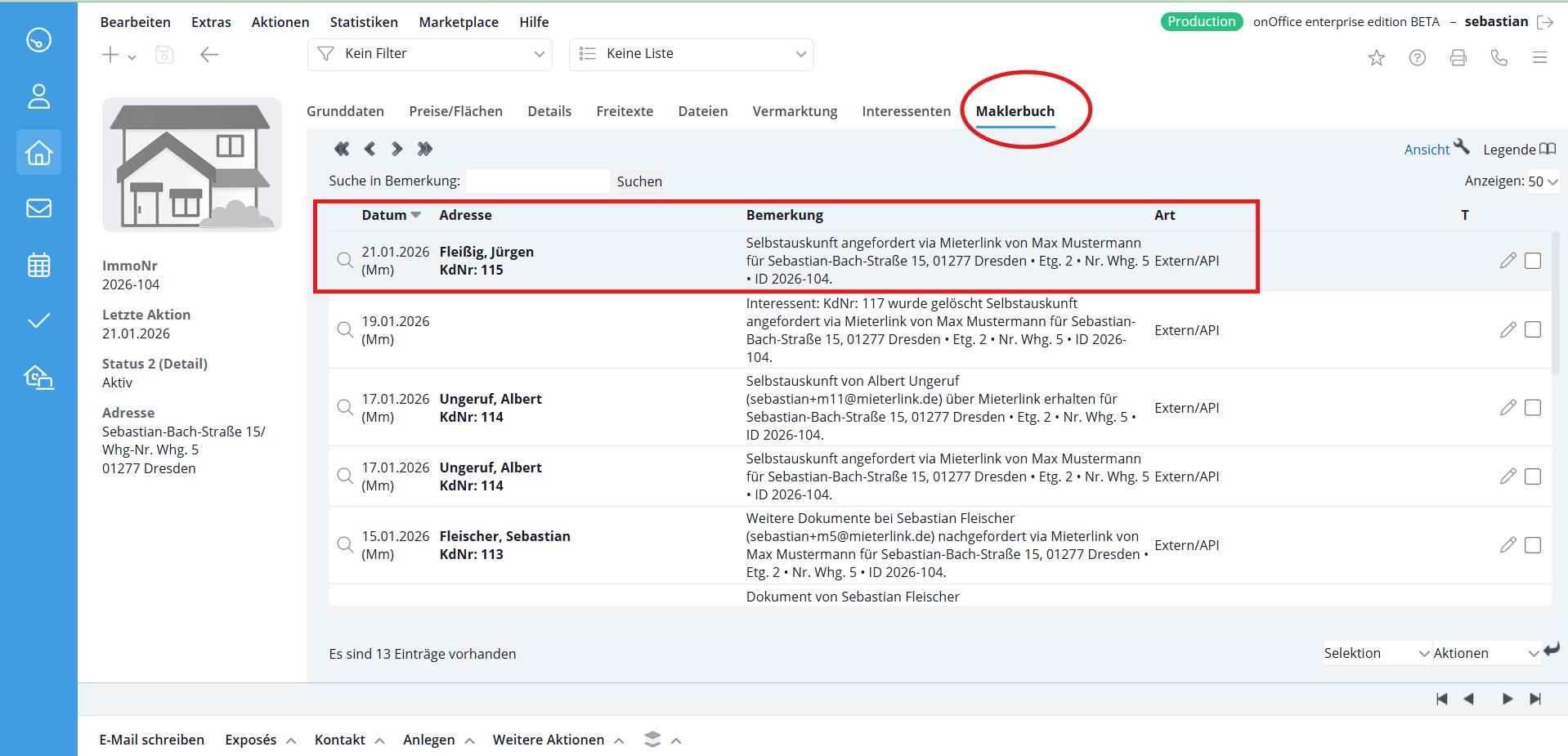
7. Confirmation: After sending, the status “Self-disclosure requested” appears at the bottom right.
8. Logging: All steps are automatically documented in the onOffice agent’s log (inquiries, receipt of data, acceptances/rejections).
The digital process for prospects
The process is designed to be intuitive for applicants, regardless of device (smartphone, tablet or PC):
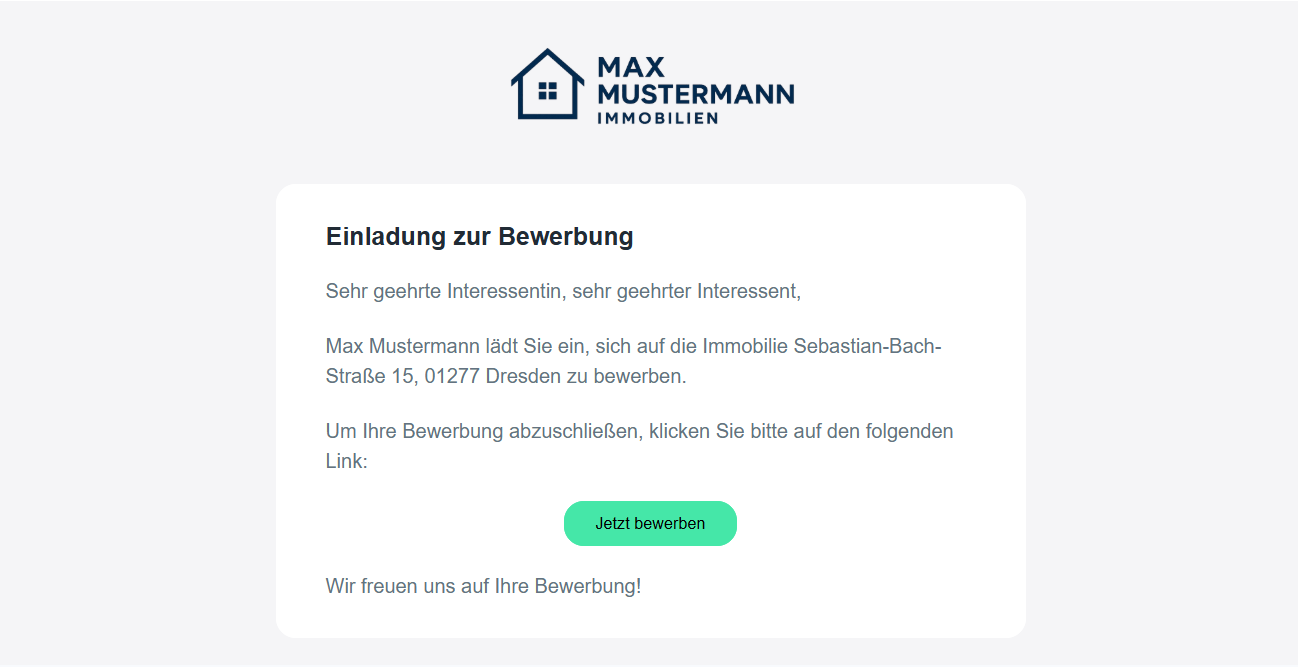
1. Invitation: The prospect receives an e-mail with your logo and branding.
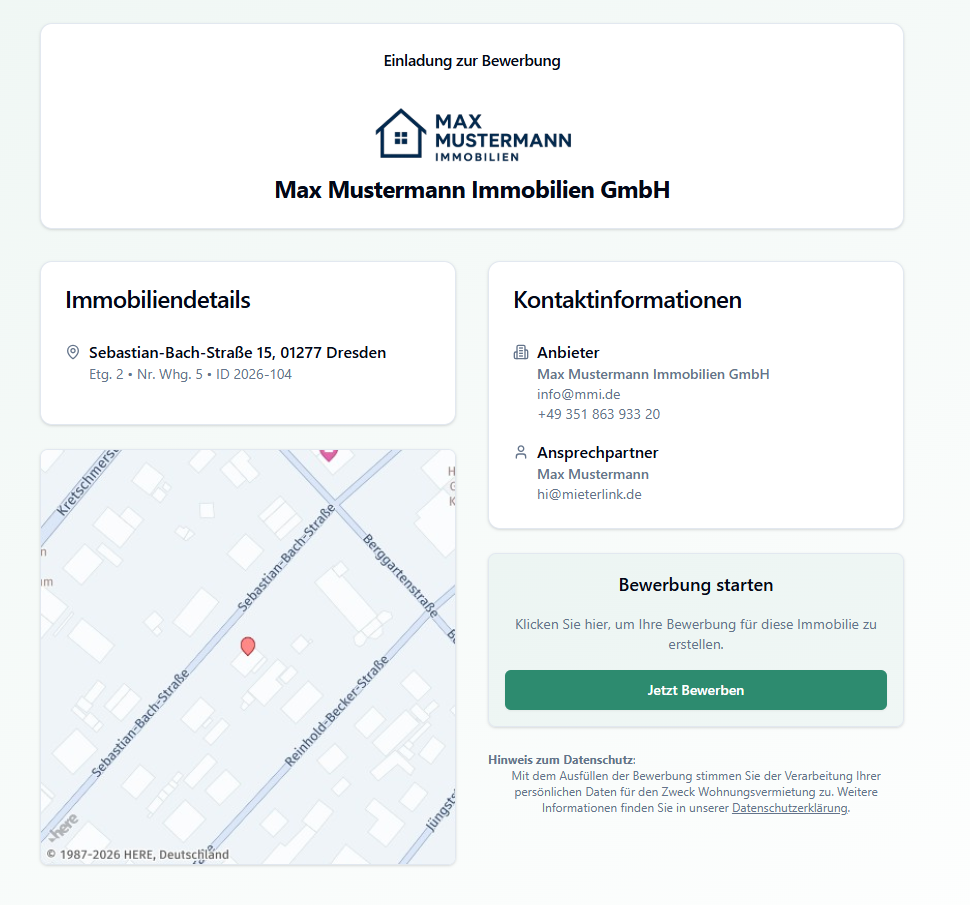
2. Landing page: The “Apply now” button takes the prospect to a landing page with details of the property and your message.
◦ Language selection: Applicants can choose between German, English, Spanish, Italian, French and other languages.
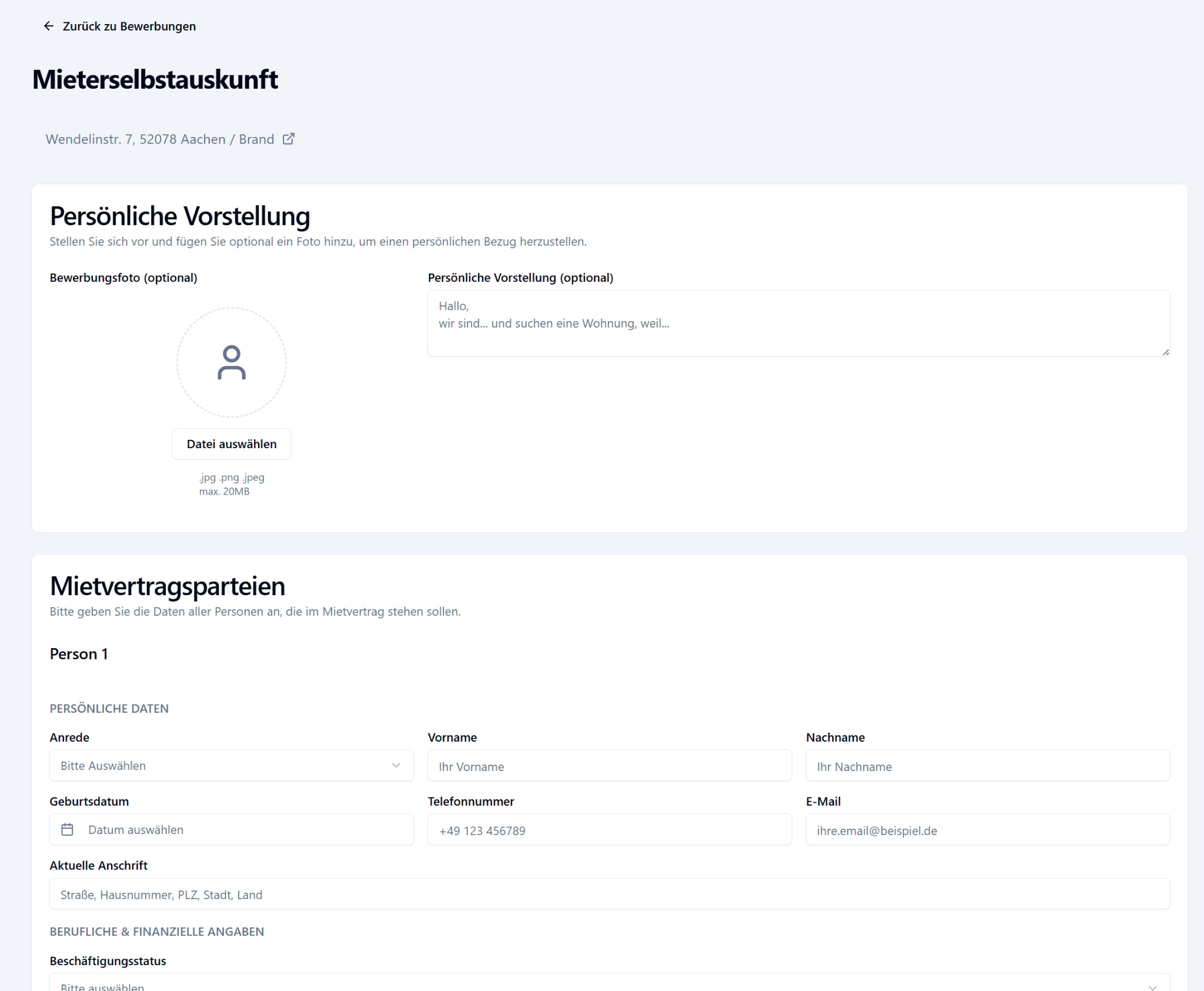
3. Structured form: The applicant is guided through the following areas:
◦ Personal introduction (optional)
◦ Tenancy agreement parties (any number possible)
◦ Household details & previous tenancy
◦ Document upload: Evidence can be uploaded directly by photo or file upload and assigned to the respective persons.
4. Conclusion: After clicking on “Submit application”, all data is immediately available to you.
Check and manage tenant self-disclosure
1. Notification: You will receive an e-mail each time an application is received. The entrance is also indicated in the property overview.
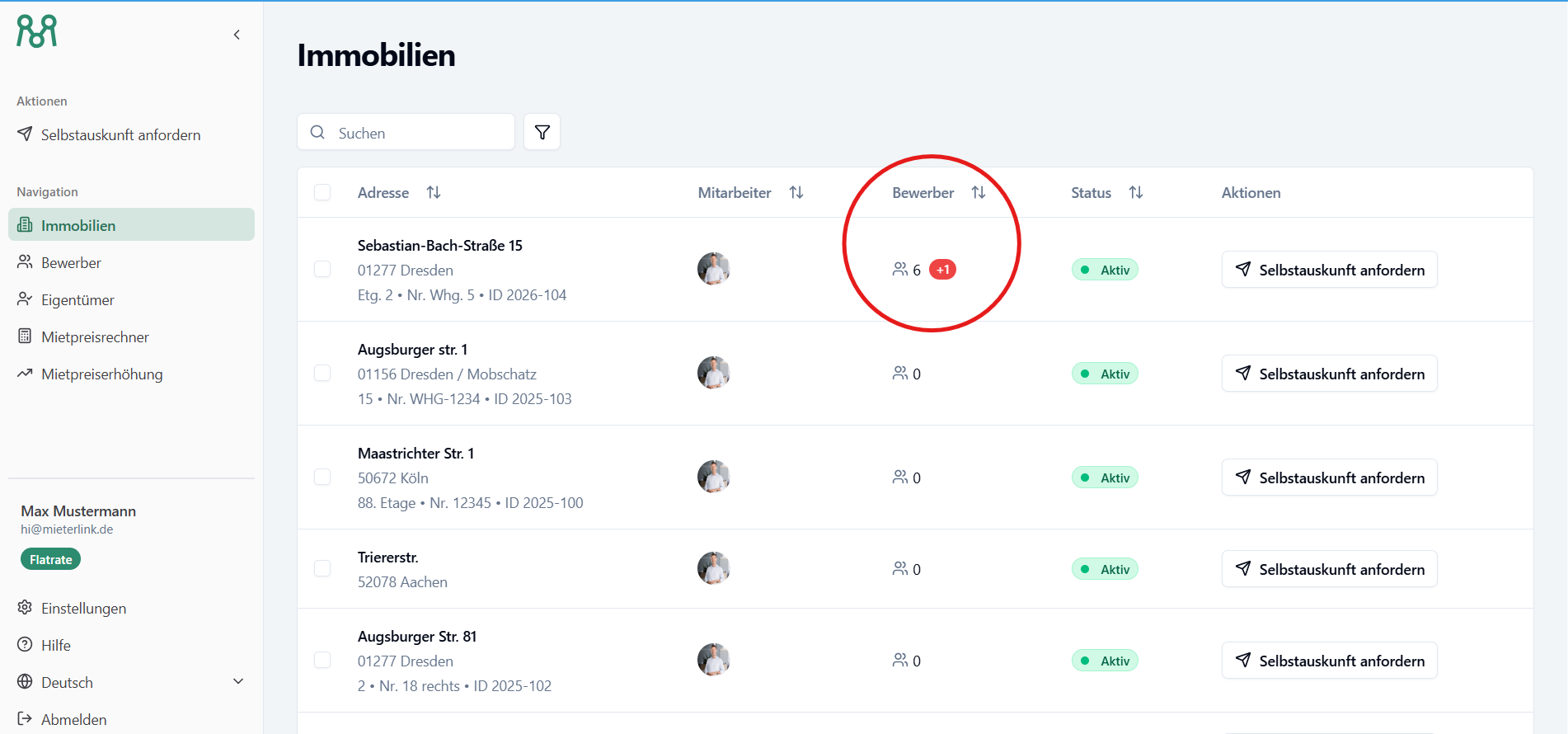
2. Overview: You can see the most important key data immediately in the applicant list: Name, status, household income and number of persons.
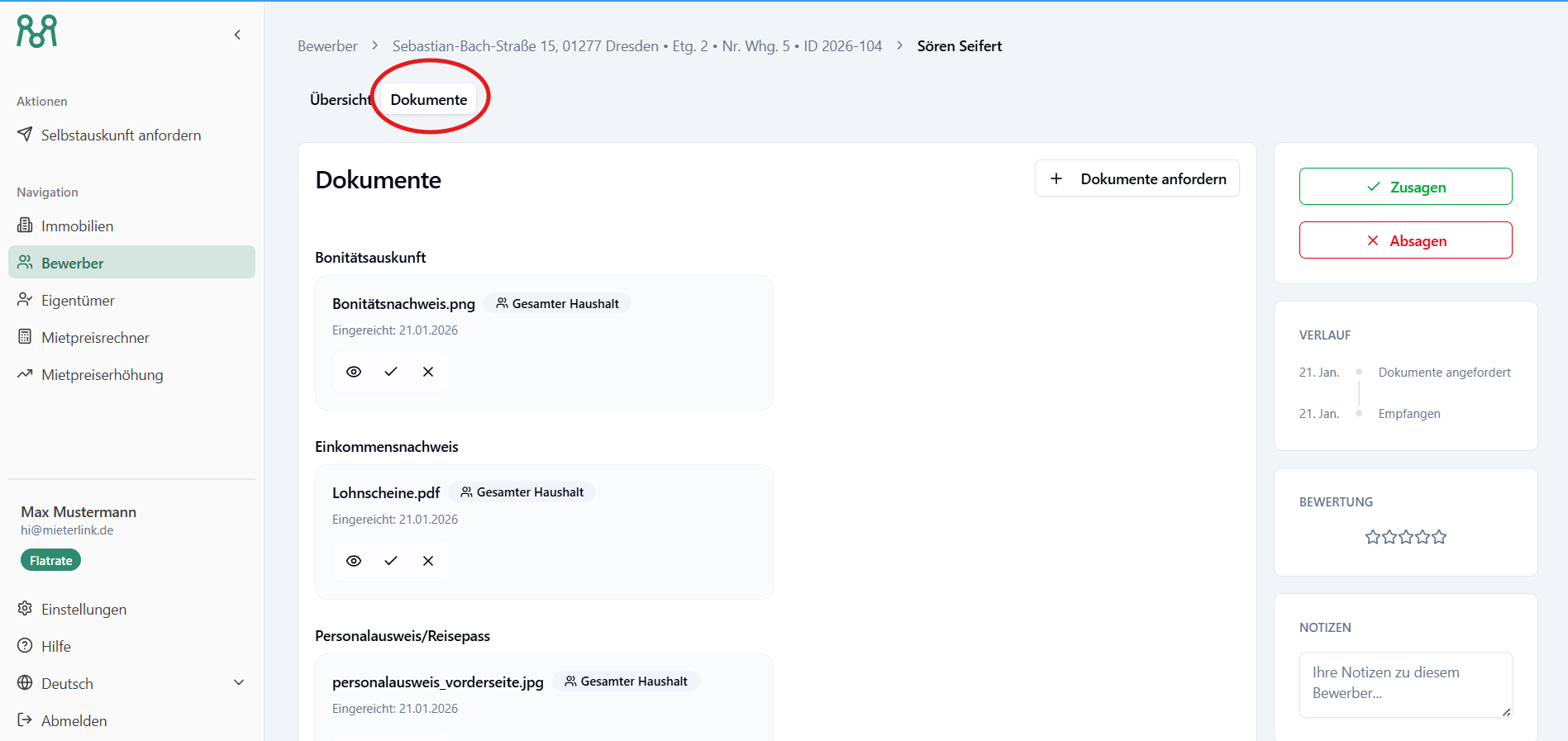
3. Detail check:
◦ Assign internal star ratings.
◦ View documents directly in the preview.
◦ If necessary, request documents or reject illegible files (the applicant is automatically informed).
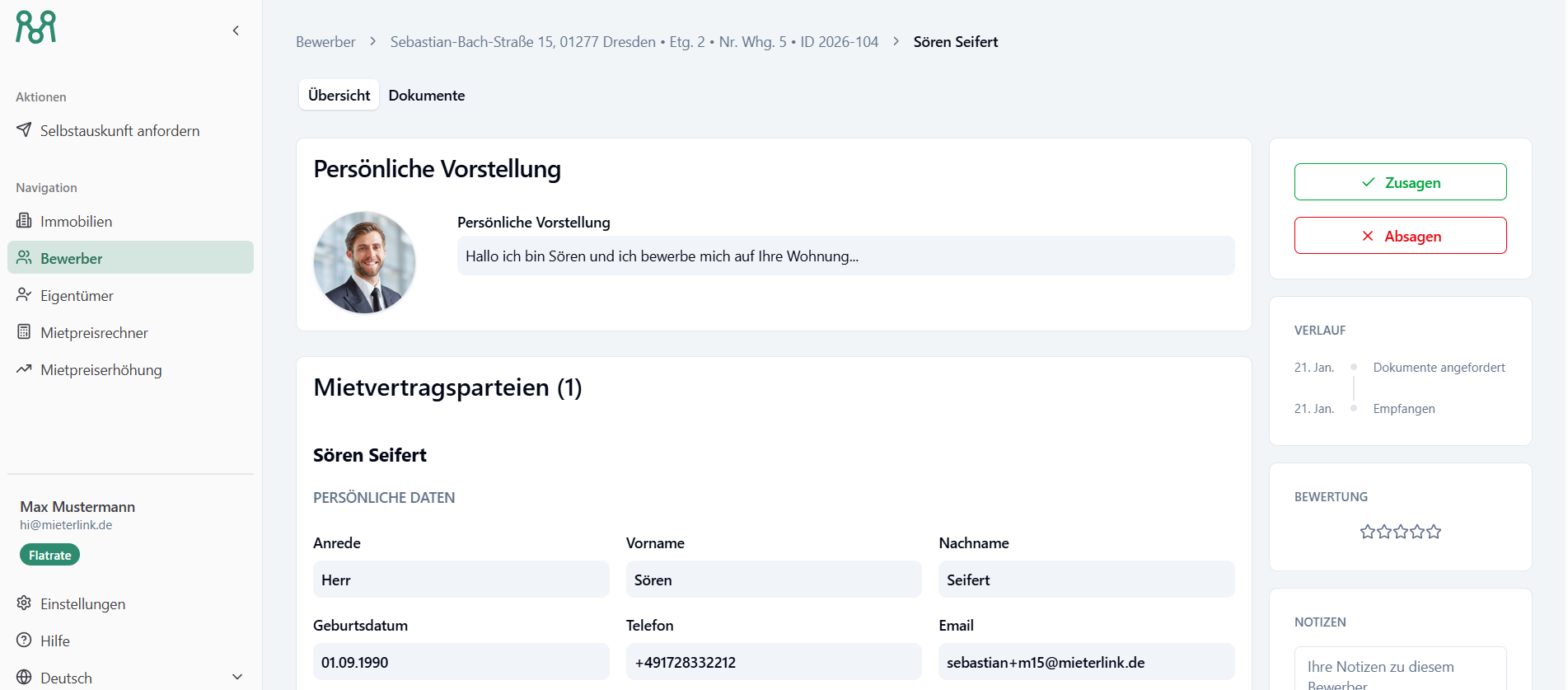
4. Decision: Send acceptances or rejections directly from the system with a single click.
5. Data synchronization:
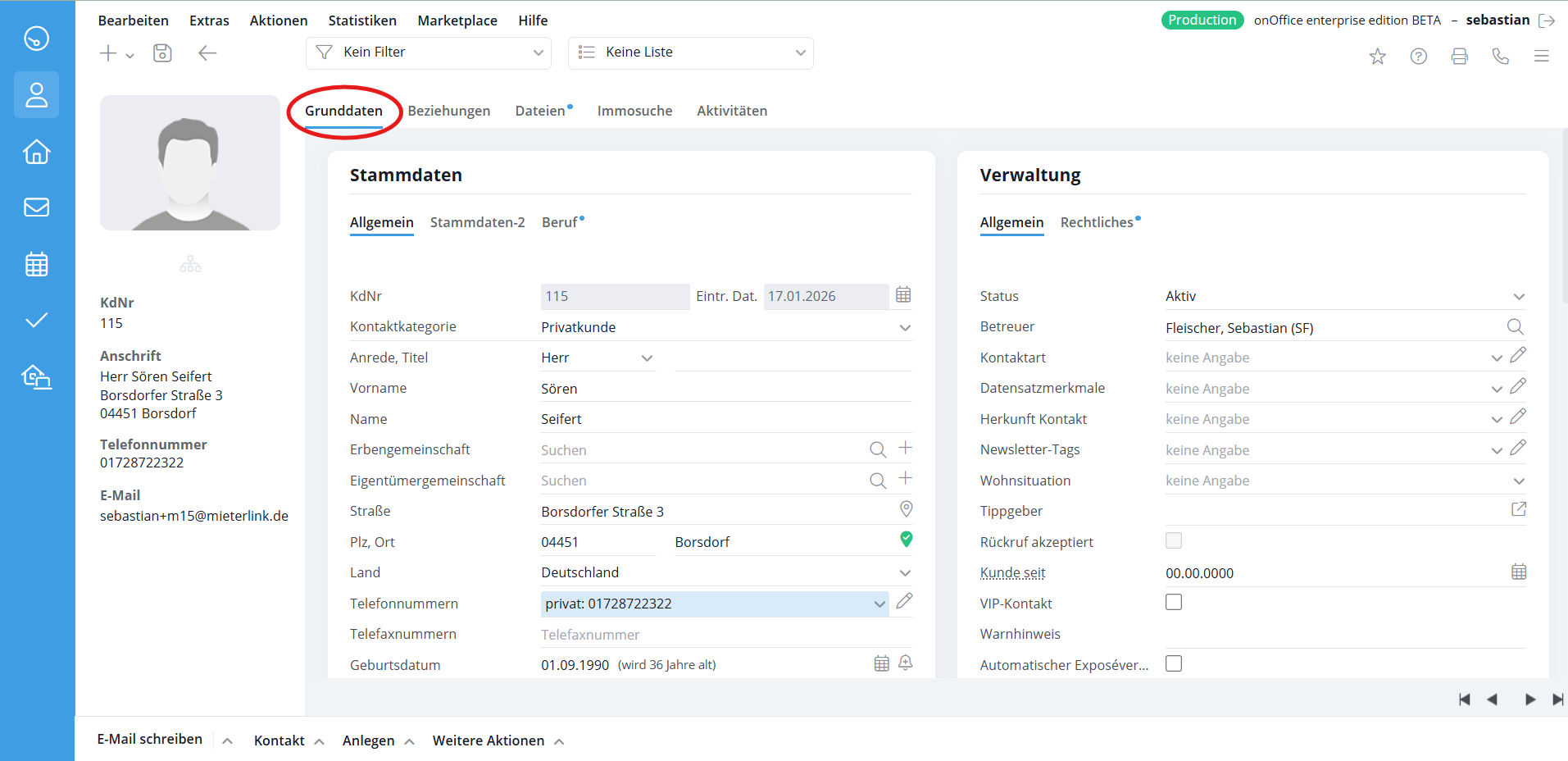
◦ Basic data: All applicant data is automatically imported into the onOffice basic data
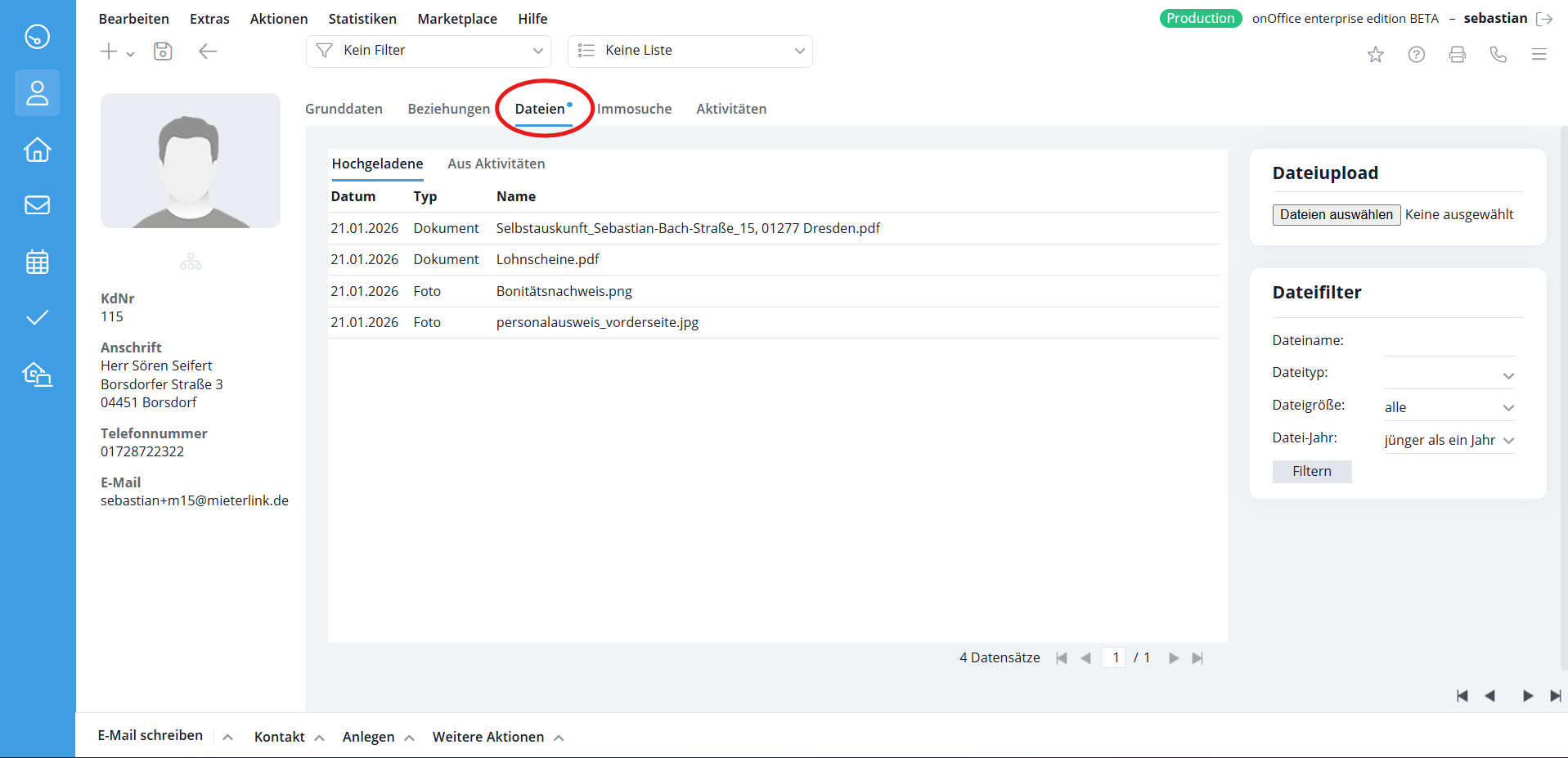
◦ files: All attachments and the finished self-disclosure as a PDF are stored under the “Files” tab in onOffice.
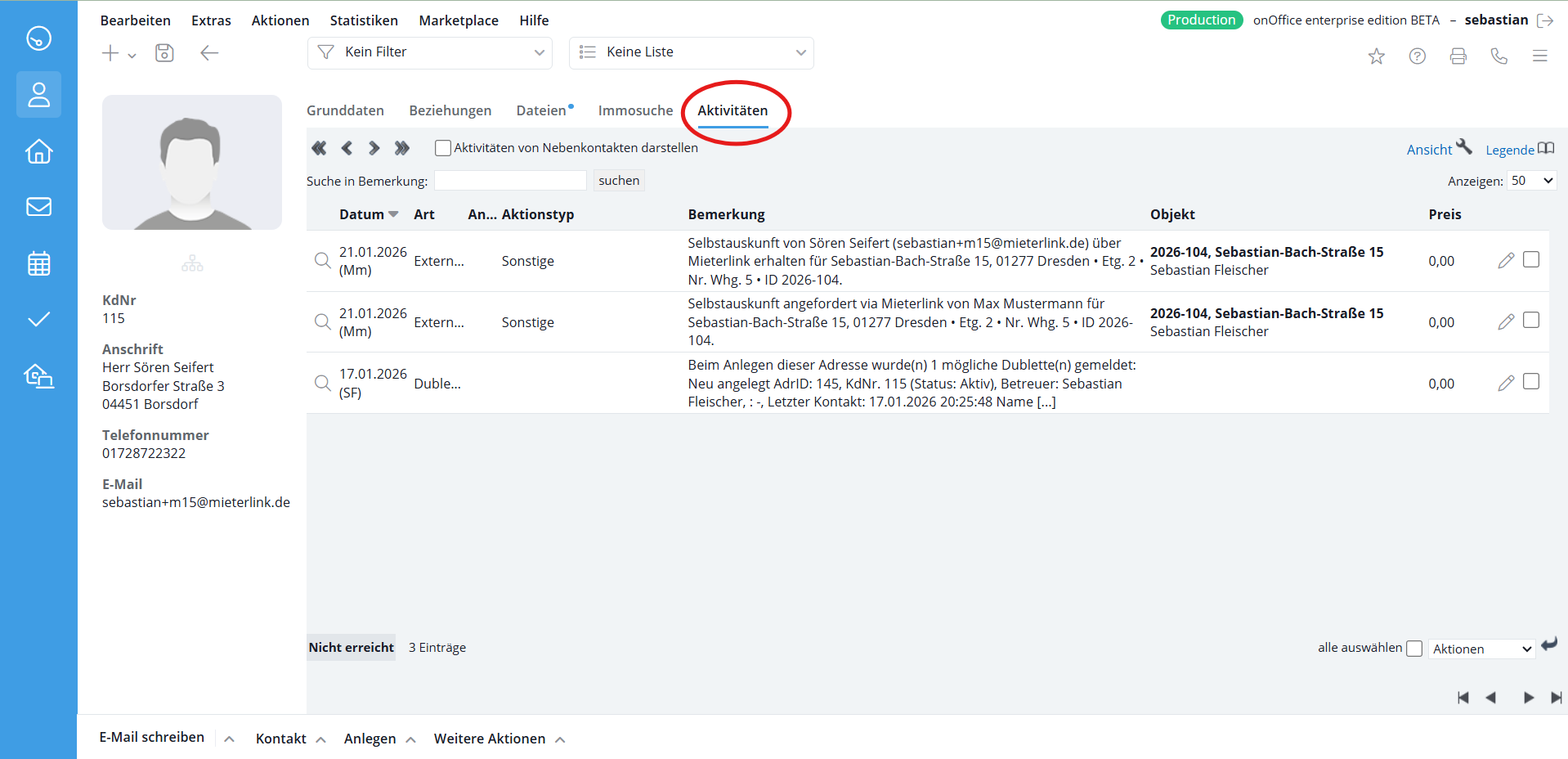
◦ Activities: The entire process is fully documented.
Present the best candidates to your client professionally and confidently:
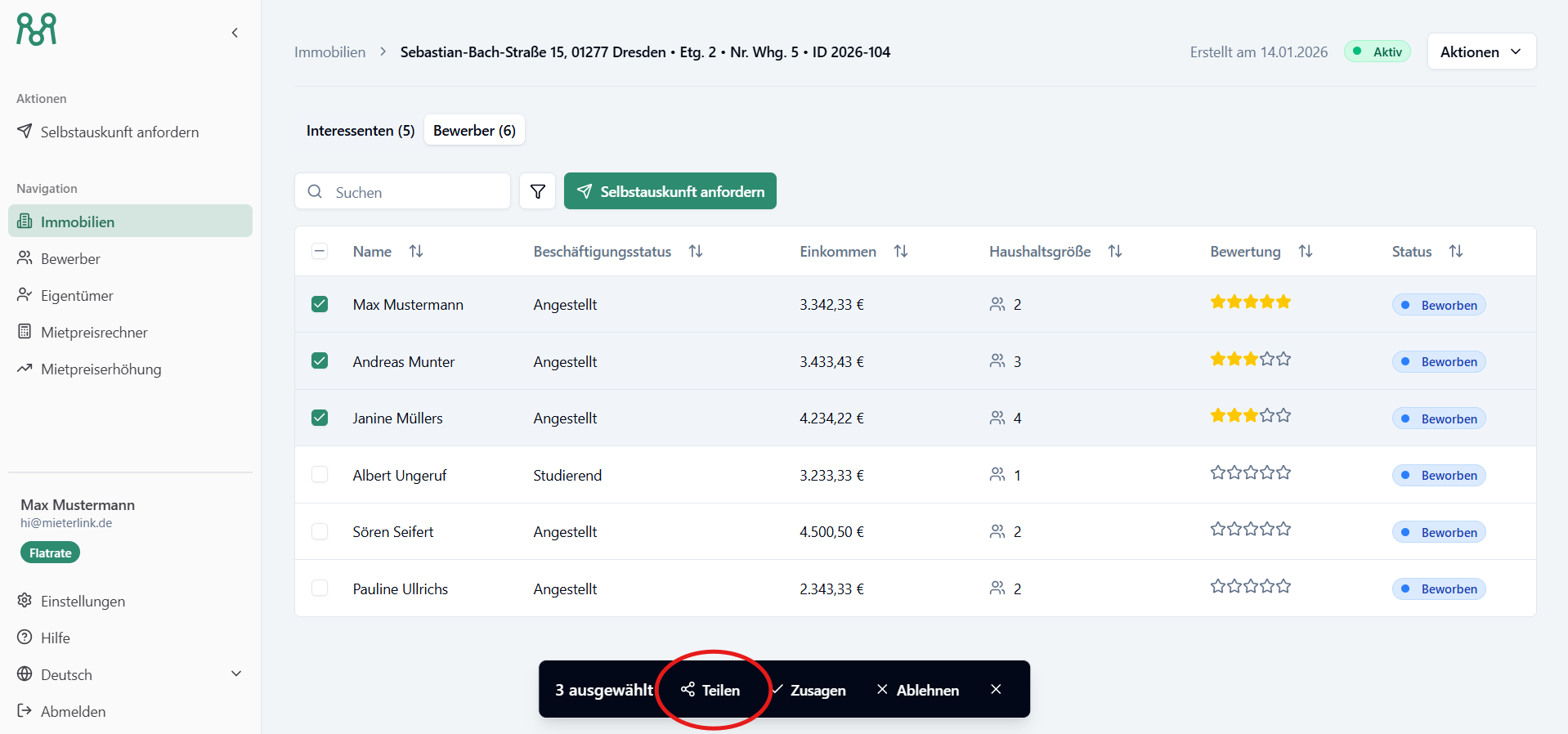
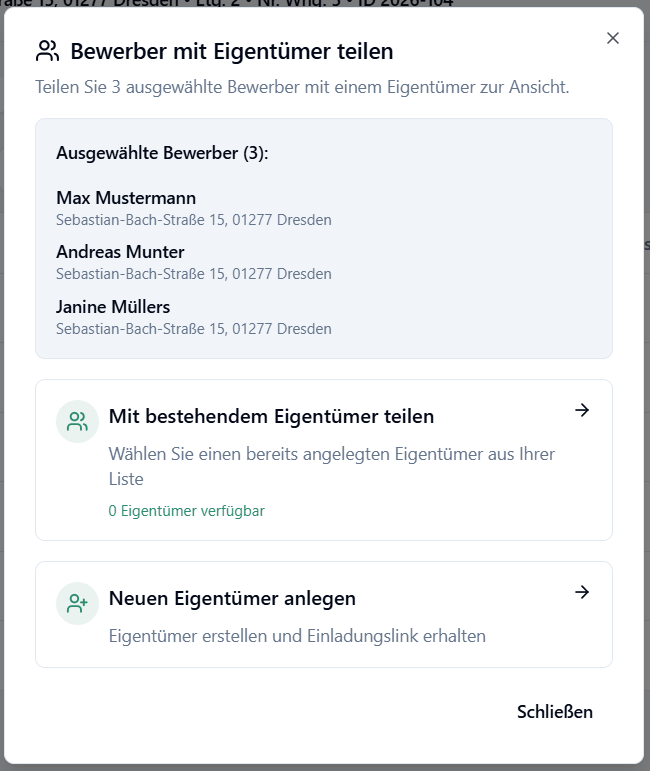
1. Select applicant: Mark the favorites in the overview and click on “Share”.
2. Owner access: Select an existing owner or create a new one with a name.
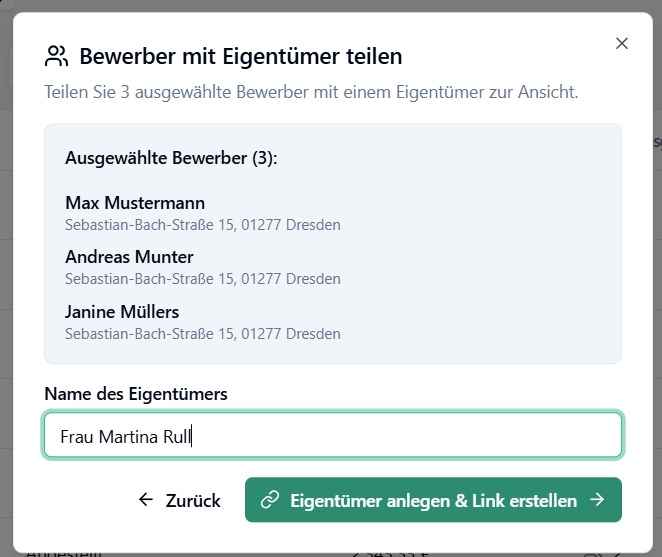
3. Create link: Click on “Create owner & create link”.
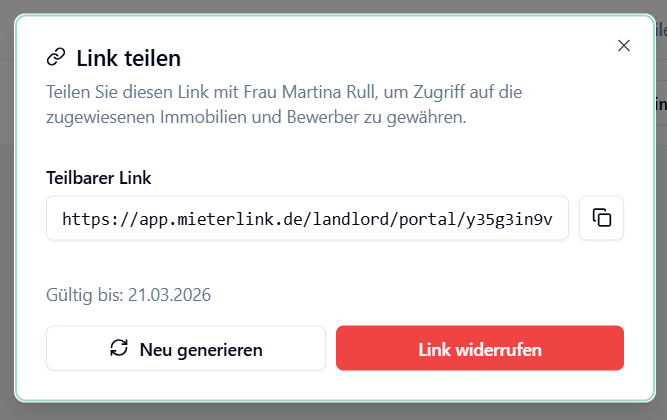
4. Secure access: Share the link with your owner. The owner receives a time-limited link via which he can view all released data and documents online.
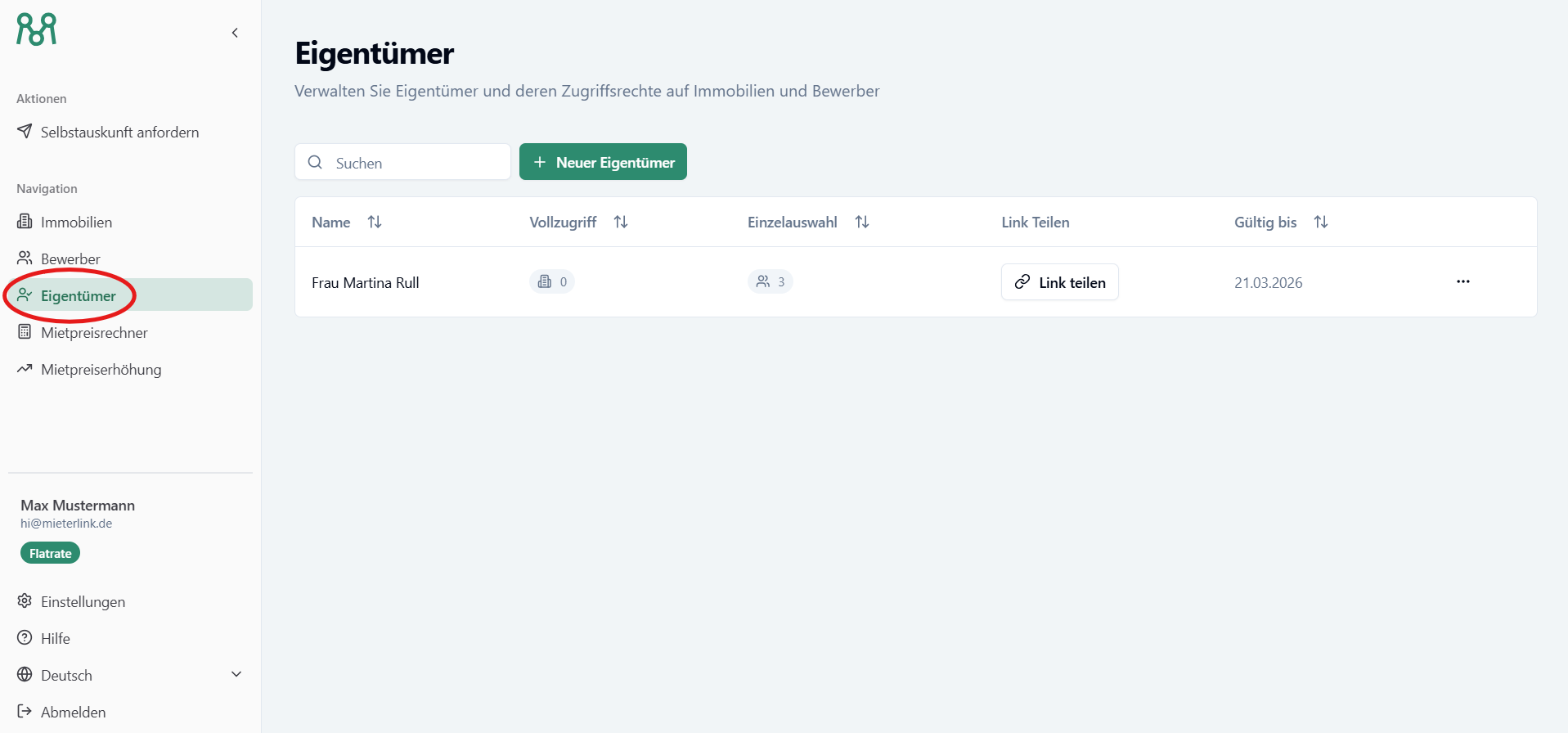
5. Owner control:
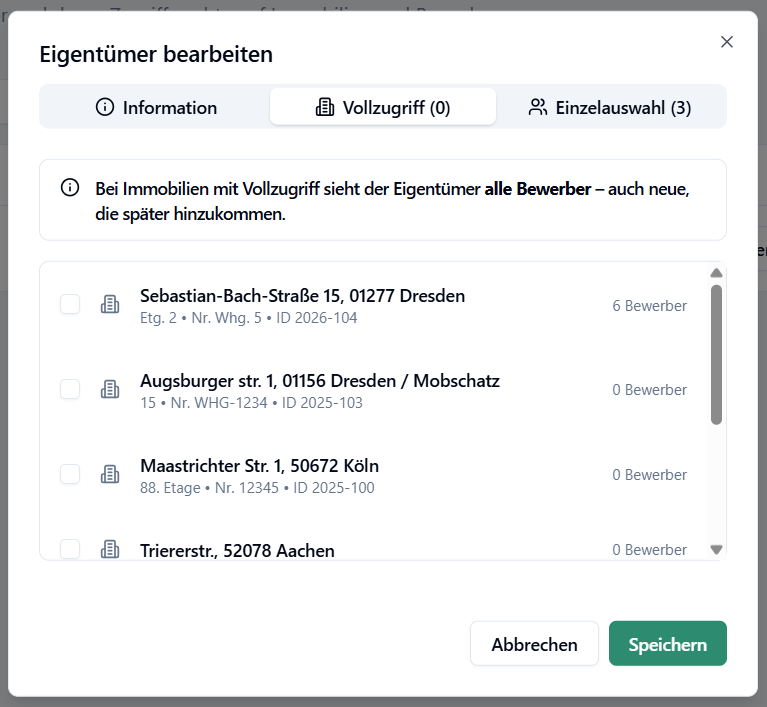
◦ Full access: The owner automatically sees all (including future) applicants for a property.
◦ Individual access: You only release specifically selected profiles.
◦ Links can be revoked or renewed at any time in the “Owner” menu item.