 Entry
Entry Dashboard
 Contacts
 Properties
 Email
Email Calendar
 Tasks
Tasks Acquisition Cockpit
 Audit-proof mail archiving
 Automatic brochure dispatch
 Billing
 Groups
 Intranet
 Marketing Box
 Marketplace
 Multi Property module
 Multilingual Module
 onOffice sync
 Presentation PDFs
 Process manager
 Project Management
 Property tracking
 Property value analyses
 Enquiry Manager
 Showcase TV
 Smart site 2.0
 Statistic Tab
 Statistics toolbox
 Success Cockpit
 Time Tracking
 Address from clipboard
 Text block
 Customer communication
 External Tools
 Favorite links
 Calculating with formulas
 Mass update
 onOffice-MLS
 Portals
 Property import
 Quick Access
 Settings
 Templates
 Step by step


You are here: Home / Additional modules / Marketplace / Provider overview / onOffice Services - AI Studio

Marketplace
onOffice Services – AI Studio
Description
Powerful, smart features for maximum performance – that’s onOffice AI Studio!
Please note that this is an exclusive feature for all customers with onOffice enterprise all-in or higher. If you have not yet used the onOffice AI Studio, you will receive a free contingent of 20 images for the Image Optimizer and Virtual Staging upon activation.
As your digital co-agent, the onOffice AI Studio combines various AI agents and other intelligent functions under one roof. They ensure faster marketing and less manual effort. What’s left for you? More valuable time for your customers!
✅ Working without media discontinuity
Our smart features are integrated directly into onOffice enterprise. Switching to external tools and thus interrupting your workflows is no longer necessary.
✅ Accelerated work processes
We know that your time is precious: Get more done in less time with the AI agents from our onOffice AI Studio!
✅ No standstill
Standstill = regression. We are continuously developing the onOffice AI Studio to help you advance your business. New features are already waiting to optimize your workflows!
Discover these smart functions of our onOffice AI Studio:
- Property Manager: Create property
Let our AI agent invest your property! Provide it with some brief information as well as photos, documents or voice notes – the AI recognizes and extracts relevant property data directly and transfers it to the input mask. Manual data entry is significantly reduced and the process is considerably accelerated.
- Property Manager: Complete property
Works like our AI agent for creating a property, only you call it up from your property data record.
- Image Optimizer
Optimize your photos with just a few clicks and get professional property images in a few seconds! Use predefined options or enter your own instructions for the perfect result.
- Virtual Staging
Ideal property furnishings at the touch of a button? This is possible with our Virtual Staging!
- onOffice AI Assistant
Our smart assistant is available 24/7 to answer any questions you may have about the software. The answers contain detailed explanations and further links to the online help and our training videos.
Other exciting functions are already under development.
Activation
Activate the onOffice AI Studio directly here in the Marketplace.
Utilization
After activation, you will find a new icon on the left-hand side of the module bar that will take you to the chat with the AI Assistant. Alternatively, you can access the overview via the menu bar under Marketplace >> onOffice AI Studio >> AI Studio . Some of the features can be called up from there, while others can be called up in other places for better workflows.
Service Property Manager: Create property
Go to the onOffice AI Studio via the icon in the module bar and select “Create property”. A chat will open in which you can create your new property. Simply enter all the information you have in the chat, upload files such as photos or other documents or record a voice memo. By clicking on “Send”, the AI starts analyzing the data.

After extracting the data, the agent will point out any important missing information. You can either enter these directly in the chat or add them in the input mask that opens when you click on “Check & create property”. Mandatory fields are marked with an asterisk (*); these include property type, property type, usage type and marketing type.
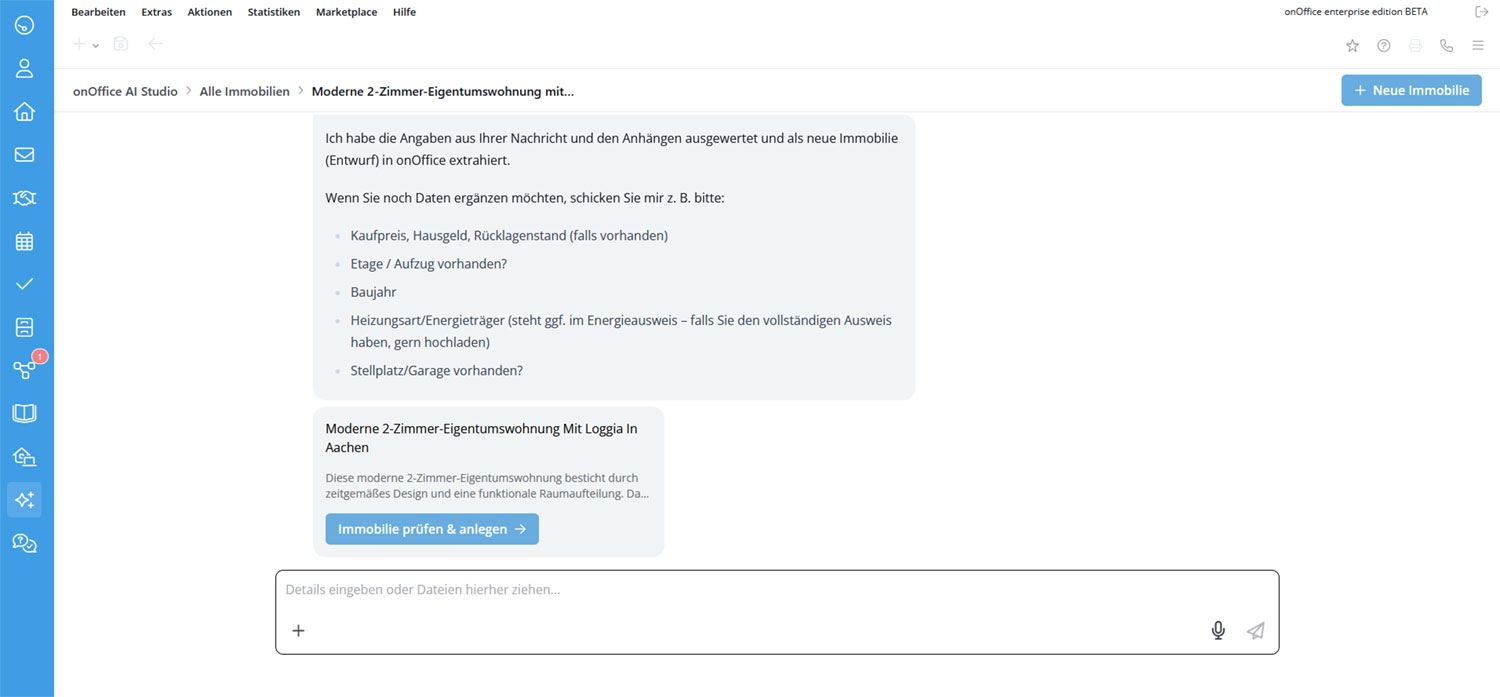
The AI also inserts suitable texts directly, e.g. for titles, property and location descriptions as well as for uploaded documents and images. Have you entered all the information you have about the property? Then click on “Create property”. As usual, you can of course add any further information later.

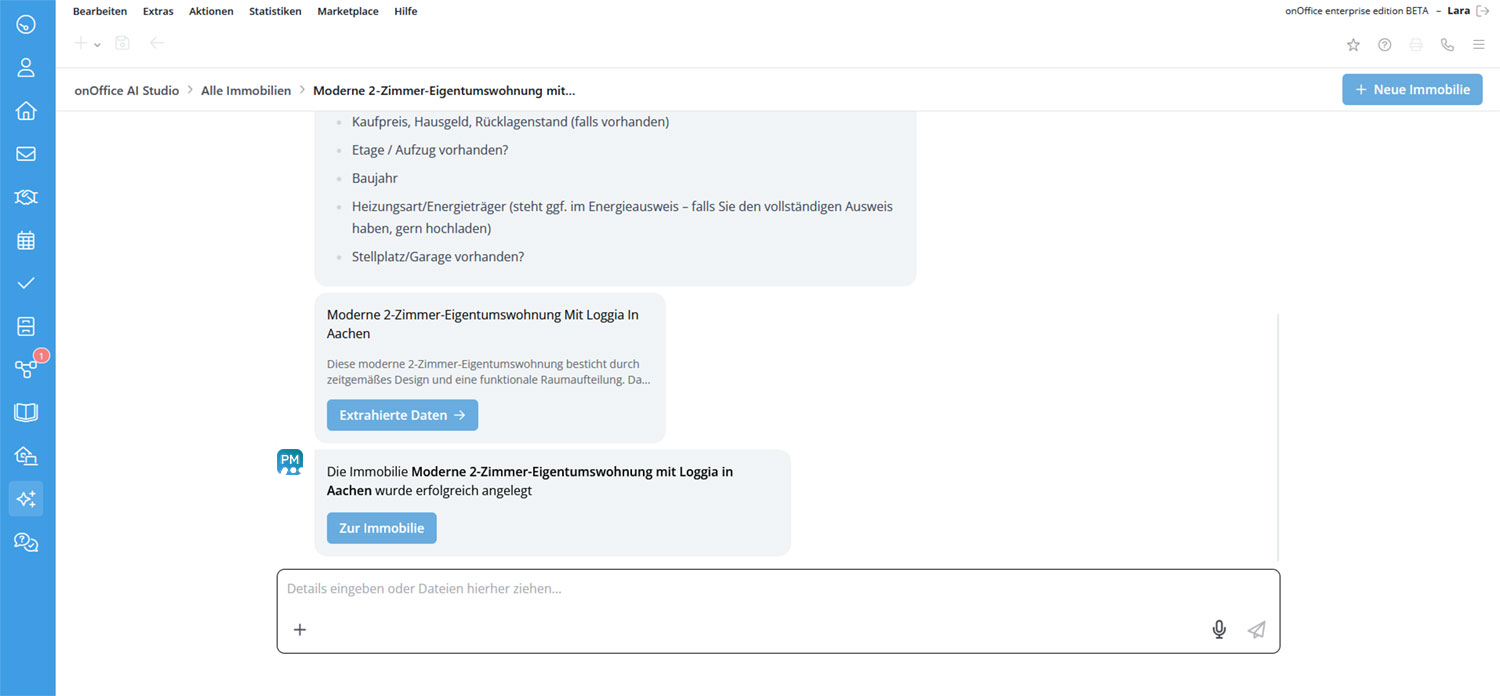
And that’s it! You will receive a message in the chat that the data record has been successfully created. Click on the “To property” button to access your newly created property data record with just one click.
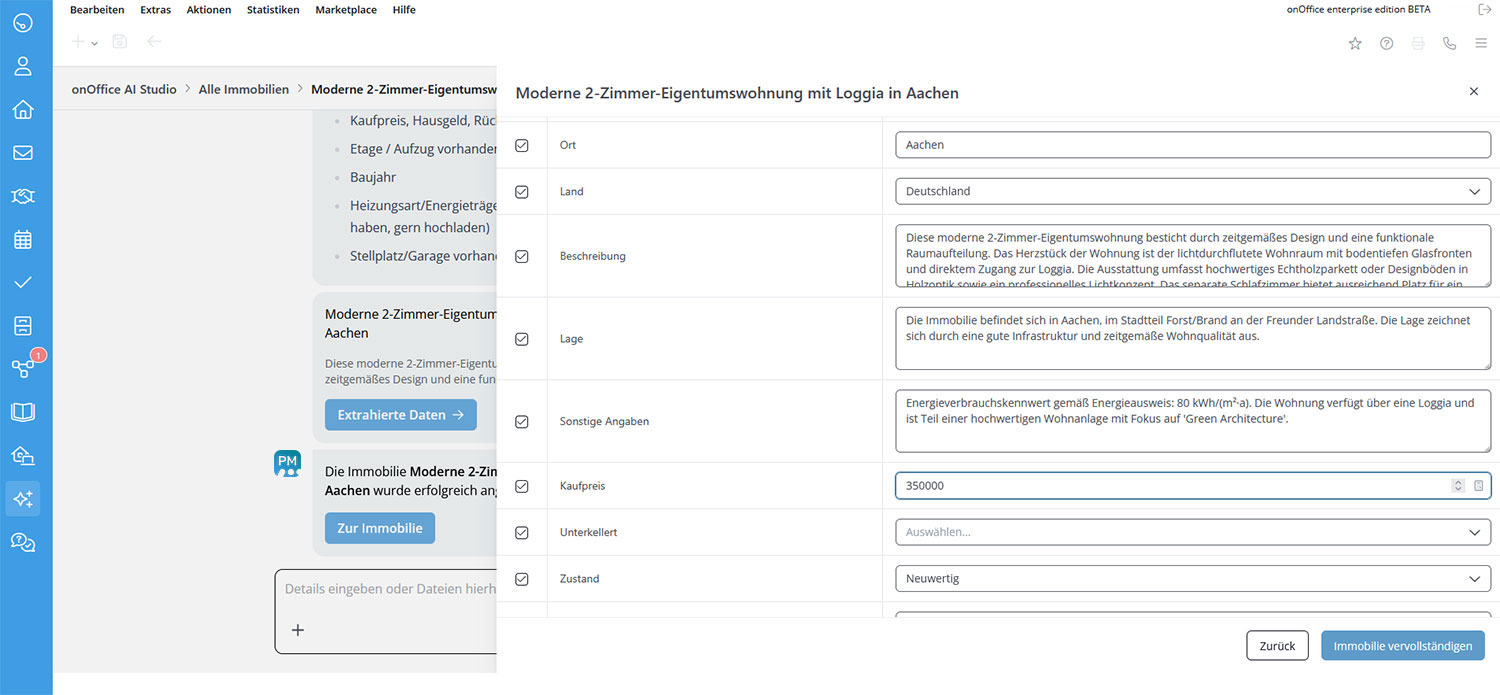
Can you think of anything else at this moment? If you click on “Extracted data”, you call up the input screen again. Complete the other details there. The AI then updates the information accordingly in the data record that has already been created.
Service Property Manager: Complete property
For smooth workflows, you will find this AI agent directly in your property records. Click on the Marketplace icon in the action bar and select onOffice AI Studio >> Complete property.

As with the “Create property” feature, a chat opens where you can enter all the information you want to add. The AI extracts relevant data here too. Check these in the input mask by clicking on “Check data”.

Input fields that have already been filled in are grayed out and are not overwritten. This ensures maximum security and full control over your data. Fill in any additional information and click on “Save”.
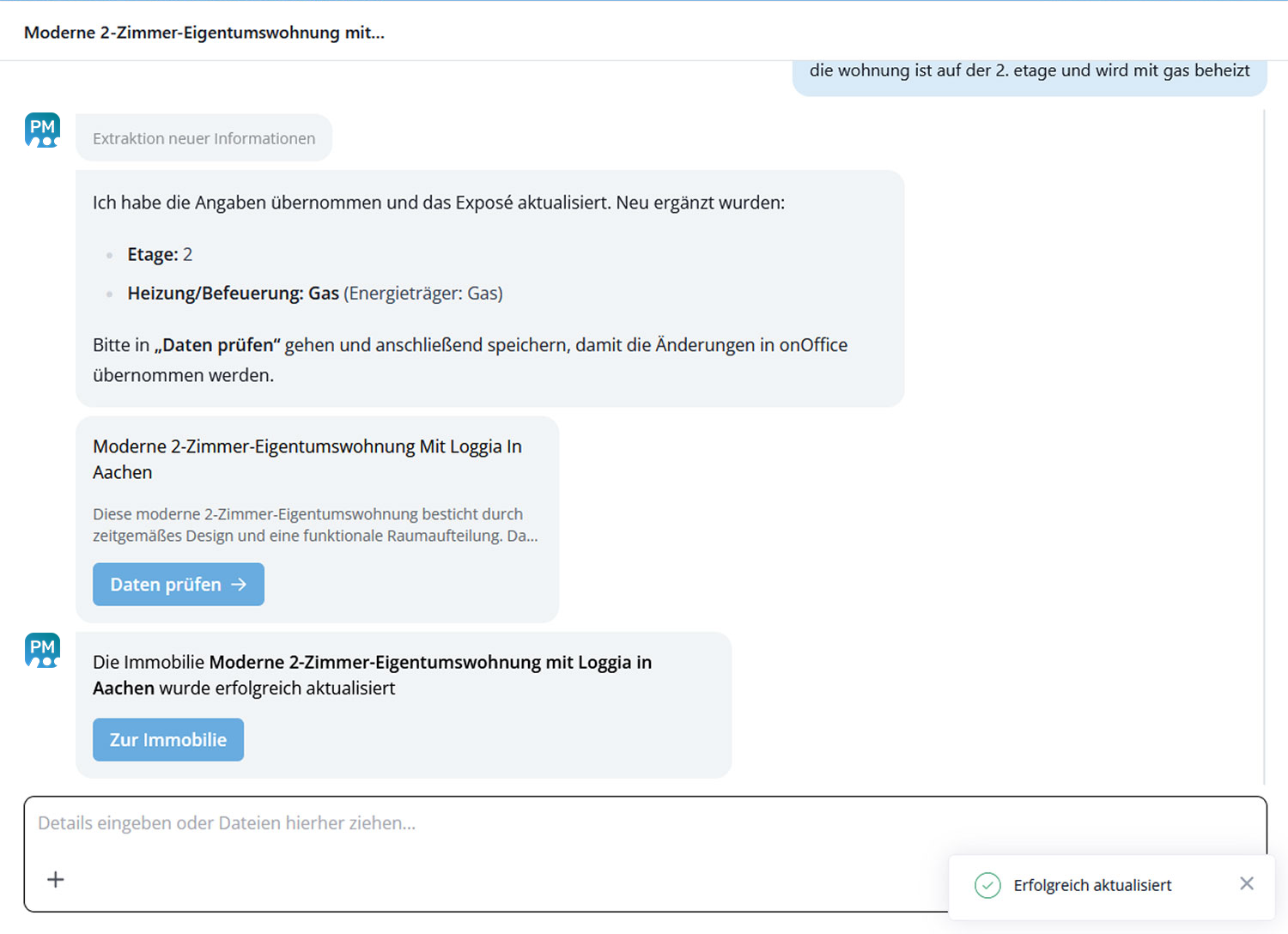
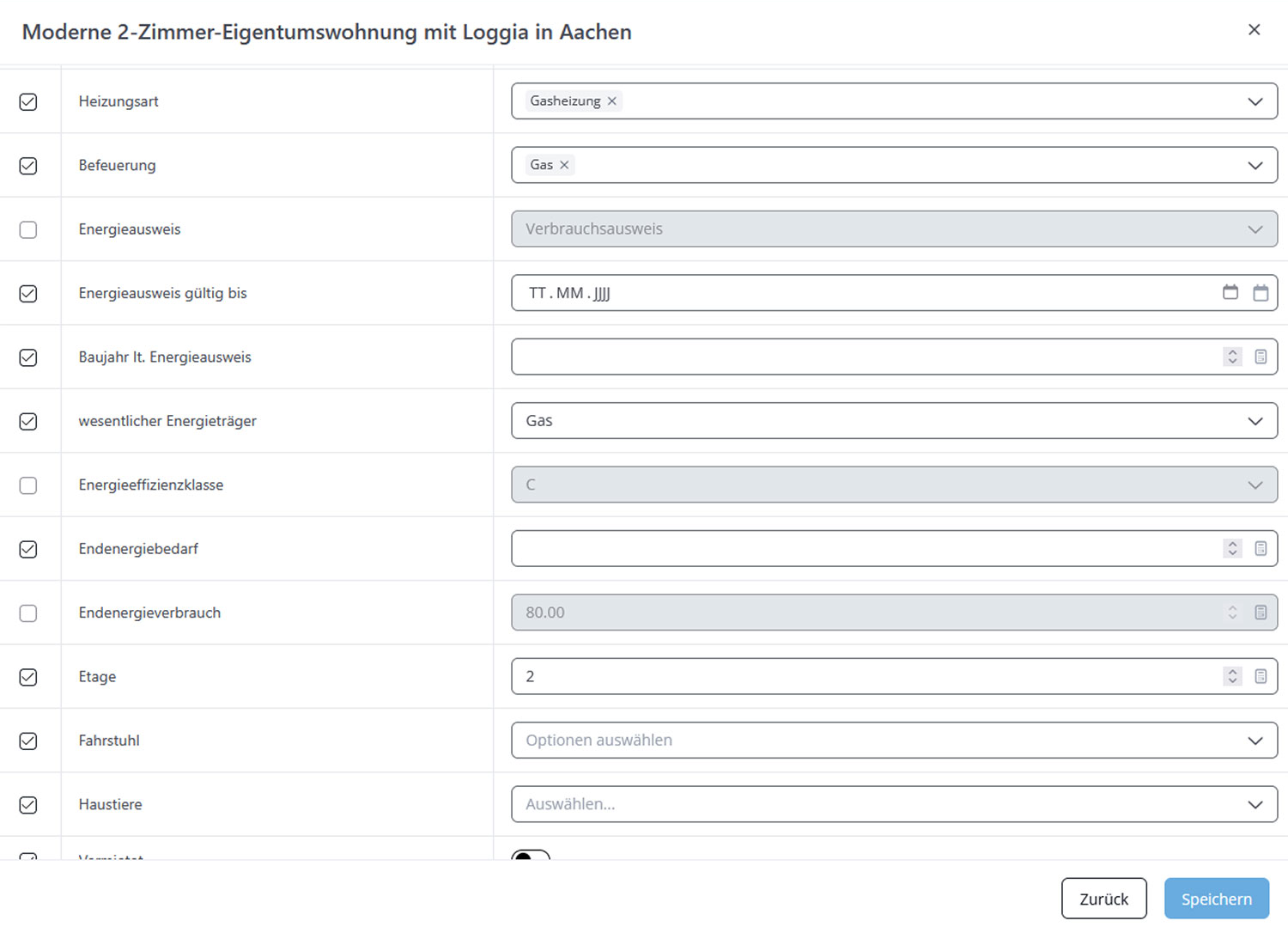 That’s it already! You will receive a notification in the chat that the data record has been successfully updated.
Service Image Optimizer
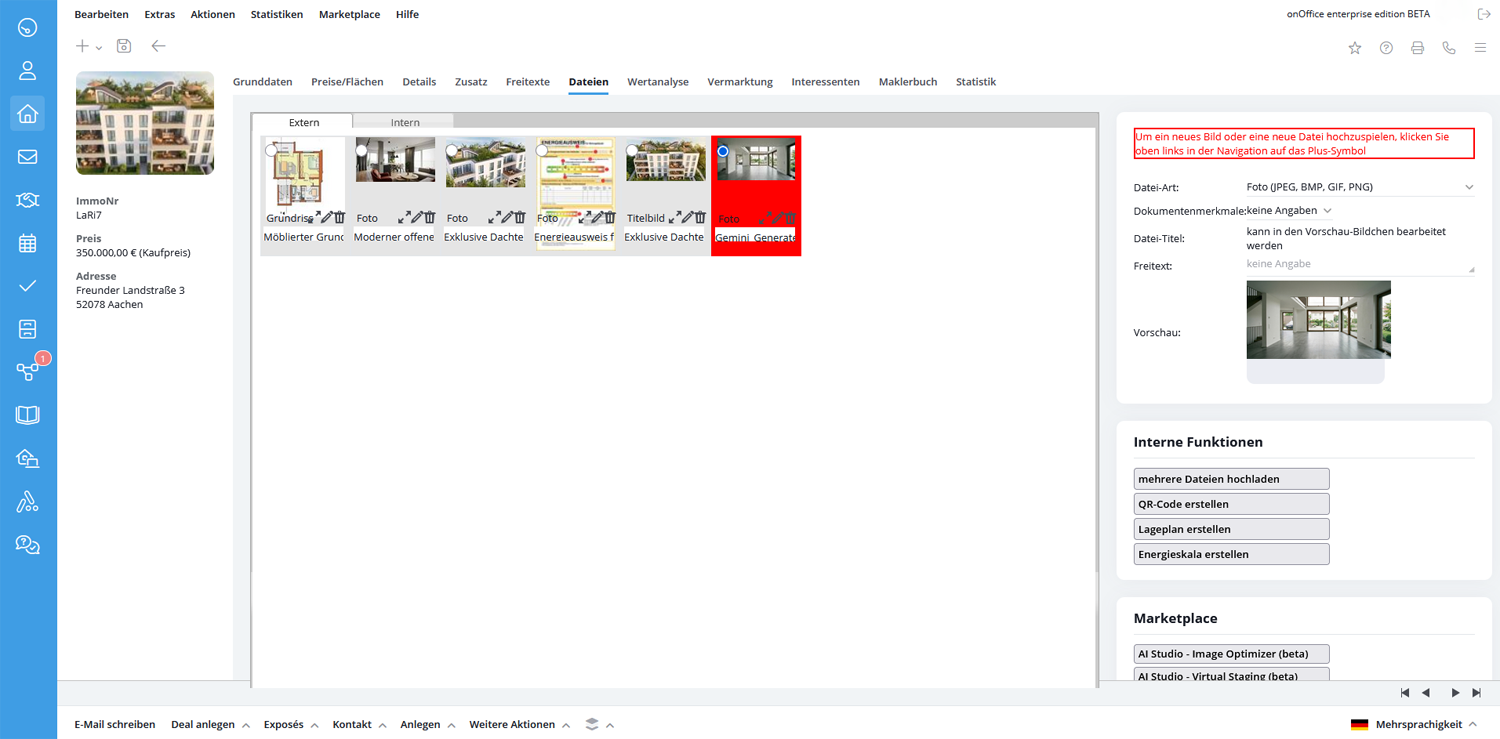
You can also access our Image Optimizer via your respective property records. Go to the “Files” tab and select the image you want to optimize by double-clicking on it. It is highlighted with a red frame.
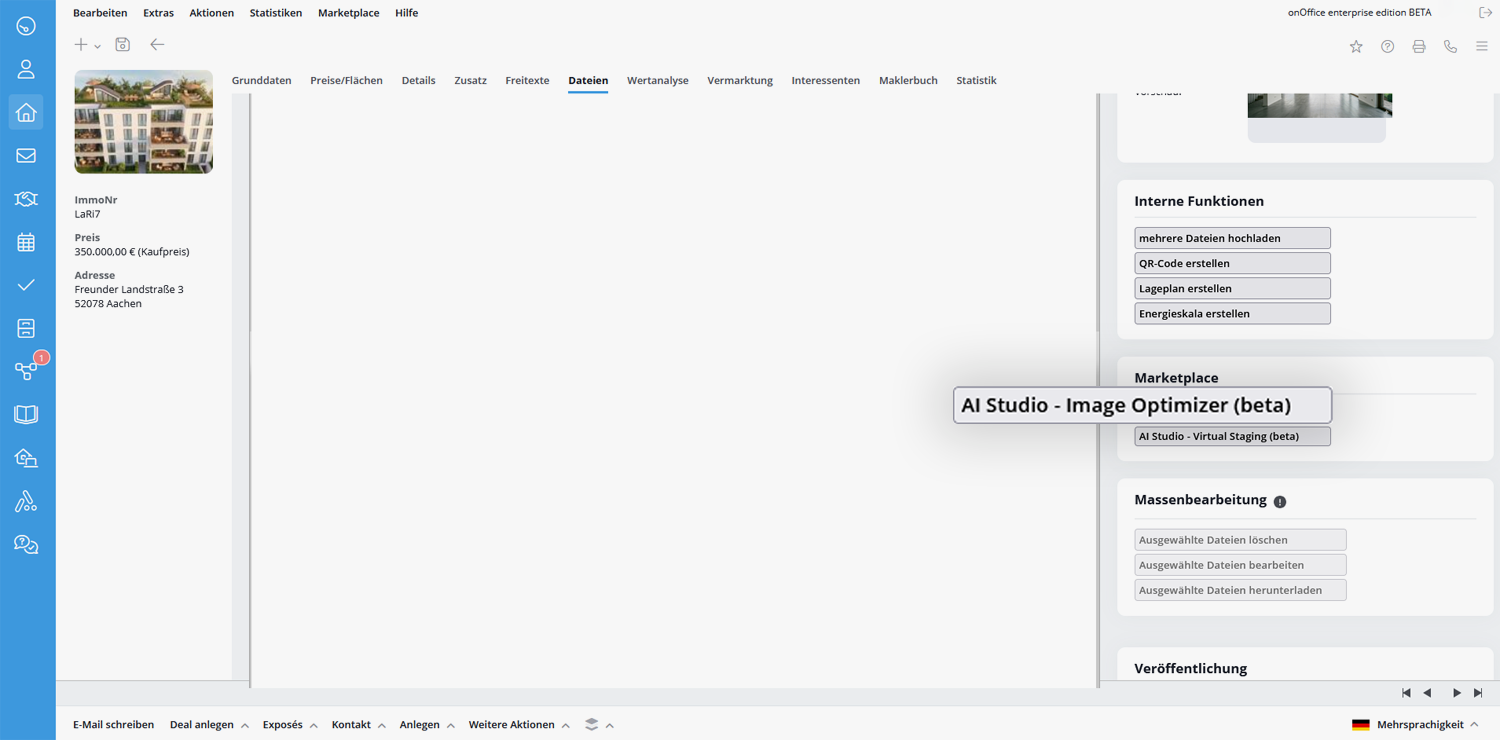
Scroll to “Marketplace” in the right-hand bar and select “AI Studio – Image Optimizer”.
A lightbox will open in which you can select your desired changes. Use the standard suggestions for interior and exterior views or enter your own instructions. It is possible to select up to three options at once. By clicking on “Generate new image”, the AI creates an initial suggestion.
Please note: Each adjustment means a new chargeable generation.

Use the slider to compare the original and the generated variant.

Should anything else be adjusted? Enter the instruction in the text field and click on “Customize image”. Or create a completely new version using the plus symbol at the top right.
Please note: Each of these adjustments also counts as a new chargeable generation.

When you are happy with one of the results, select it and click on “Save image”. The system saves the selected image as a new file in the data record. The phrase “AI-generated” is added to the file name. It does not overwrite the existing photo so that no data is lost and you always have full control.
Notice: If you have generated several images, you will no longer be able to access the other variants.

Service Virtual Staging
Like the Image Optimizer, you can also access Virtual Staging via the “Files” tab of your property data set. Select the desired image by double-clicking on it. It is highlighted with a red frame.
Scroll to “Marketplace” in the right-hand bar and select “AI Studio – Virtual Staging”.
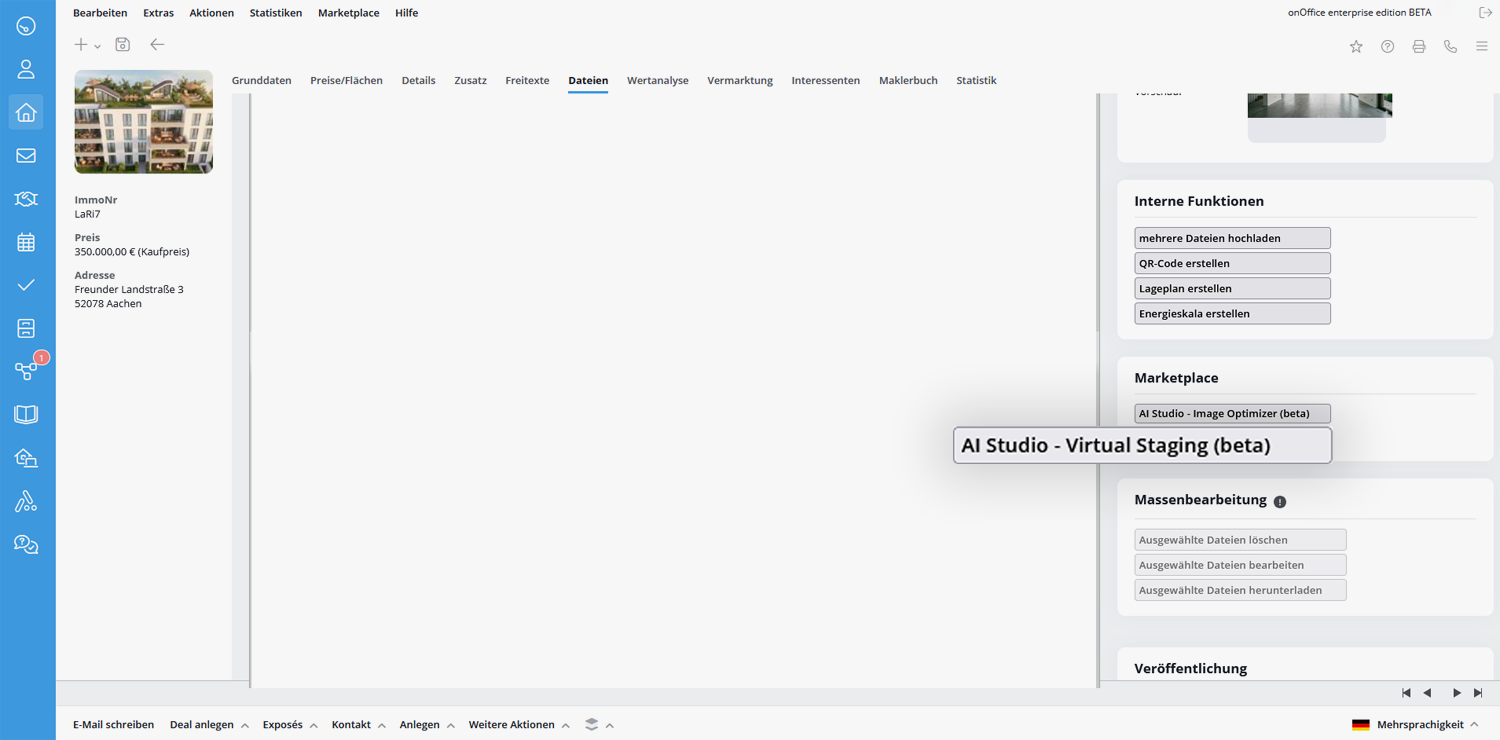
A lightbox opens. This is where you make the settings for virtual staging. The system usually recognizes the “Room usage” option automatically. However, please check that this is correct, as the selection changes the preview of the furnishing styles.

Then select the desired furnishing style, e.g. modern, natural or rustic, and click on “Generate new image”.
Please note: Each generation is subject to a charge.


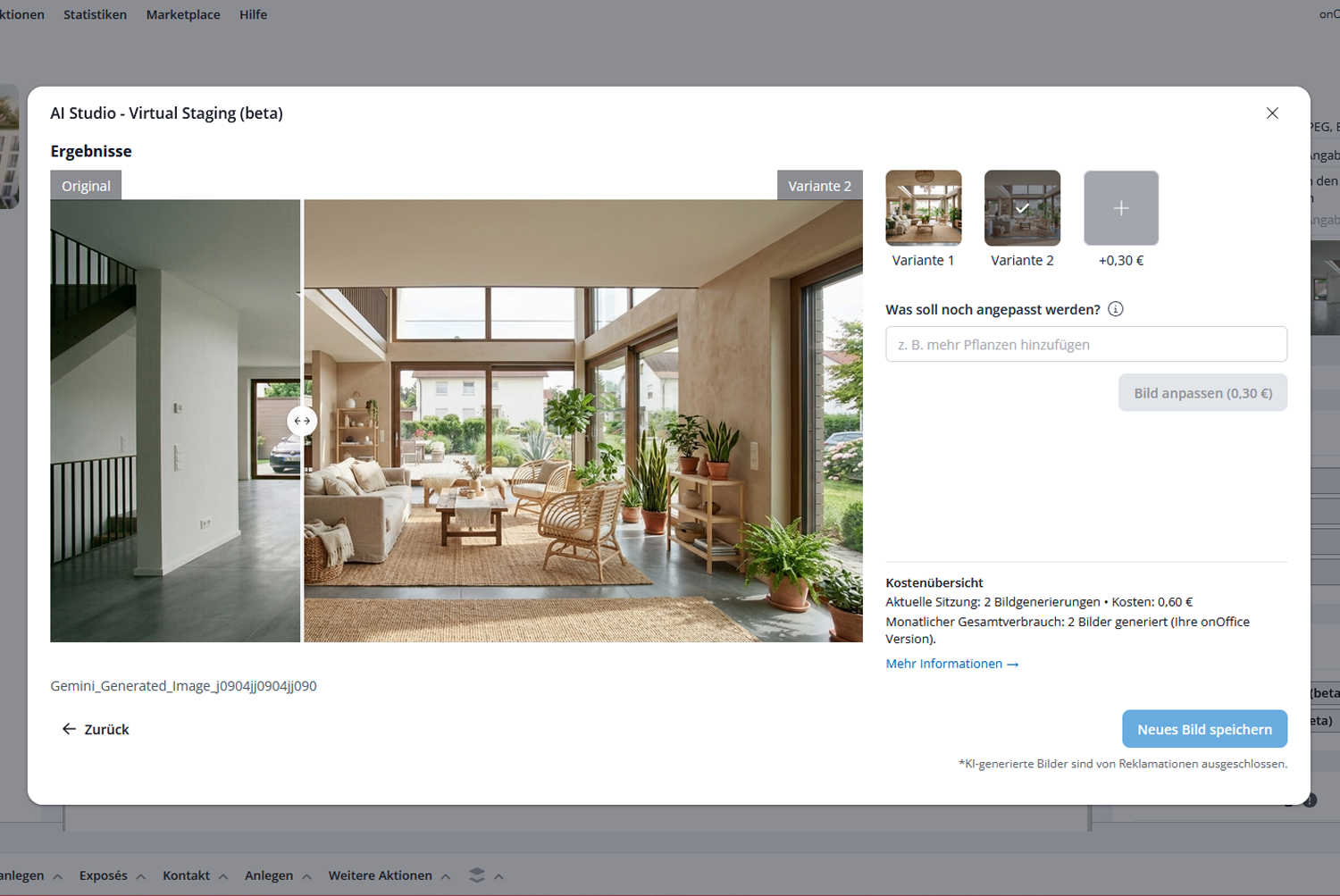
After a short moment you will receive the first suggestion. Use the slider to compare the original and the generated variant.

Are you still not satisfied? You can then create a new variant using the plus symbol in the top right-hand corner or customize your first variant using a specific instruction in the text field.
Please note: Each of these adjustments also counts as a new chargeable generation.
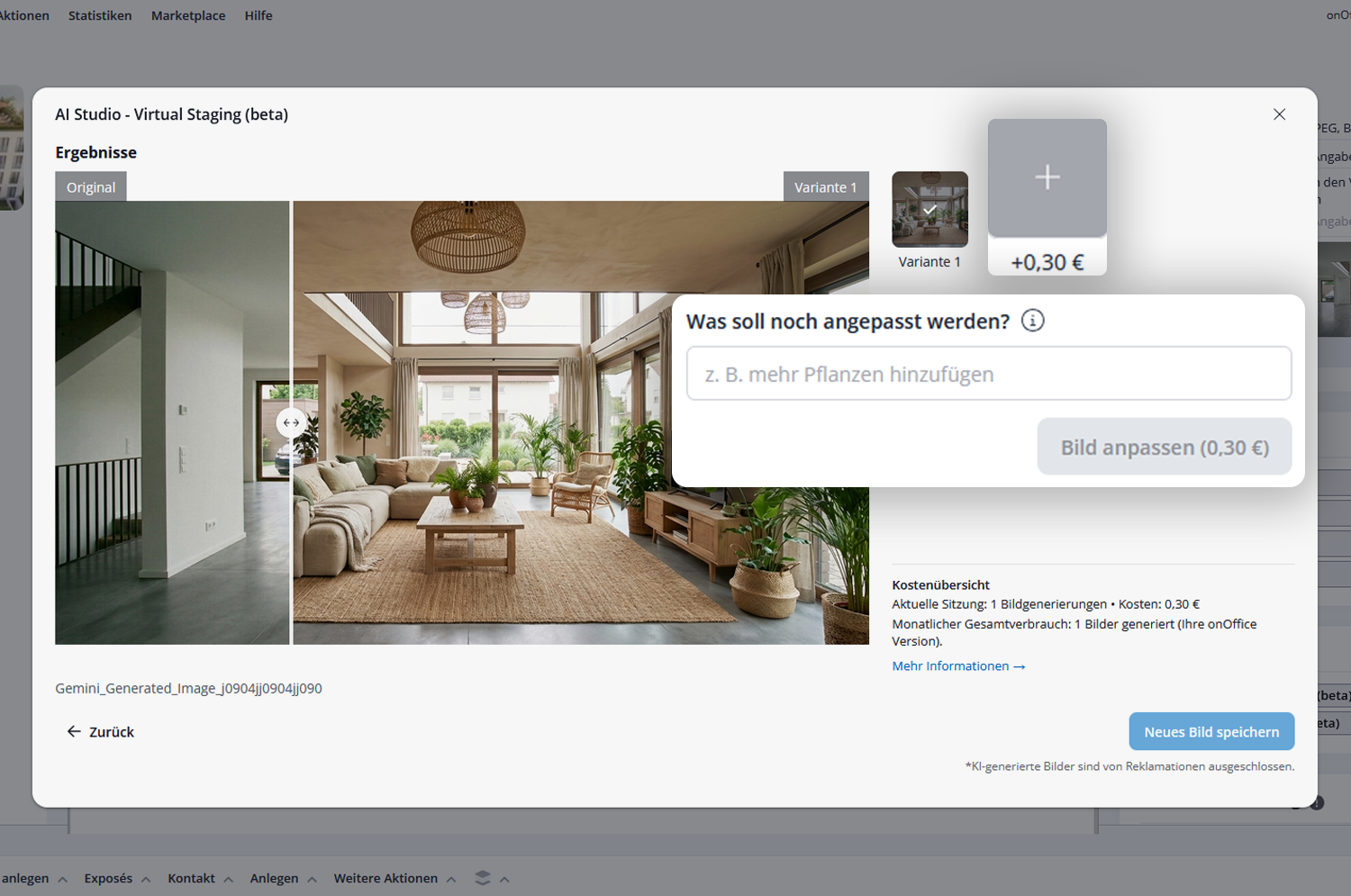
If the result meets your requirements, simply click on “Save new image”. The system saves the selected image as a new file in the data record. The phrase “AI-generated” is added to the file name. It does not overwrite the existing photo so that no data is lost and you always have full control.
Notice: If you have created several variants, you will no longer be able to access the unselected images.
Service onOffice AI Assistant
After activation, you will find a new icon on the left-hand side of the module bar that will take you to the chat with the AI Assistant. Alternatively, you can access the chat via the menu bar under Marketplace >> onOffice AI Assistant >> onOffice AI Assistant .
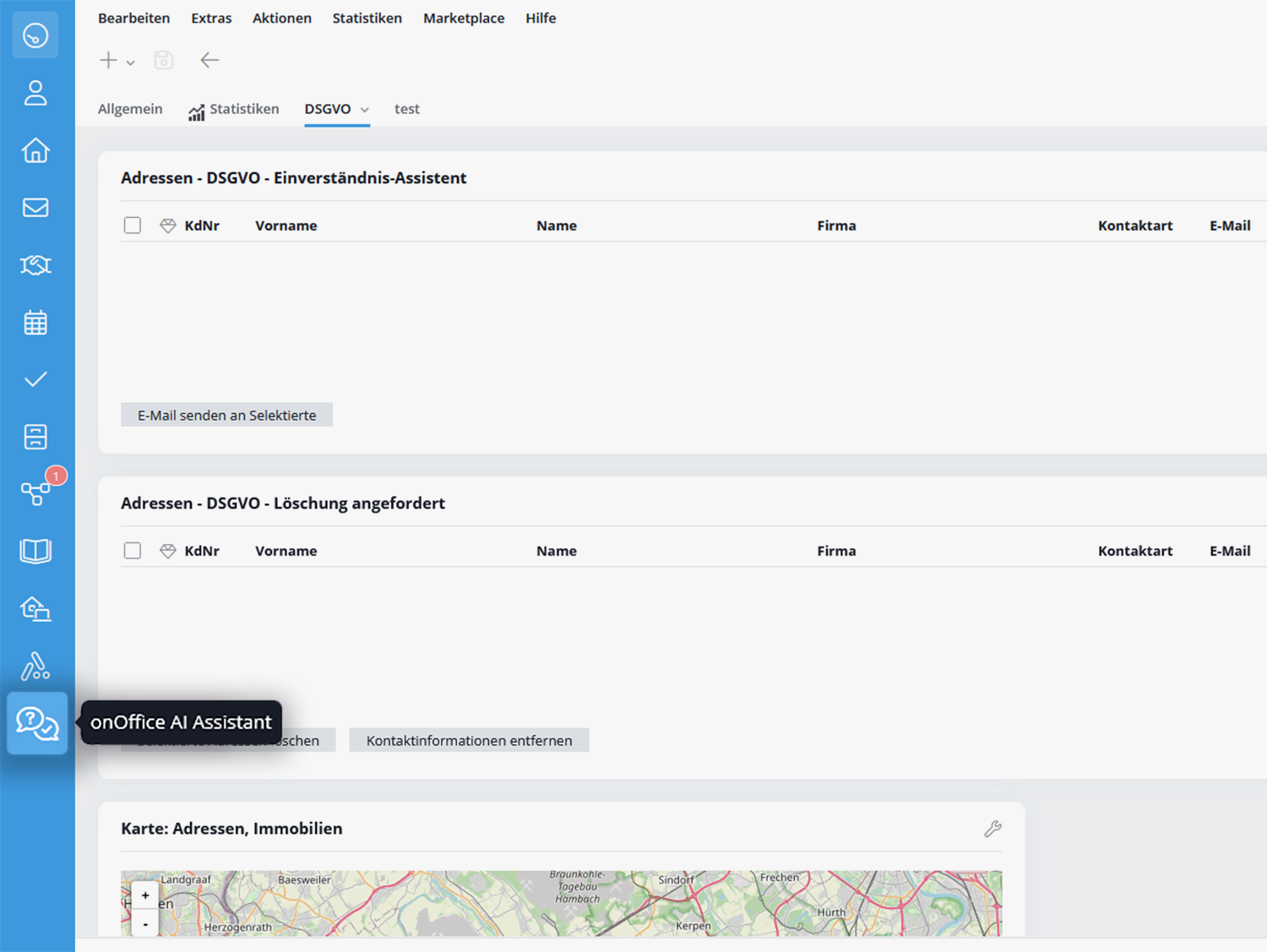
Using the onOffice AI Assistant is simple: Simply ask your question in the chat and you will receive suitable solutions within seconds. The corresponding entries to our online help and training videos are linked and can be opened with just one click if you require detailed information.

Mouse over the info icon next to the link text to get a short preview or explanation of the page that opens.
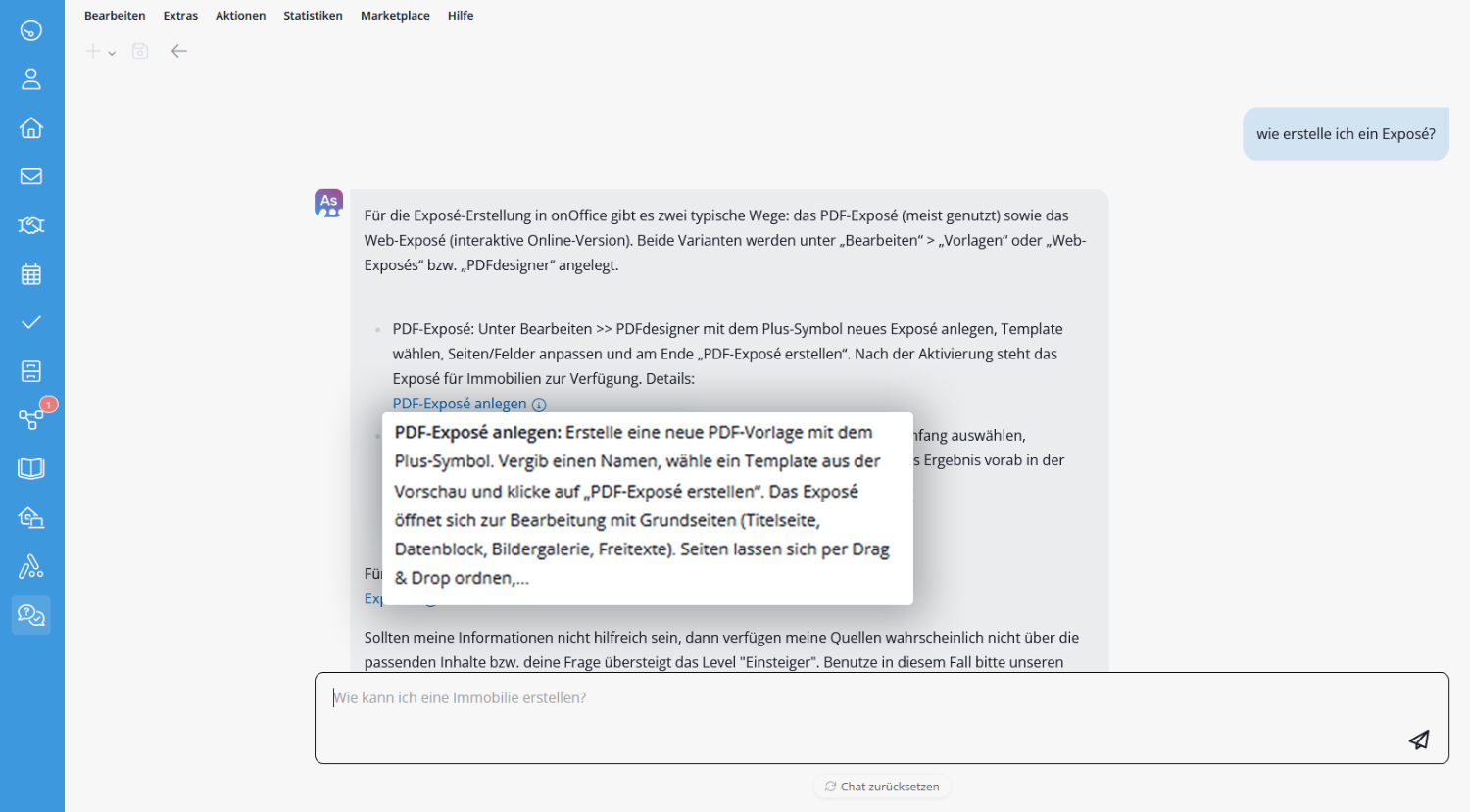
If you have a more complicated issue that the AI Assistant cannot help you with, or if you would like to report a fault, please contact our support team:
- Tel: +49 (0) 241 44686 122
- Mail: support@onOffice.com